
 English


2025/04/08Views(11960)Reviews(0)
I. Target Audience
Operations
II. Feature Introduction
Amazon Advertising keywords are generally divided into two types: keyword targeting and product targeting. By analyzing their relevance, ads are matched with relevant buyer searches, thereby facilitating transactions and generating sales.
However, ad targeting is not 100% accurate. Depending on your product and the targeted keywords, irrelevant matches may occur. For example, if you sell women's shoes, your ads might be matched with searches for men's shoes. In such cases, you need to use Amazon's negative targeting feature to exclude irrelevant keywords for your ad campaigns or ad groups.
When managing numerous ad campaigns and ad groups, negative keyword management can become fragmented. To streamline negative keyword management for users, we have launched the [Targeting - Negative] feature. This feature consolidates and displays all negative keywords across your store and supports bulk adding negative targets for specific ad campaigns or ad groups.
III. Use Cases
- Unified bulk management of negative ad targeting
IV. Operation Guide
1. Viewing Negative Targeting
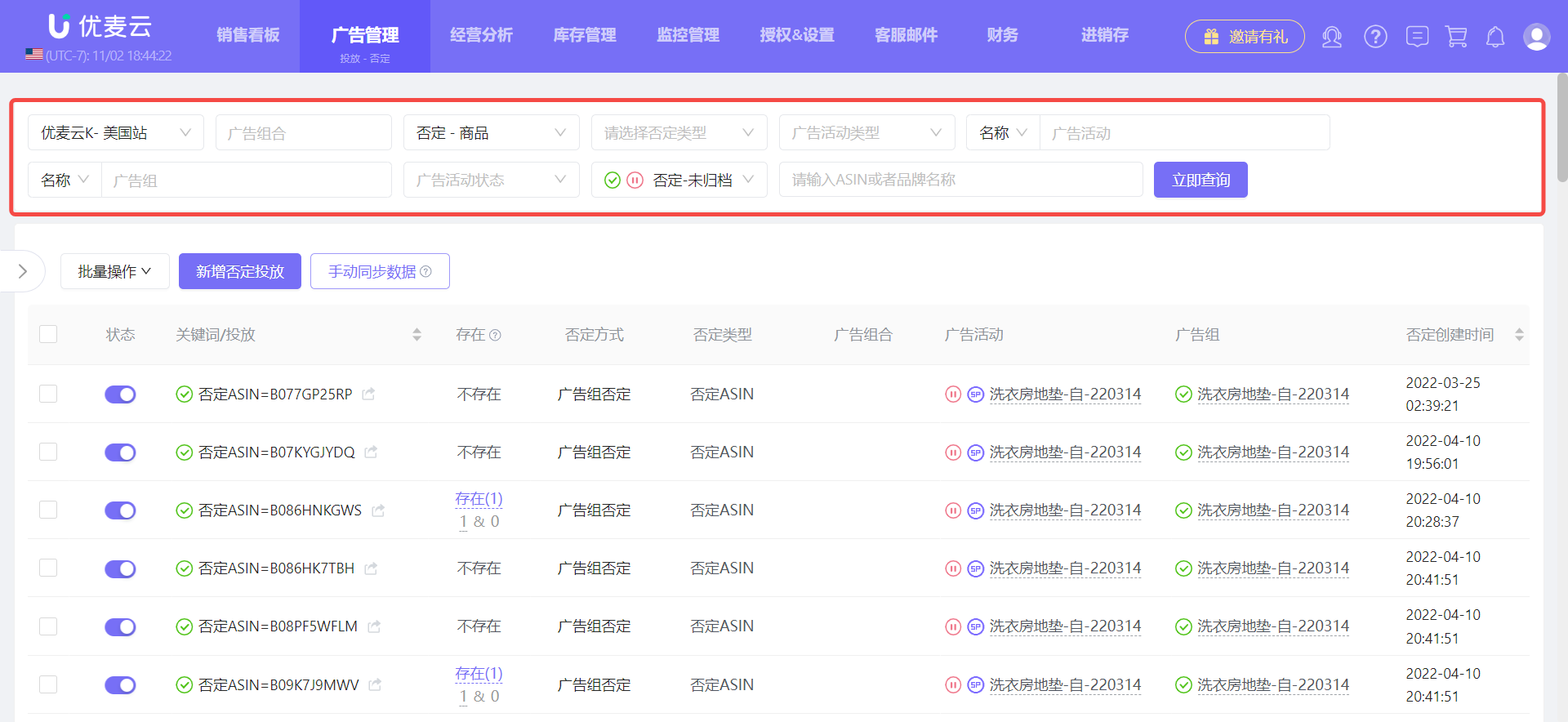
The Targeting - Negative feature consolidates all negative targeting within your store. You can use the filter bar at the top to view negative targeting for specific ad campaigns or ad groups.
Ad portfolios, ad campaigns, and ad groups all support multi-selection.
 +
+
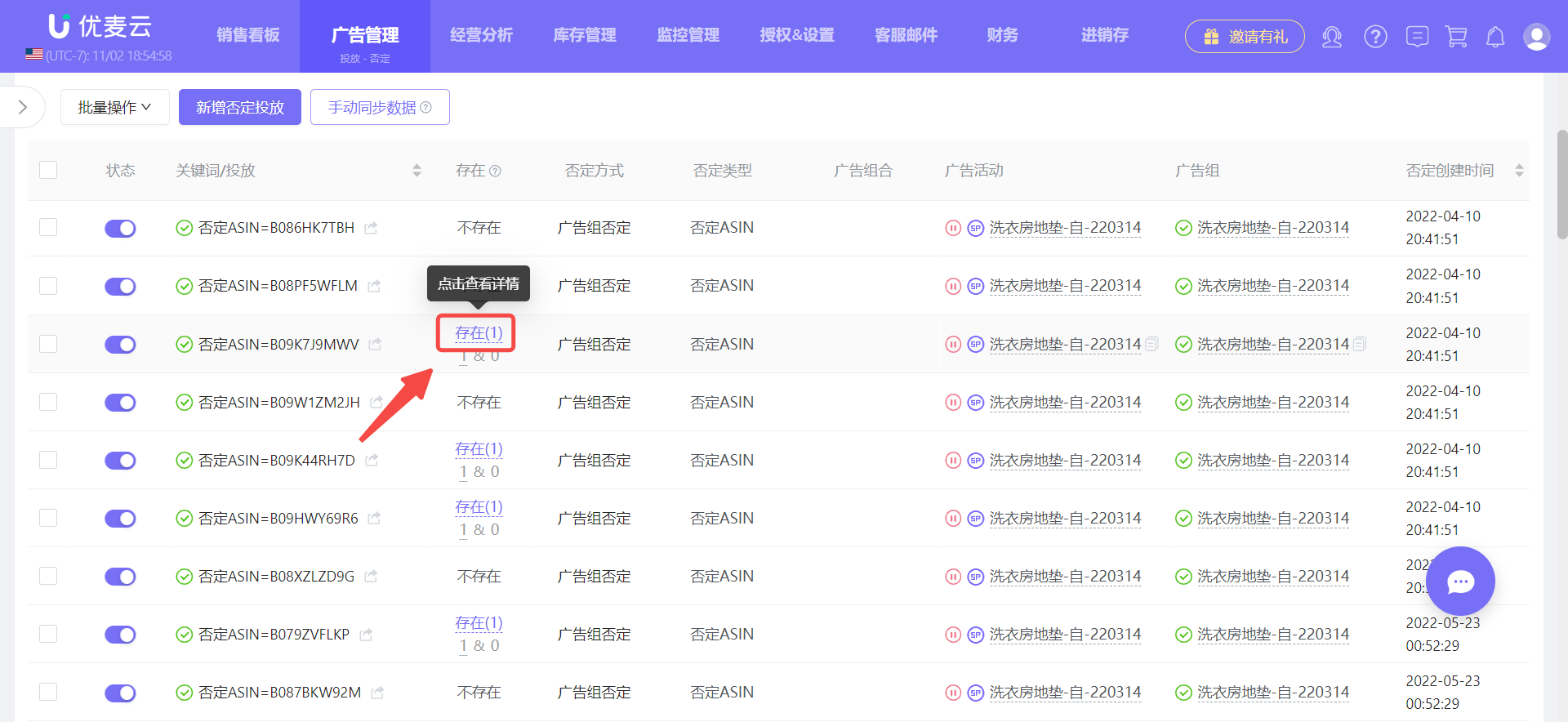
Targeting - Negative also introduces the [Existence] feature. You can use this feature to see which ad campaigns and ad groups a negative target exists in.
Click the [Existence] button to view details. Below the [Existence] button, the left number is the count of Search Terms targeting, and the right number is the count of negative targeting.
 +
+
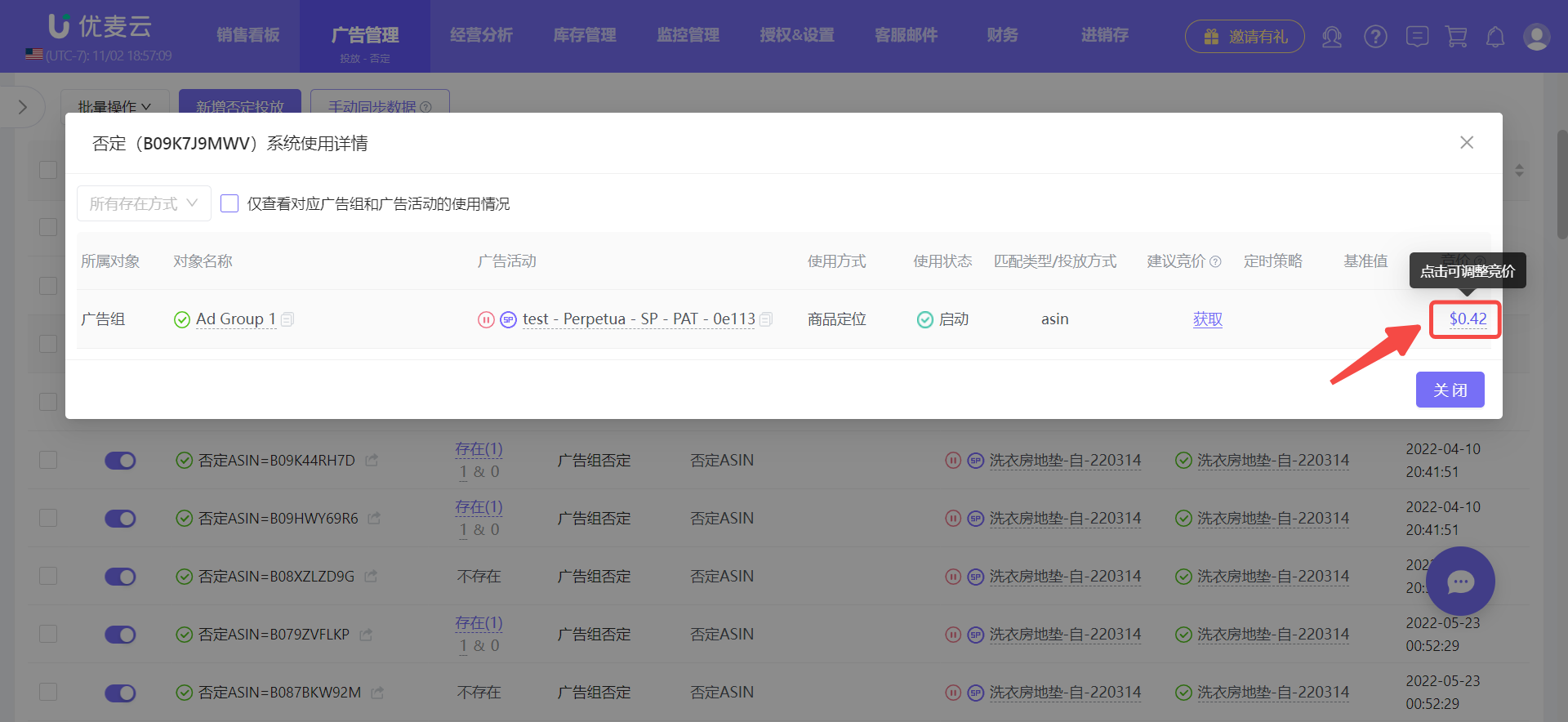
Enter the negative targeting details page.
This page displays all ad campaigns or ad groups where the negative target exists. You can also view their corresponding targeting and directly adjust their bids.
 +
+
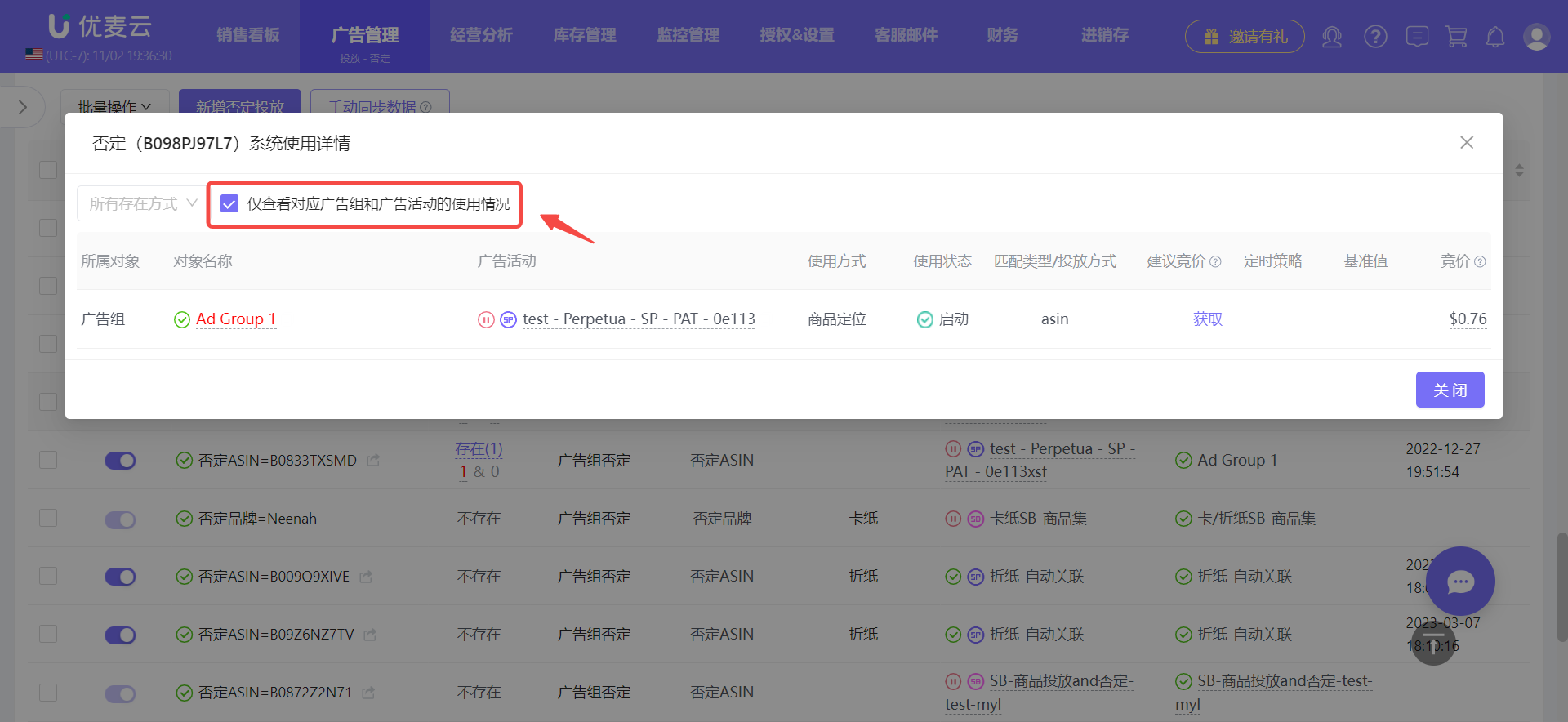
In addition to viewing all ad groups where the negative target exists, you can also filter to view its corresponding ad groups.
Check [View usage only for corresponding ad groups and ad campaigns] to do so.
 +
+
2. Bulk Adding Negative Targeting
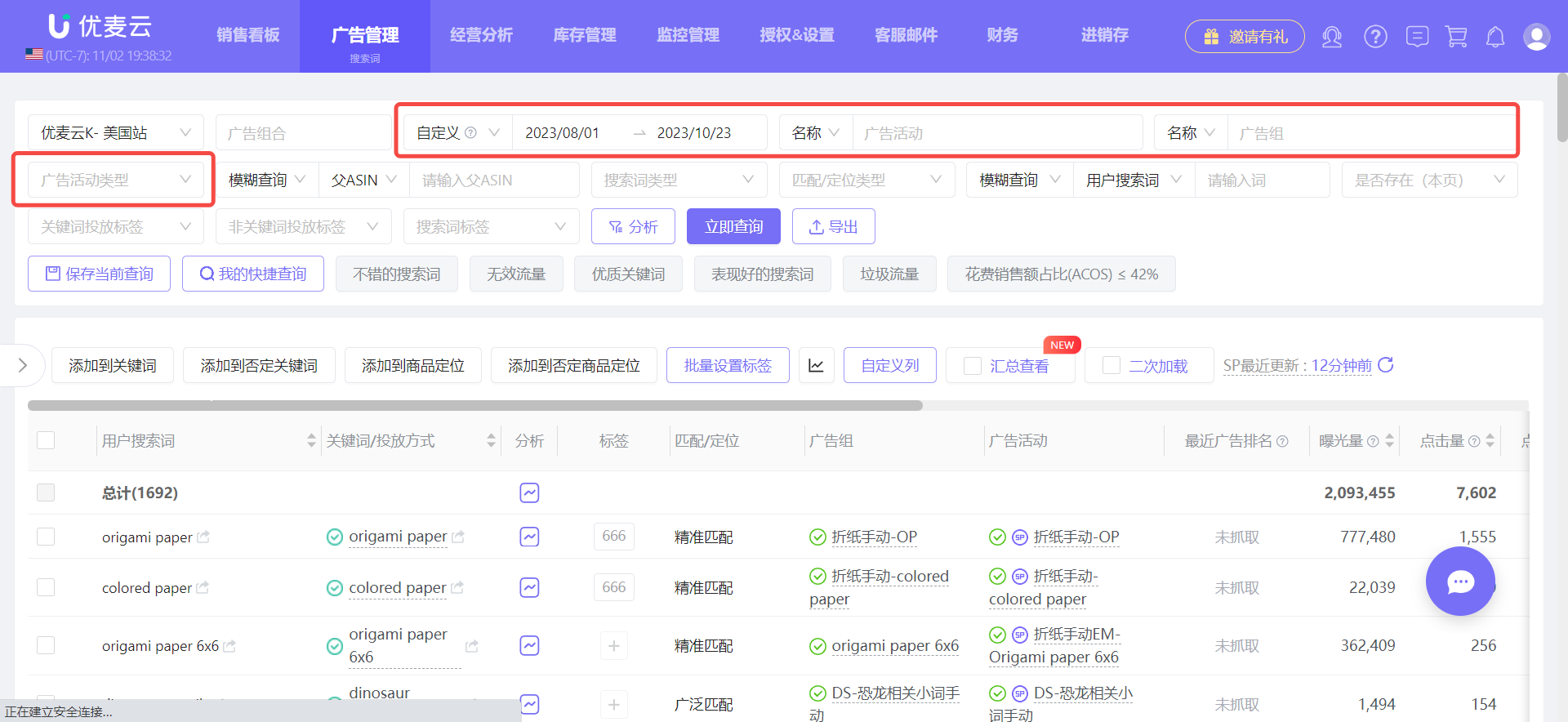
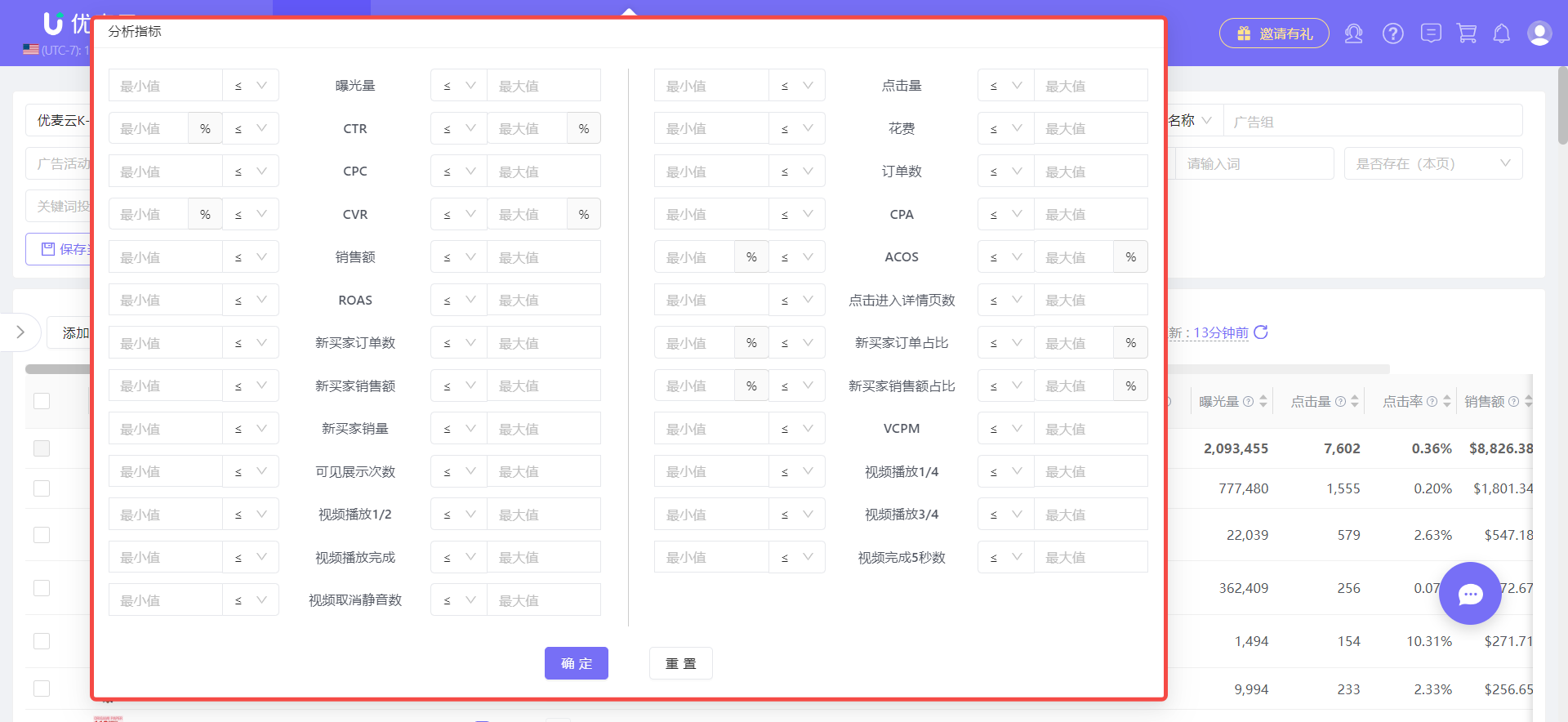
To bulk add negative targets, you first need to identify the keywords or products to negate. Typically, this is done by analyzing the search terms for ad campaigns or ad groups and identifying high-spend, no-conversion, low-click-through, no-conversion, or irrelevant terms to add as negatives.
First, go to the [Search Terms] feature, select the ad data time range, and then select the corresponding ad campaign or ad group.
 +
+
(Ad Management -> Search Terms)
Then, use the [Analyze] feature to filter out terms that meet your criteria for negation.
 +
+
(Ad Management -> Search Terms)
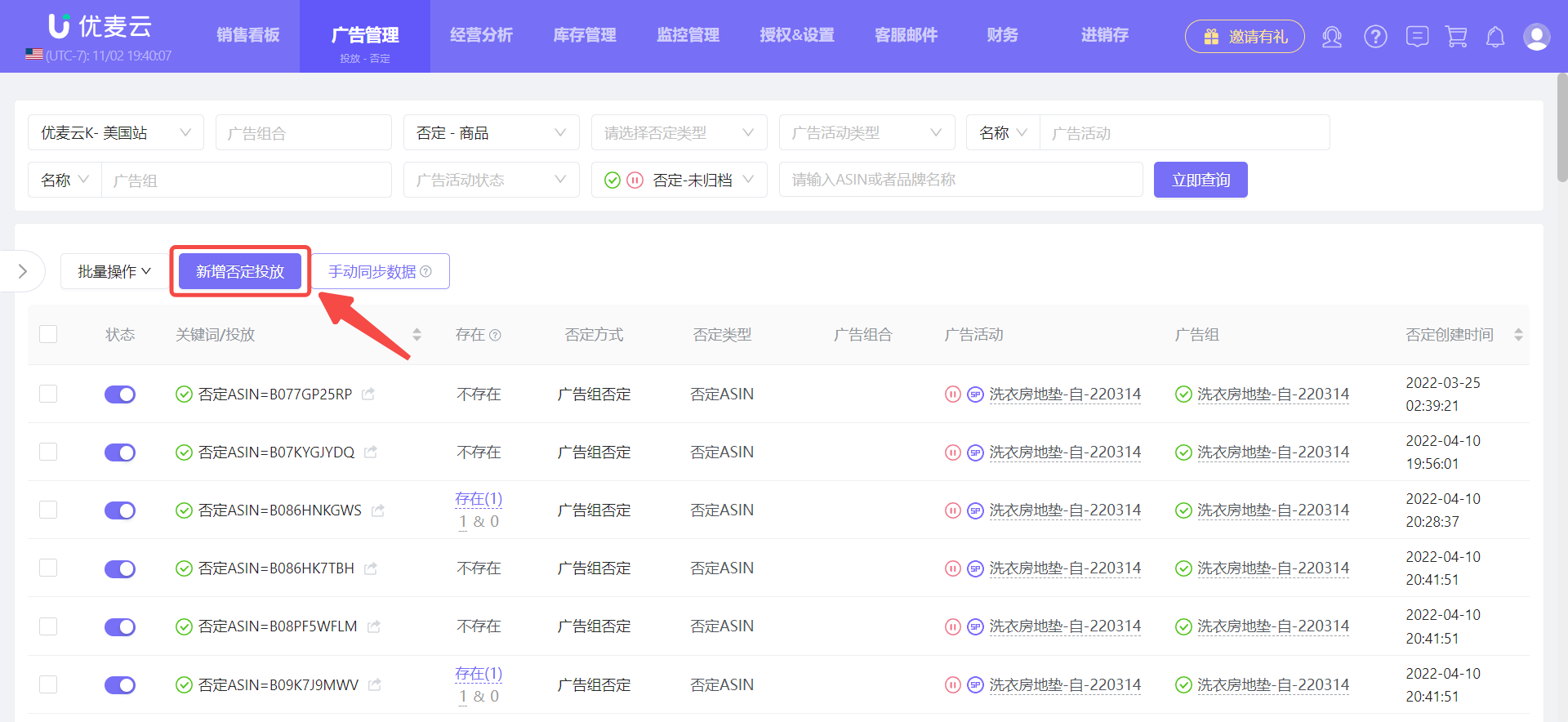
Once identified, return to the [Targeting - Negative] feature.
Click [Add Negative Targeting] to access the page for adding negative targets.
 +
+
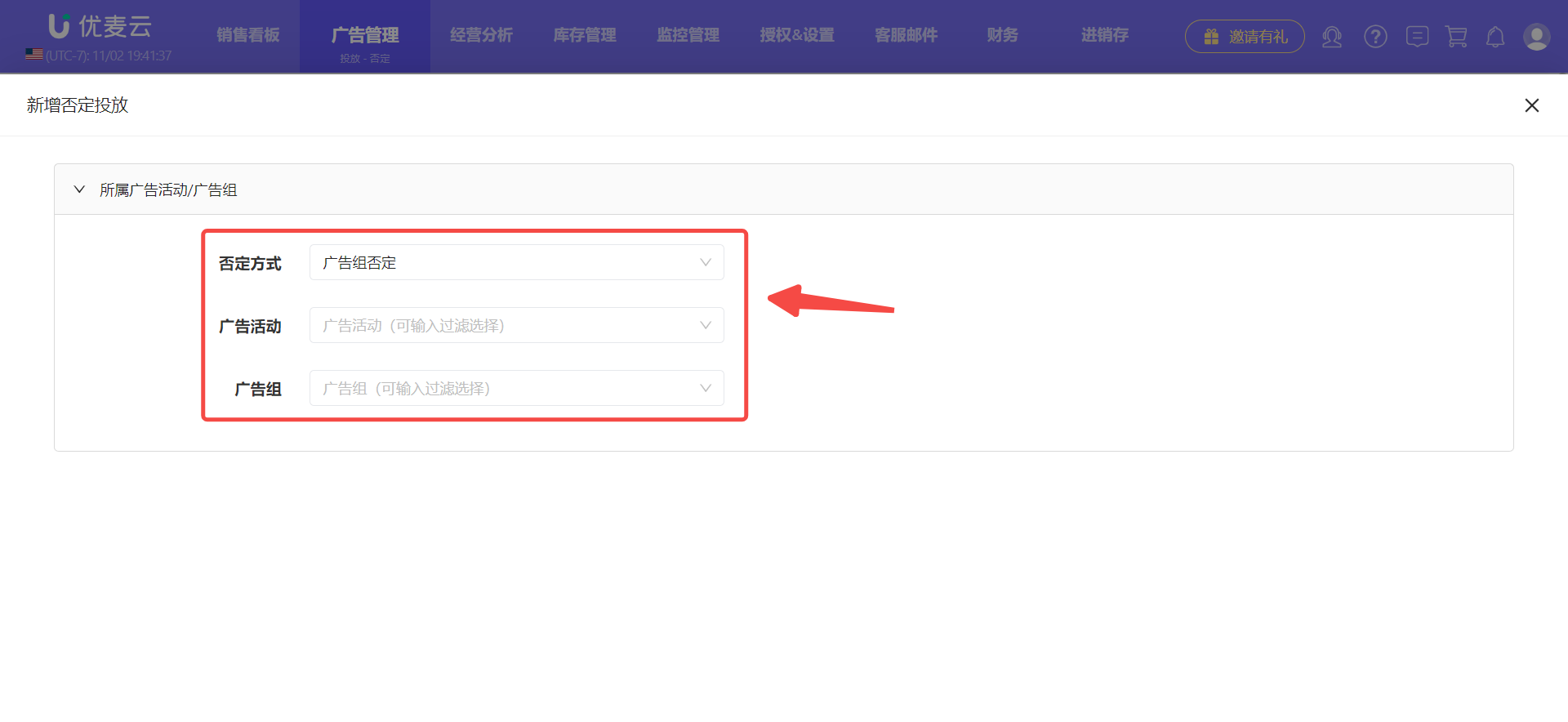
On the "Add Negative Targeting" page,
select the method for adding negative targeting, and the ad campaign or ad group.
 +
+
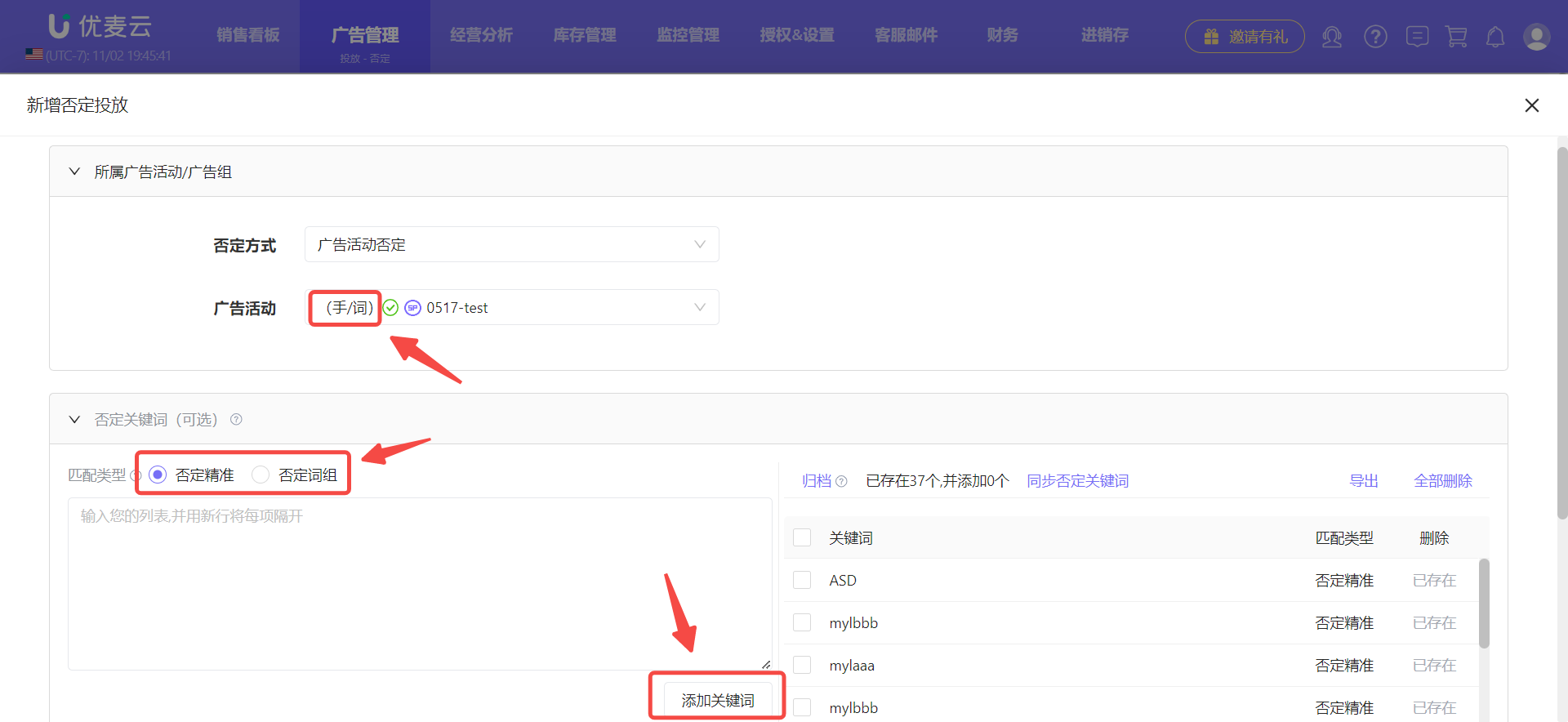
Based on the targeting method of the selected ad campaign or ad group, such as keyword targeting or product targeting, add negative targets accordingly.
For example,
add negative keywords for ad groups using keyword targeting,
add negative products for ad groups using product targeting,
for auto-targeting campaigns, you can add both negative keywords and negative products.
 +
+
(Example: Adding Negative Keywords)
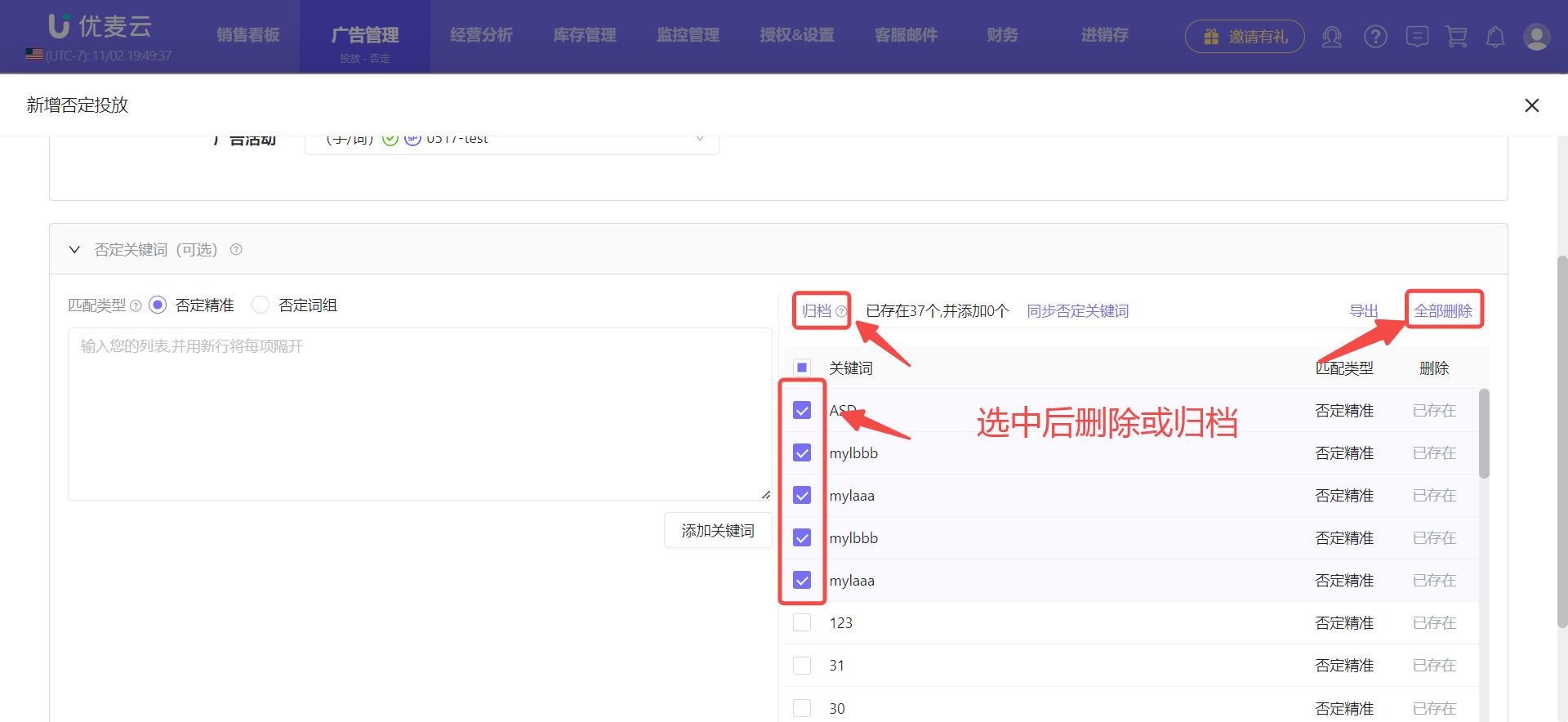
In addition to adding new negatives, you can also directly manage the existing negative list here.
For example:
delete or archive certain keywords;
 +
+
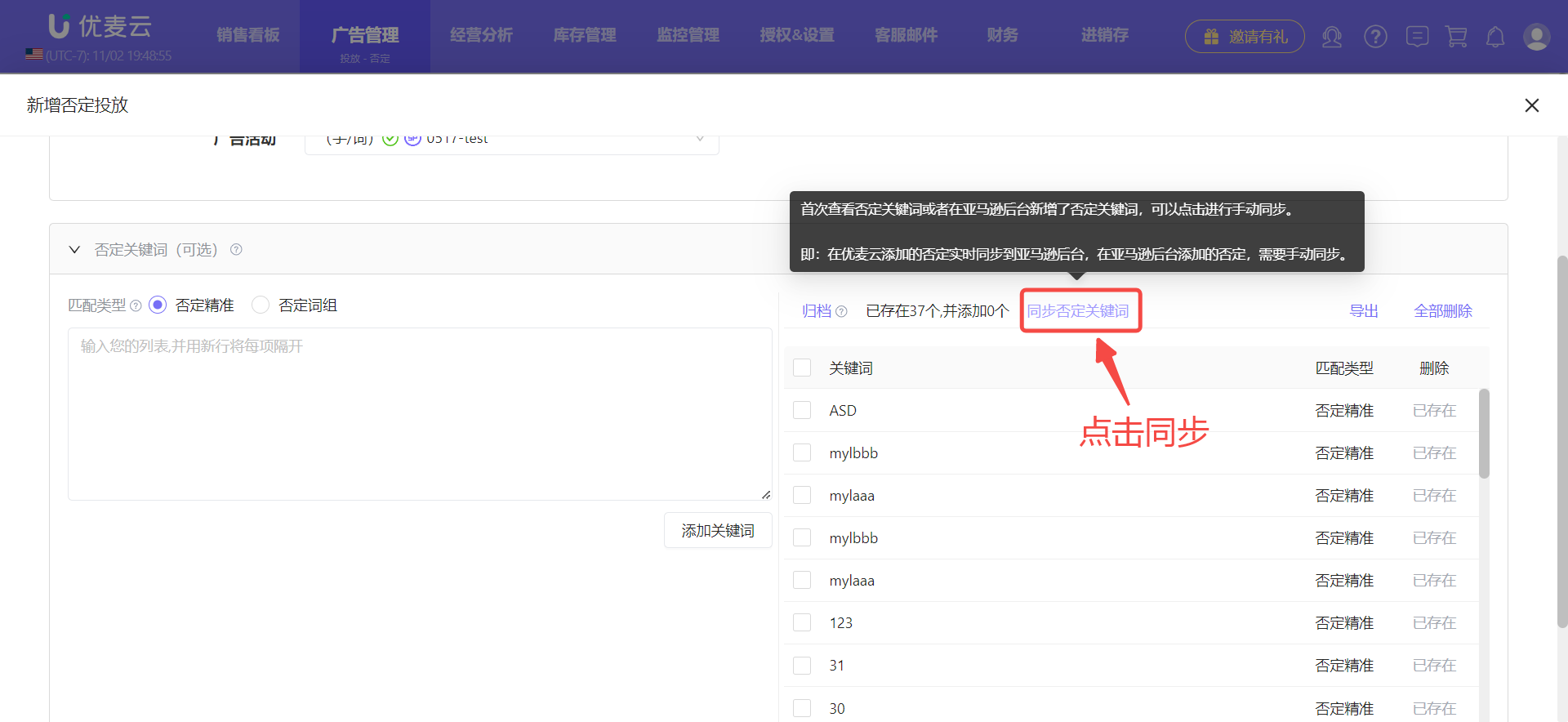
If you added negatives in Seller Central, manually synchronize the status here.
 +
+
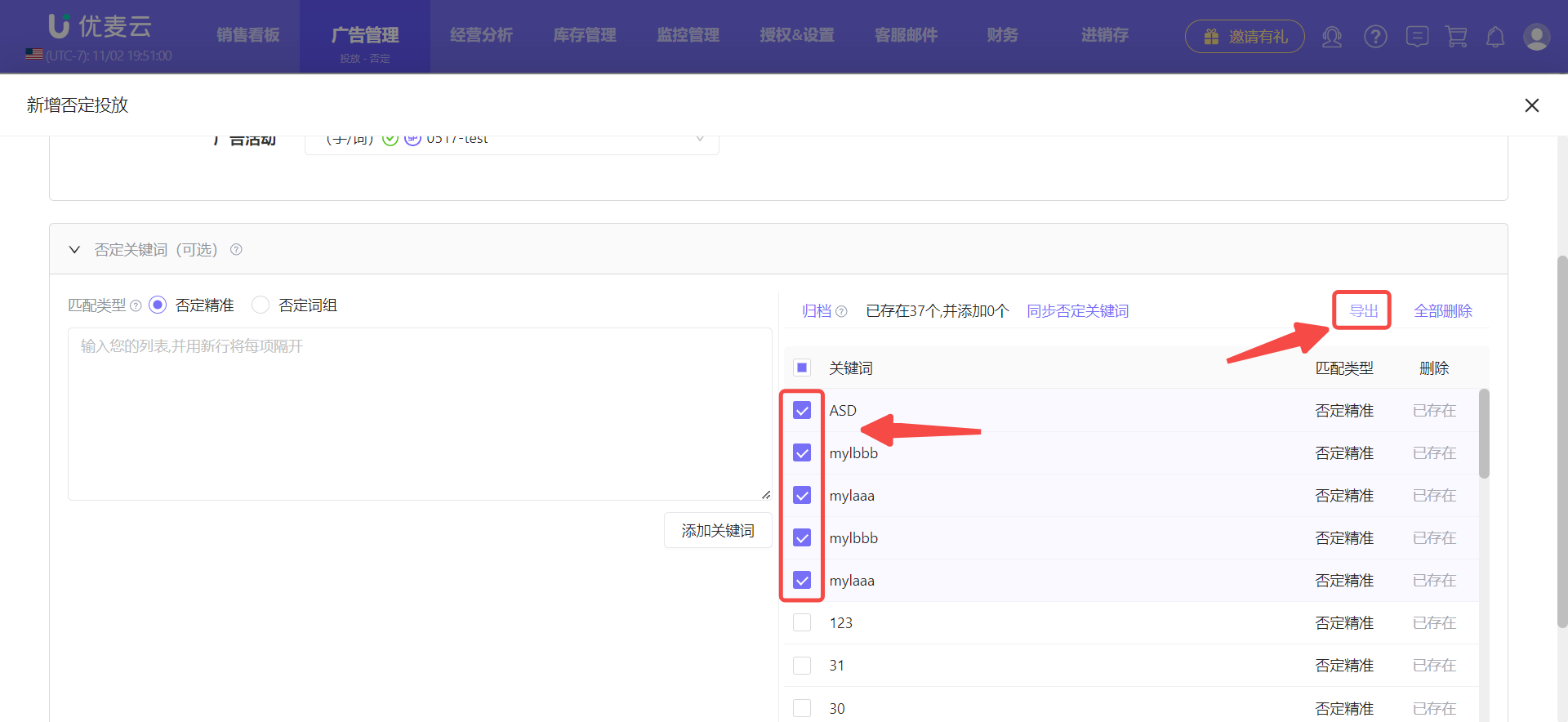
Export negative keywords.
 +
+
