
 English


2025/07/14Views(65965)Reviews(0)
SellerSpace's promoted products feature in the Advertising system synchronizes campaign performance data for all your promoted listings, including Sponsored Products and Sponsored Display campaigns. This helps you track advertising metrics for your promoted products and compare campaign performance.
I. Data Source
Through the official Amazon API, automatically synchronize campaign performance data for all promoted listings in your store.
II. Synchronization Frequency
1. Approximately 2-3 hours after successful authorization, advertising data from the last 60 days will be automatically synchronized, and promoted product data will be updated approximately every 30-60 minutes.
2. After the data synchronization for the last 60 days is completed, advertising data from the last 2 days will be updated approximately every 30-60 minutes, and advertising data from the last 3-60 days will be updated once a day, referring to the Amazon advertising attribution window.
Special Note:
1. If you modify advertising information such as the status of promoted products in Amazon Seller Central.
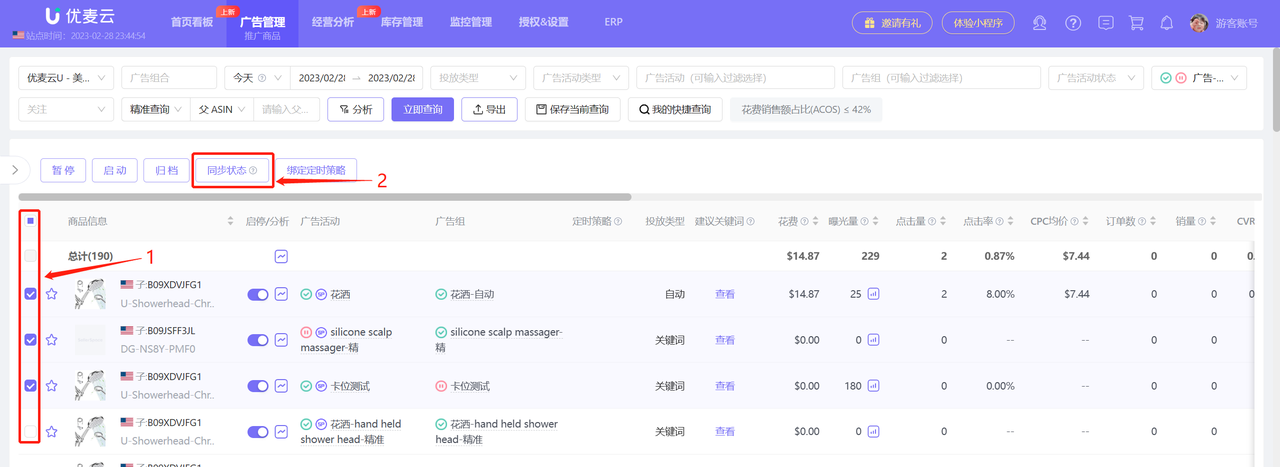
The system will not synchronize updates in real-time. Changes made in Amazon Seller Central will be synchronized once when you first enter the SellerSpace Advertising management page on that day, and then synchronized every 6 hours thereafter, unlike advertising data which is updated approximately every 30-60 minutes. Therefore, it is recommended that all adjustments be made in SellerSpace, which can be synchronized to Amazon Seller Central in real-time.
If you have made adjustments to advertising campaigns in Amazon Seller Central, you can manually synchronize information in a timely manner. Operation path: Advertising -> Promoted Products -> Sync Status.
 +
+
2. If you add new ad groups, promoted products, keyword targeting, or non-keyword targeting in Amazon Seller Central.
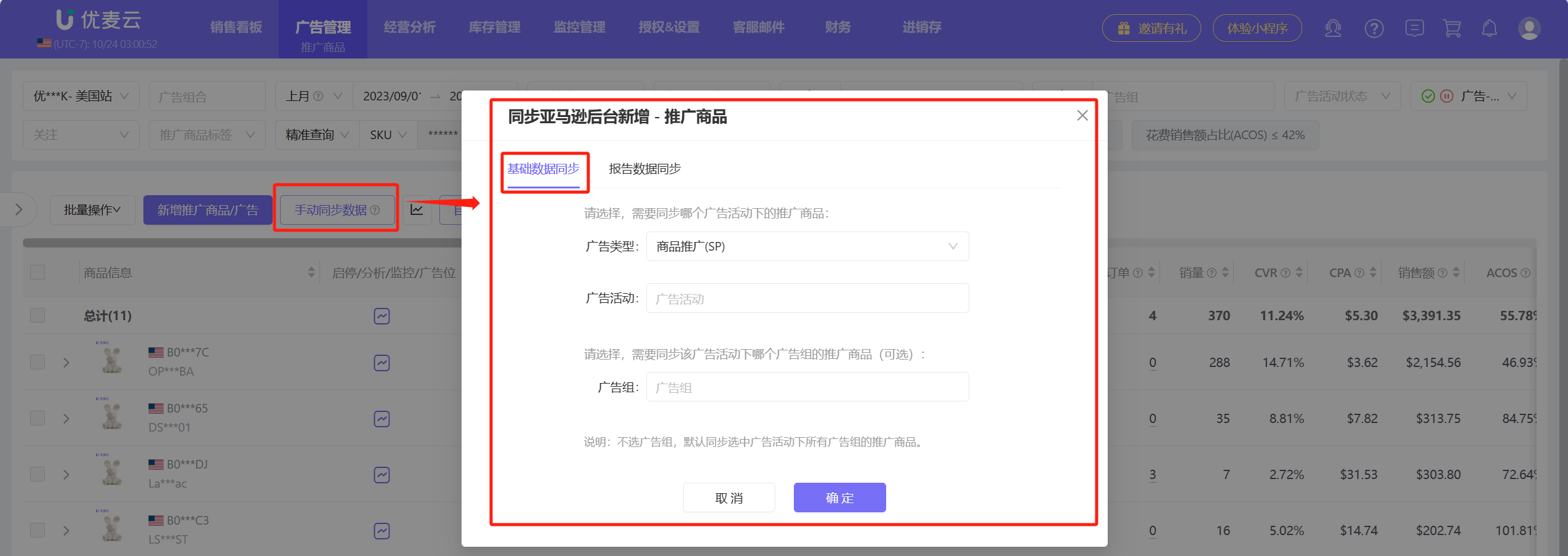
The system will not synchronize updates immediately. It will only be synchronized and updated when the ad object has impressions.
If you have added promoted products in Amazon Seller Central, you can manually synchronize information in a timely manner. Operation path: Advertising -> Promoted Products -> Manual Data Sync -> Basic Data Sync.
 +
+
In addition, due to Amazon's advertising attribution window, advertising data may still change within 60 days after it occurs.
The system does not synchronize historical data in real-time, so there may be discrepancies when viewing non-real-time advertising data.
You can manually synchronize historical advertising data through "Report Data Sync".
 +
+
Special Note: Each site is allowed to manually synchronize up to 3 times per day, and the interval between each synchronization needs to be greater than 30 minutes.
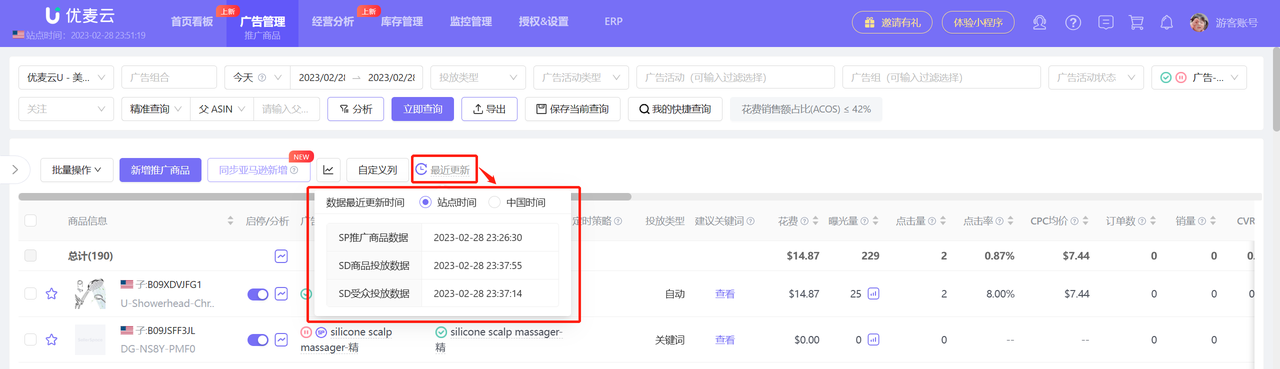
3. You can also view the latest synchronization time of advertising data and confirm whether the synchronization is normal.
If the synchronization is abnormal, for example: brand advertising and Sponsored Display ads that were enabled after advertising authorization, you can click 【Refresh】 to re-synchronize.
 +
+
III. Add Promoted Products
You can directly add promoted products for Sponsored Products and Sponsored Display campaigns in the SellerSpace system. Once Brand campaigns are created, changing promoted products is not supported.
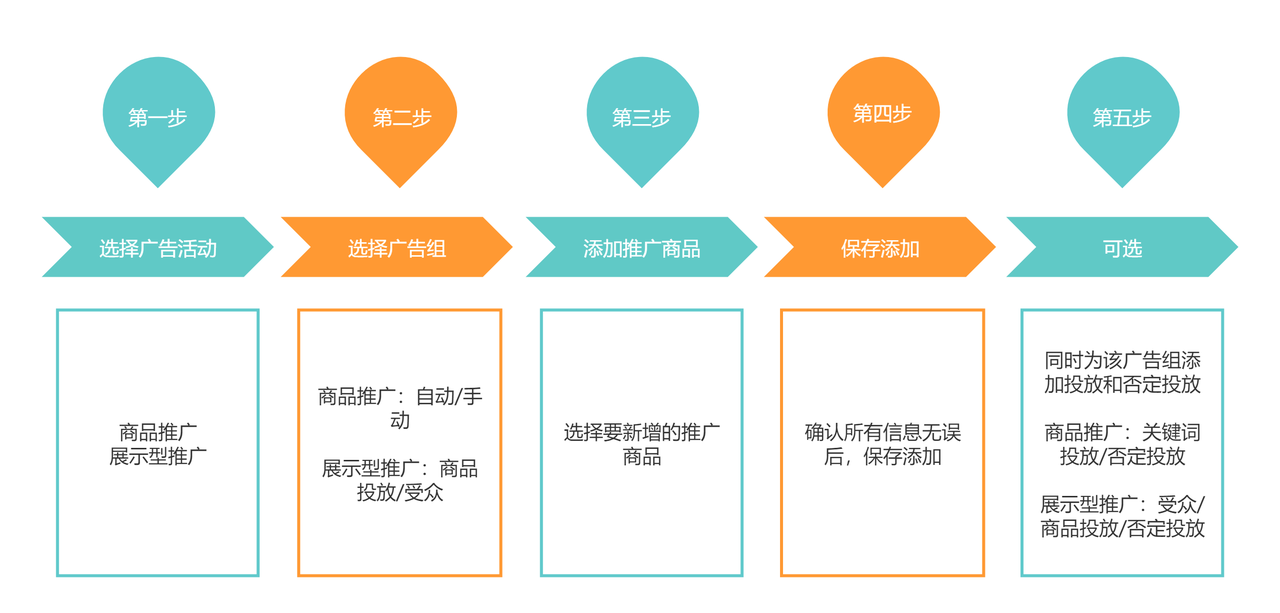
Adding Process:
 +
+
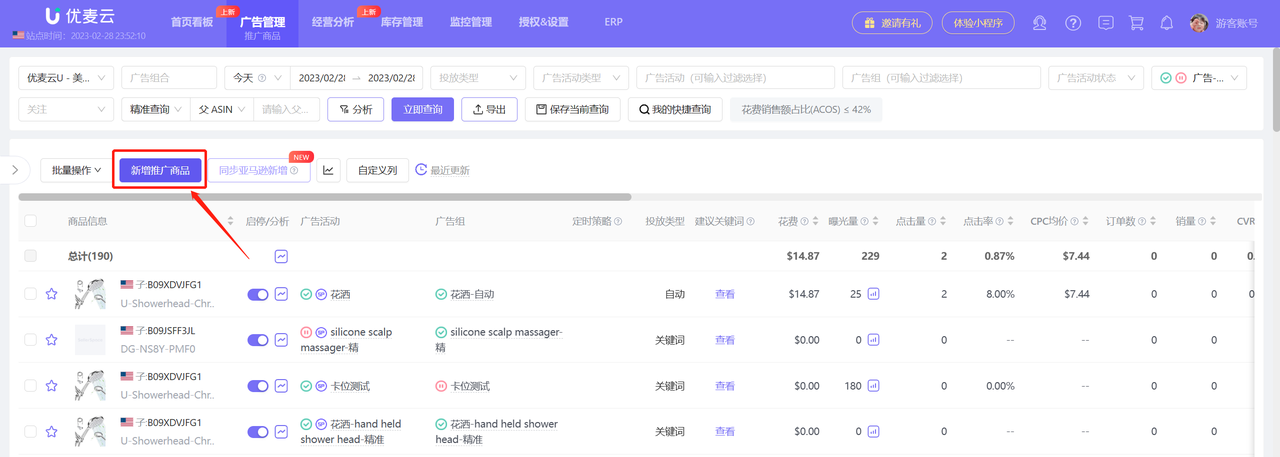
Click 【Add Promoted Products】 to enter the adding page,
 +
+
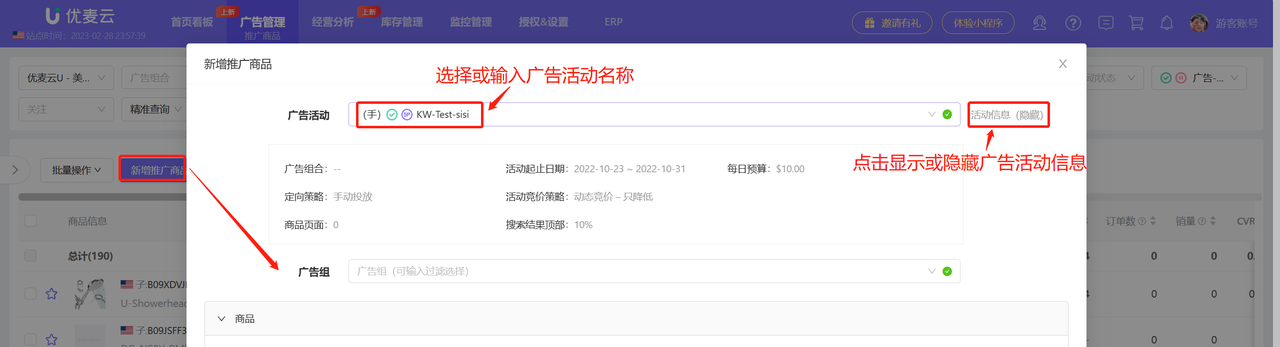
3.1 Select Ad Campaign
Ad types that can add promoted products: Sponsored Products + Sponsored Display,
Click to select, or manually enter the campaign name, and select the ad campaign to which you want to add promoted products;
Click 【View】 on the right to view the campaign details.
 +
+
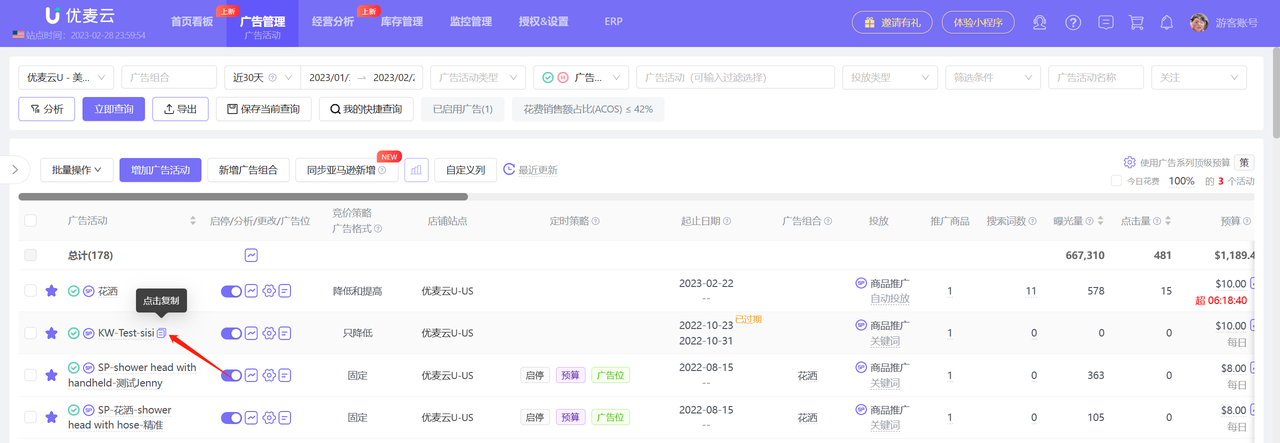
Tip: When entering manually, you can directly copy the campaign name and paste it to search, improving efficiency.
 +
+
3.2 Select Ad Group
After selecting the ad campaign, further select the ad group under the campaign.
Multiple ad groups can be created under one ad campaign. Select the ad group to which you want to add promoted products.
 +
+
3.3 Add Promoted Products
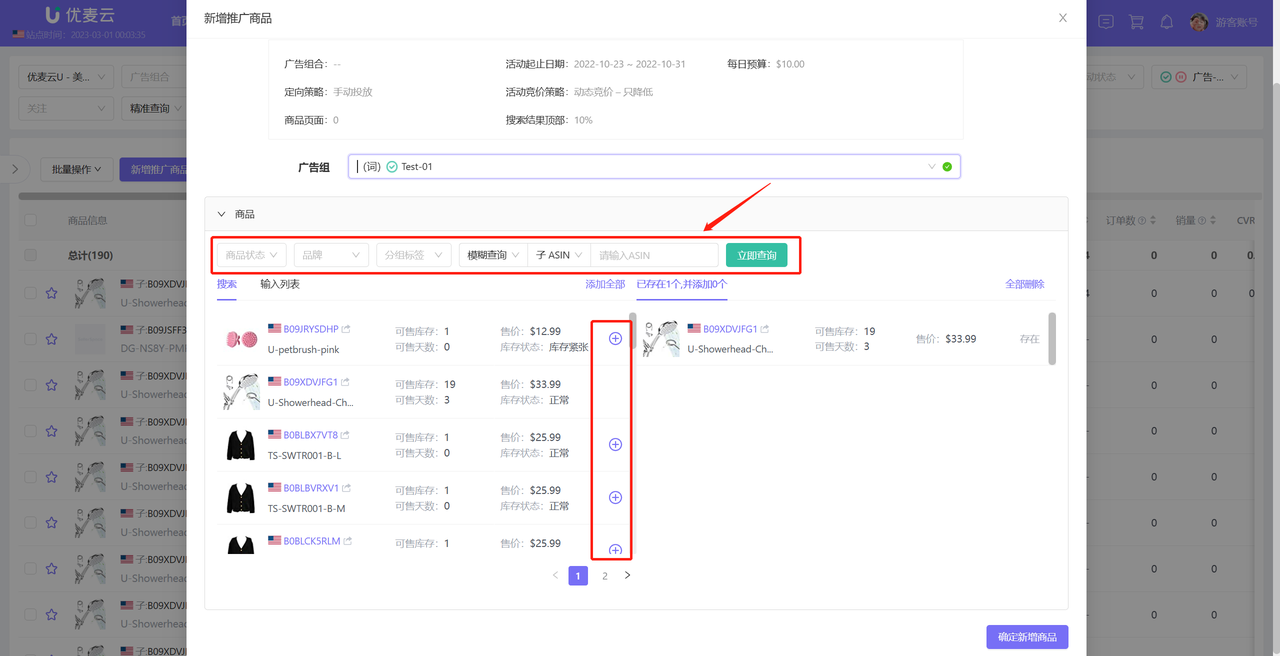
You can filter and add products that are currently on sale in your store, or manually batch enter product ASINs to add promoted products.
Filter and add:
 +
+
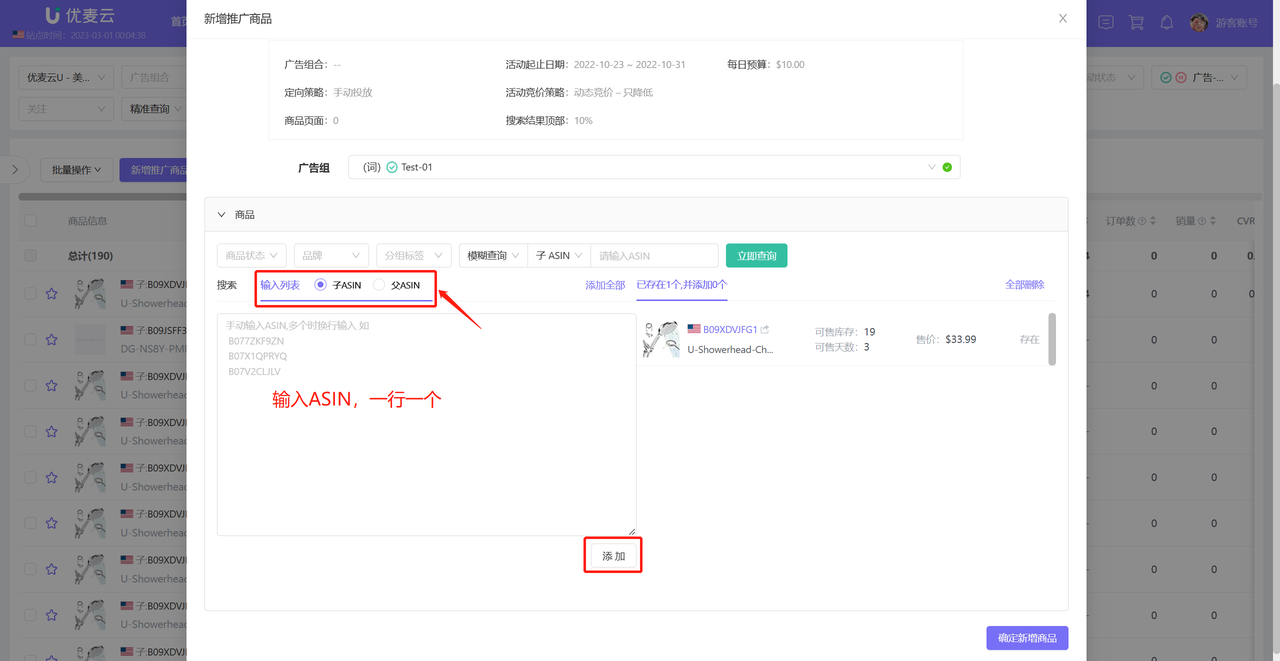
Manually enter ASINs for batch adding:
Entering a parent ASIN will add all child ASINs under the parent ASIN
 +
+
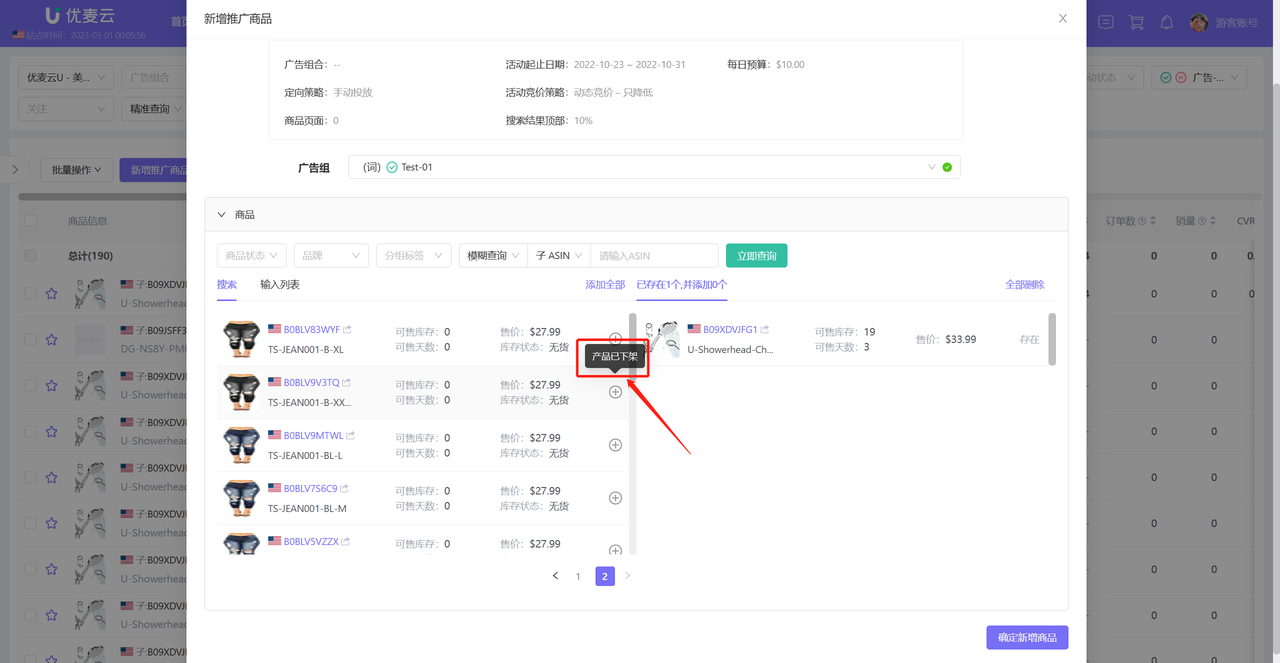
For ASINs that cannot be added, you can hover your mouse over the add button to view the specific reason
 +
+
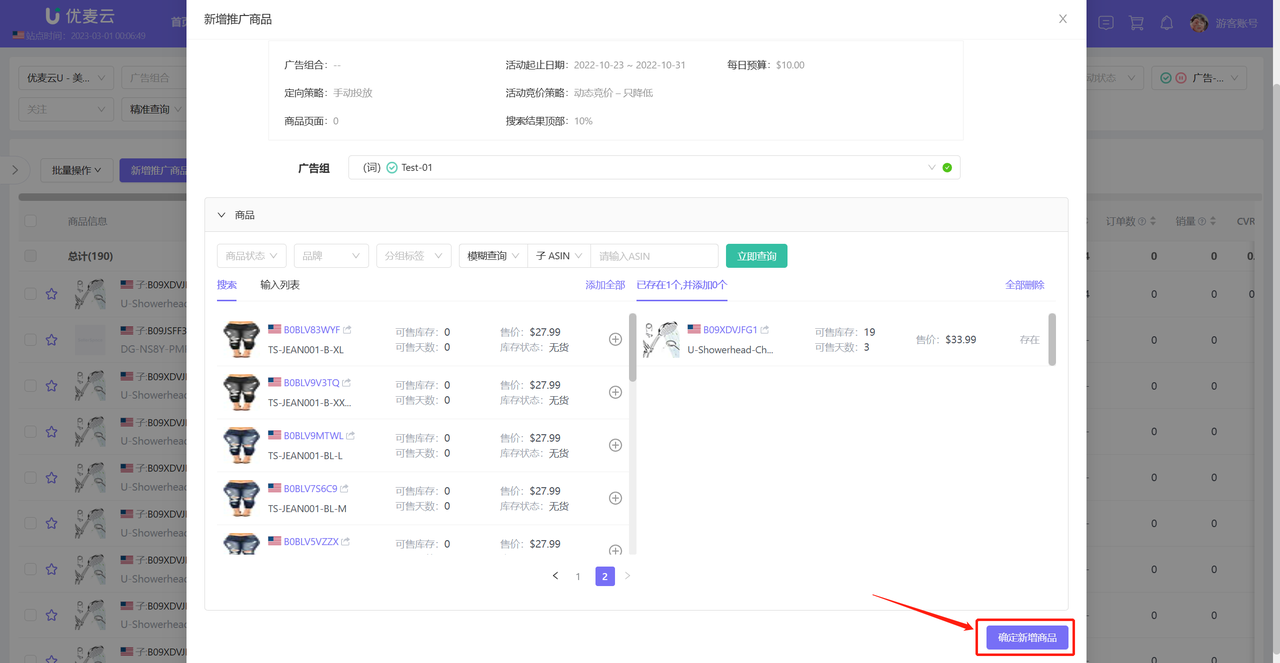
3.4 Save Additions
After confirming that the added information is correct, click 【Confirm Add Products】 to complete the addition of promoted products.
 +
+
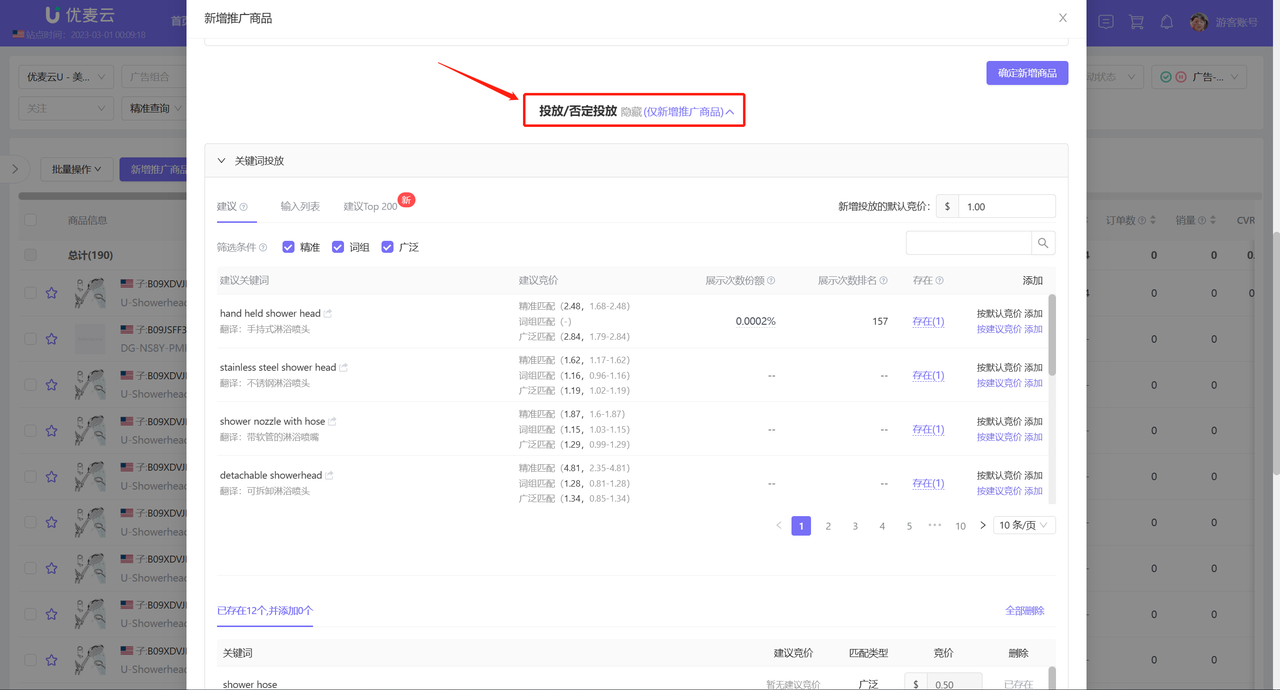
3.5 Add Targeting/Negative Targeting (Optional)
If you want to add new keywords, product targeting, or negative targeting to this ad group at the same time, click 【Targeting/Negative Targeting】 to enter the adding page.
The adding operation is consistent with the adding operation in the 【Targeting - Keywords】/【Targeting - Non-Keywords】 features.
Click to view 【Targeting - Keywords: Help Guide】
Click to view 【Targeting - Non-Keywords: Help Guide】
 +
+
IV. Promoted Products - Data Analysis
You do not need to download any reports from Amazon Seller Central. You can directly analyze all campaign performance data of promoted products.
4.1 Find Promoted Products
You can use the search bar above to view and analyze campaign performance data of all promoted products from different dimensions, such as: ad portfolio, campaign type, ad campaign, targeting type, watched objects, etc. Ad portfolio, ad campaign, and ad group can be multi-selected for aggregated analysis.
 +
+
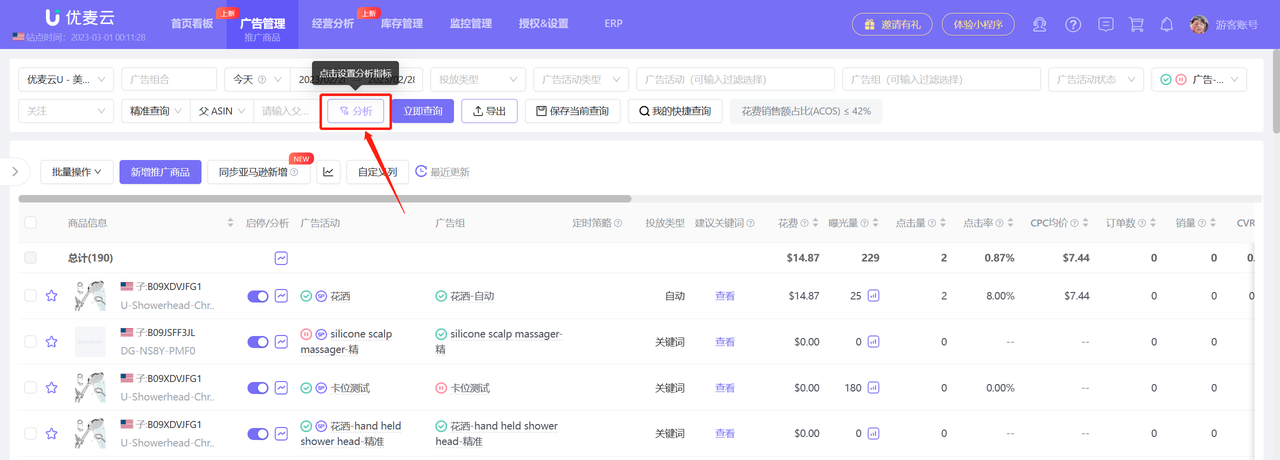
In addition to the above search criteria, it also supports searching by advertising data range, such as: ad campaigns with clicks between 100-300 and spend between \$1-10, etc.
Click the funnel analysis icon to enter the data range settings;
 +
+
Filter data of different ranges for analysis according to your needs.
 +
+
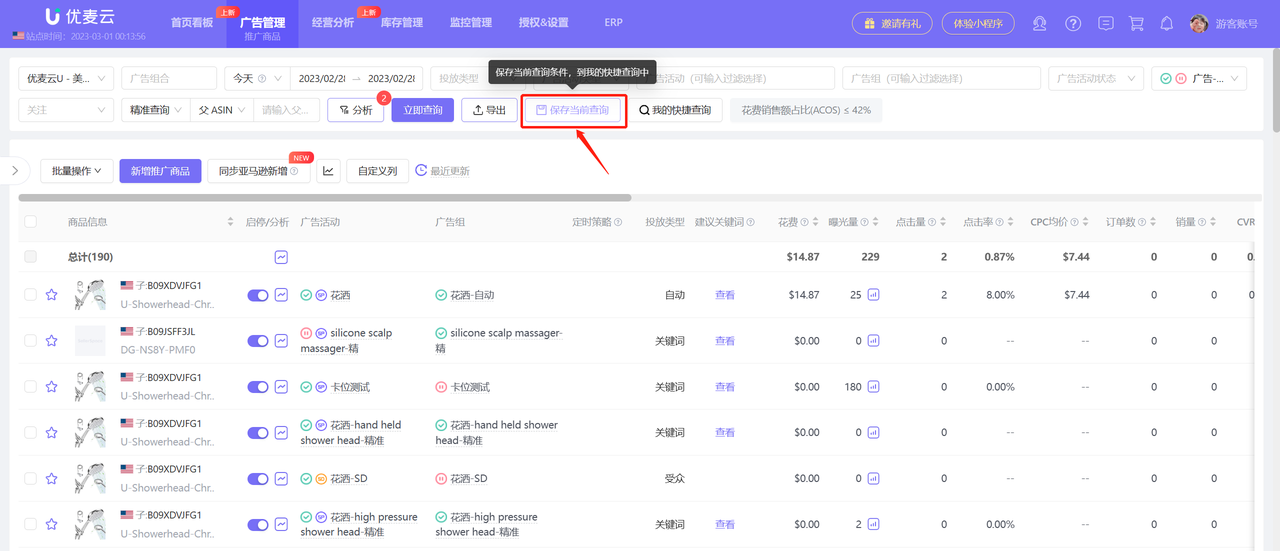
If we have our own analysis patterns, we can save the current filter conditions after filtering. Next time when analyzing, we can quickly filter commonly used analysis patterns, saving operation time. For example: ACOS > 40%; Clicks > 100, and CTR > 3%, etc.
After filtering, click the save button to enter the adding page;
 +
+
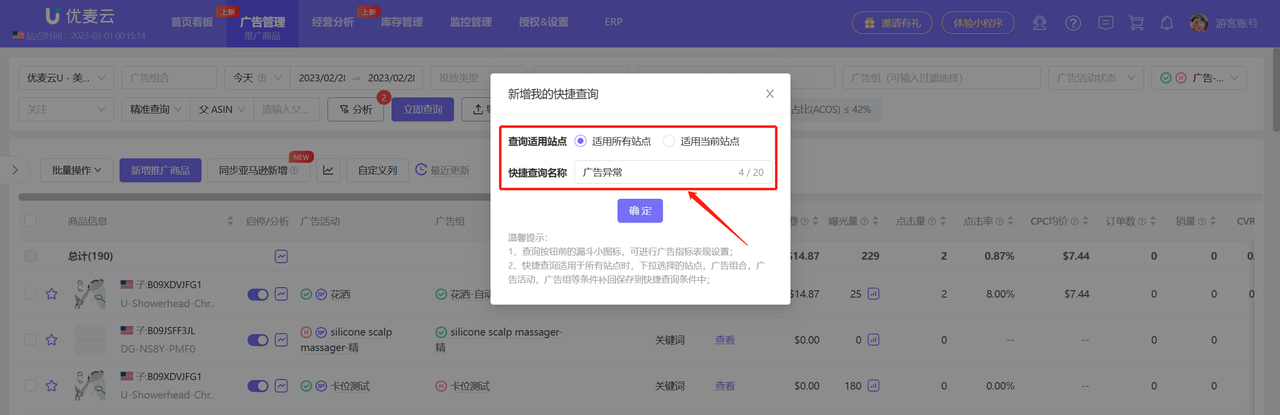
Select the query applicable site: All Sites (Multi-store), Current Site (choose one of two)
Enter the query name; (up to 20 characters)
Then click 【Confirm】 to save the current query mode.
 +
+
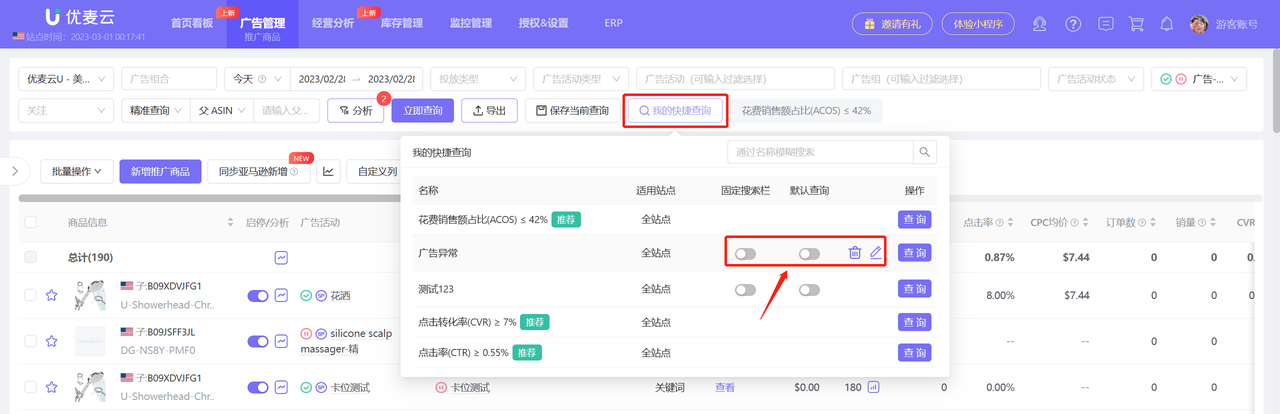
You can directly view and manage all saved modes.
Hover the mouse over 【My Quick Query】, click 【Query】 on the right to quickly query campaign performance data under this mode;
 +
+
You can choose to set
Fixed search bar: Place this mode externally in the search bar for quick click query;
Default query: When entering the promoted products module, automatically display campaign performance data under this query mode;
Delete: Delete the selected query mode;
Modify the name of the query mode;
 +
+
4.2 Sort by Different Metrics
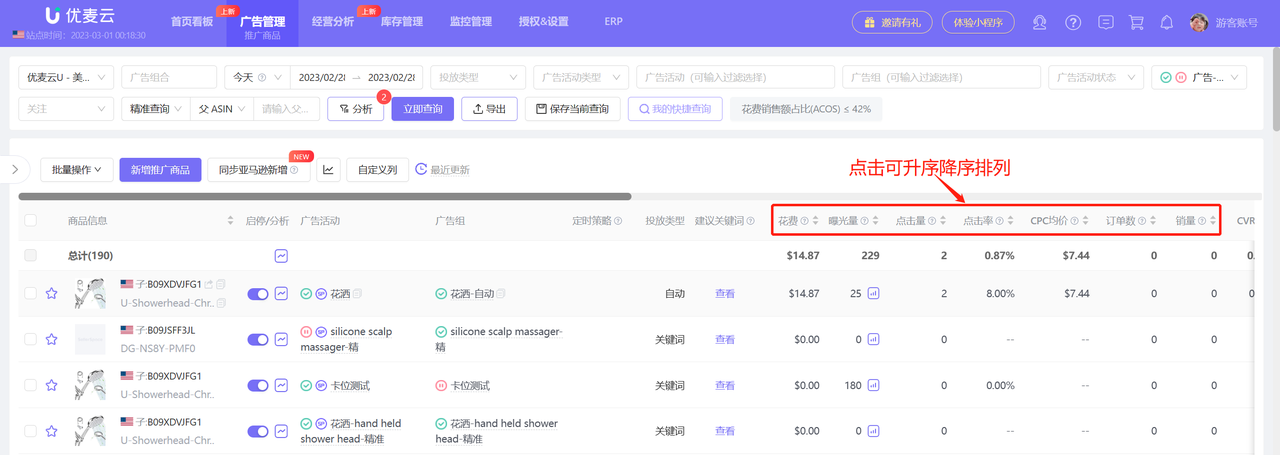
The campaign performance data of promoted products is also sorted in descending order by advertising spend by default.
After finding the promoted product you want to view, click the title with the sort icon to sort.
 +
+
4.3 Customize Display Metrics
In addition to metric data sorting, you can also set the displayed metrics and display order.
Click 【Customize Columns】 to enter the settings for default display metrics. Long press and drag metrics to further set the display order of metrics.
 +
+
4.4 Analyze Historical Campaign Trends
In addition to viewing the campaign performance data of all promoted products for the selected time period, you can also view the historical campaign trends of a single promoted product to analyze the overall campaign performance of the promoted product to determine whether the promoted product should continue to be advertised and whether the campaign strategy needs to be adjusted, etc.
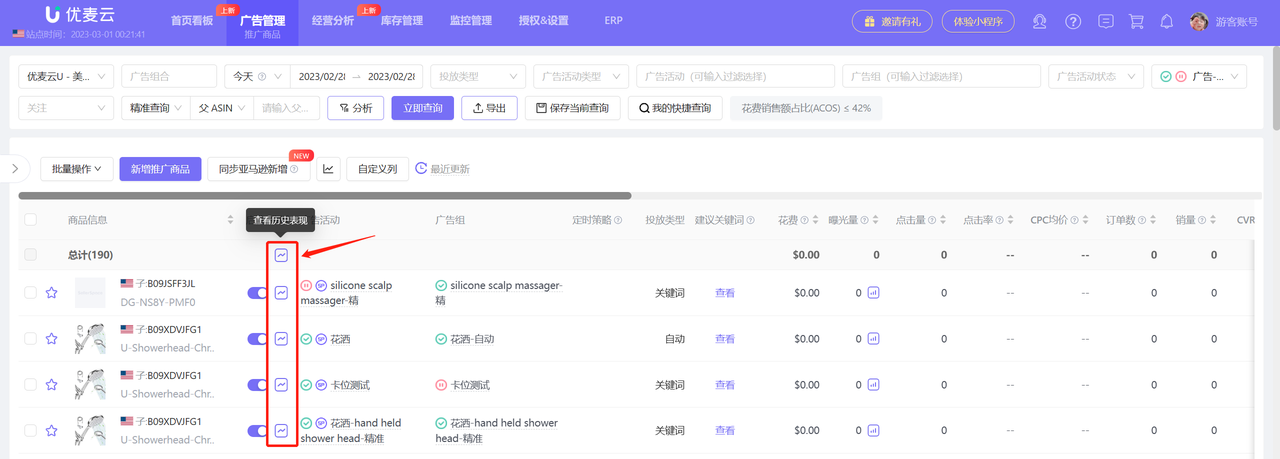
Click the 【Historical Trends】 button to view the historical campaign trend data of a single or all promoted products.
Including: Impressions, Clicks, CTR, Spend, CPC, ACOS, etc., to help you better analyze campaign performance data and adjust campaign strategies.
 +
+
Enter the historical trends page,
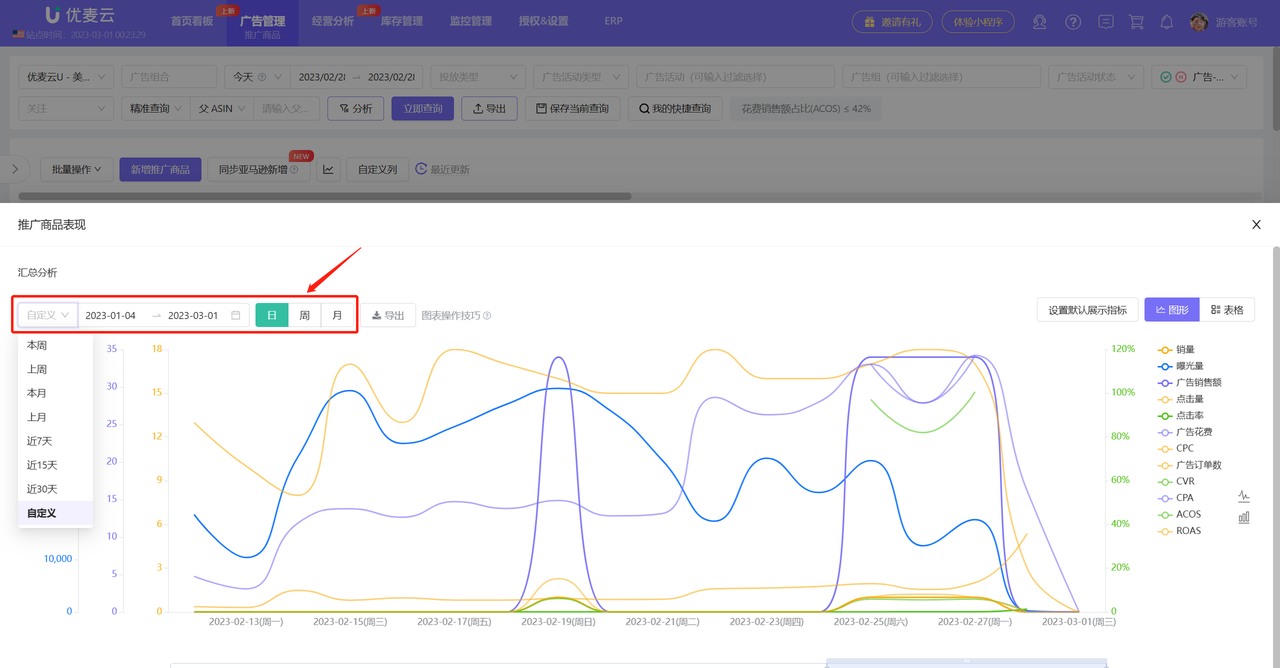
The historical trends of promoted products include 12 data items in total: Impressions, Clicks, CTR, Advertising Spend, CPC, CVR, CPA, etc.
By default, data for the currently selected time period is displayed in days. You can also choose other time ranges and view and analyze data by week/month.
 +
+
Trend data has two display forms: graph + table.
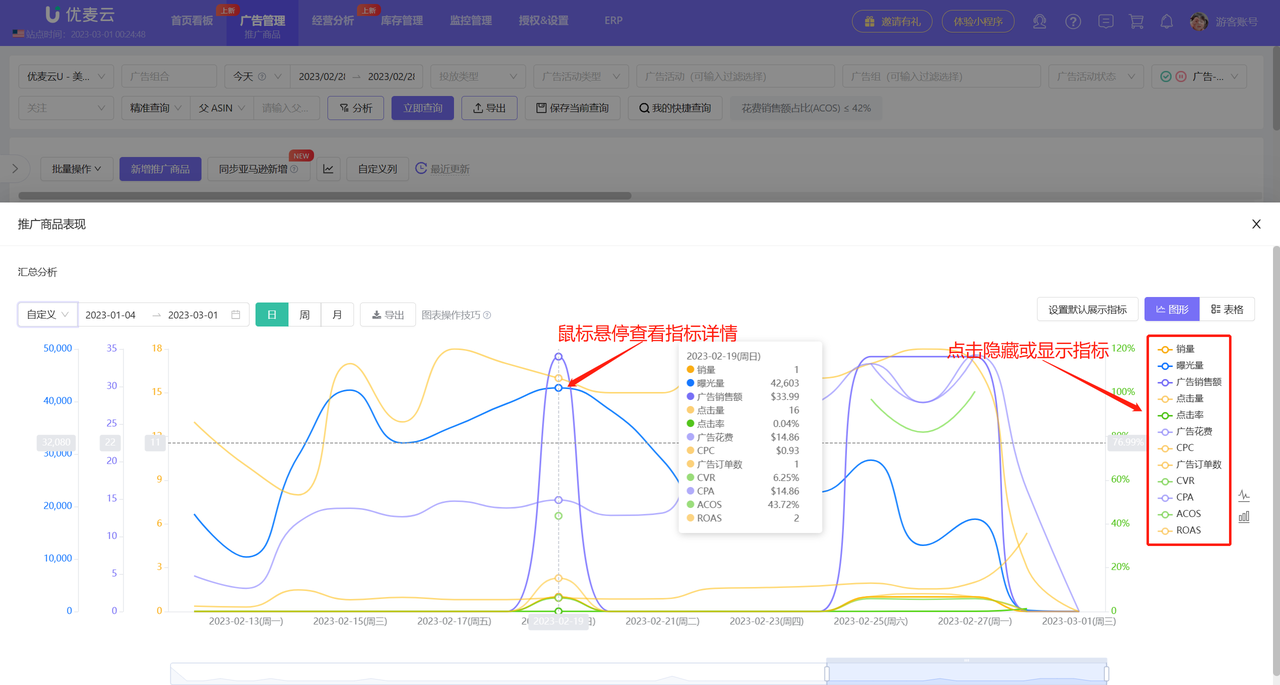
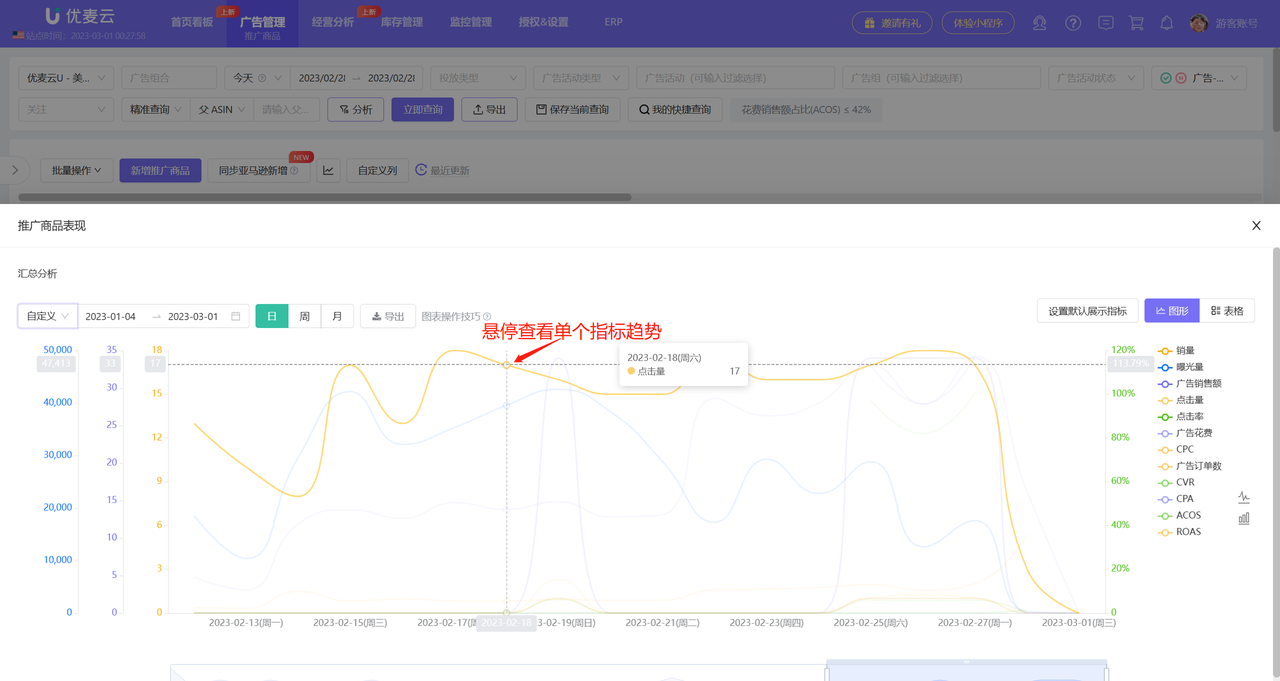
Displayed in graphs by default. Click the metric name on the right side of the graph to show or hide the metric data, which is convenient for you to compare and analyze data;
At the same time, hovering the mouse over the nodes in the graph can also see the detailed data of the node.
 +
+
Hovering the mouse over a curve can view the data of that curve separately;
 +
+
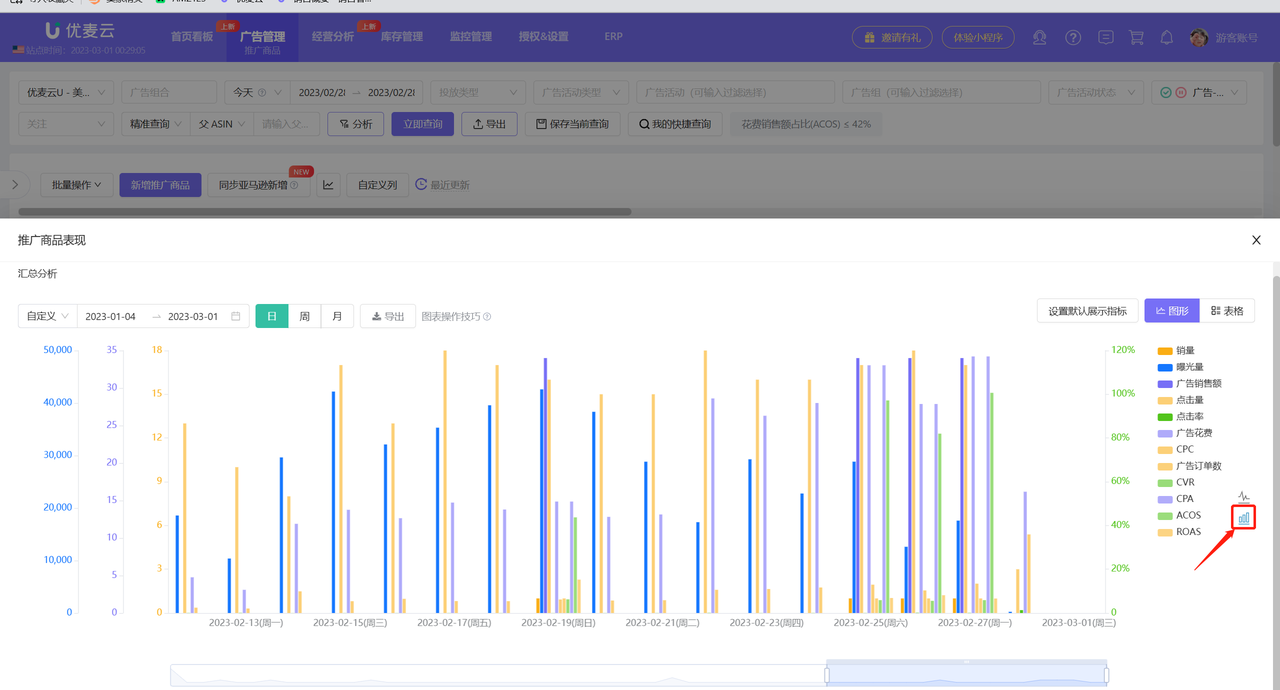
In addition to line charts, bar charts are also supported to analyze historical campaign trends from different chart modes;
 +
+
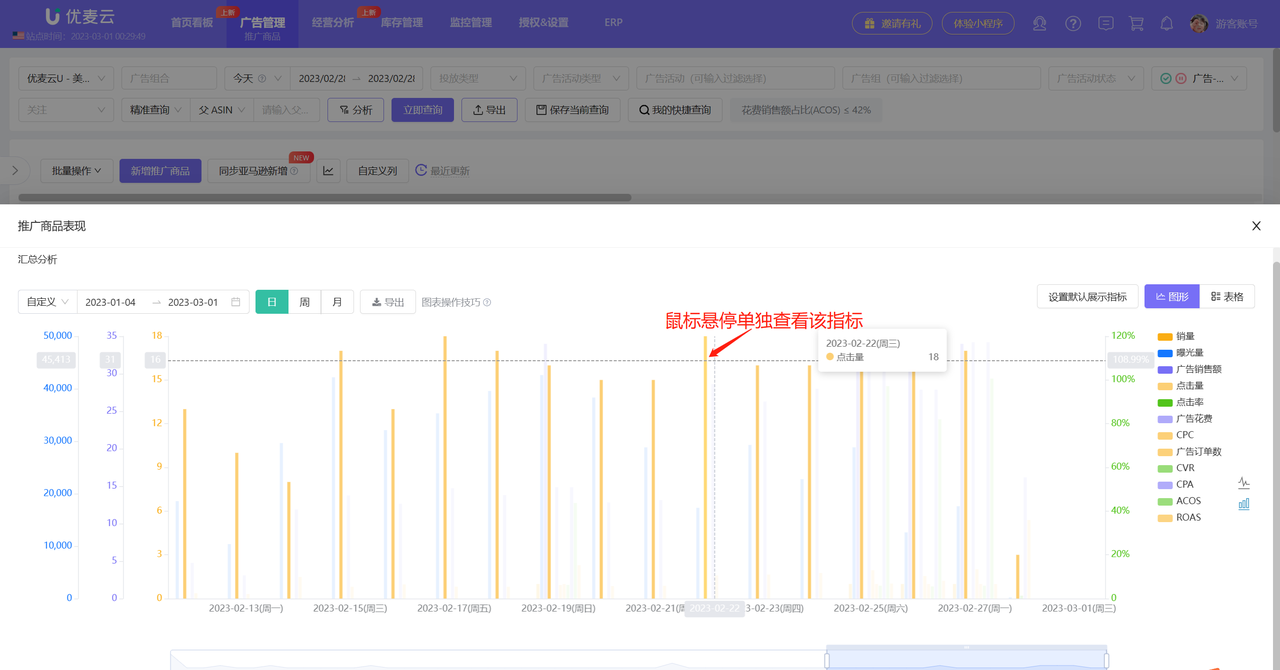
Hovering also highlights for easy viewing and analysis;
 +
+
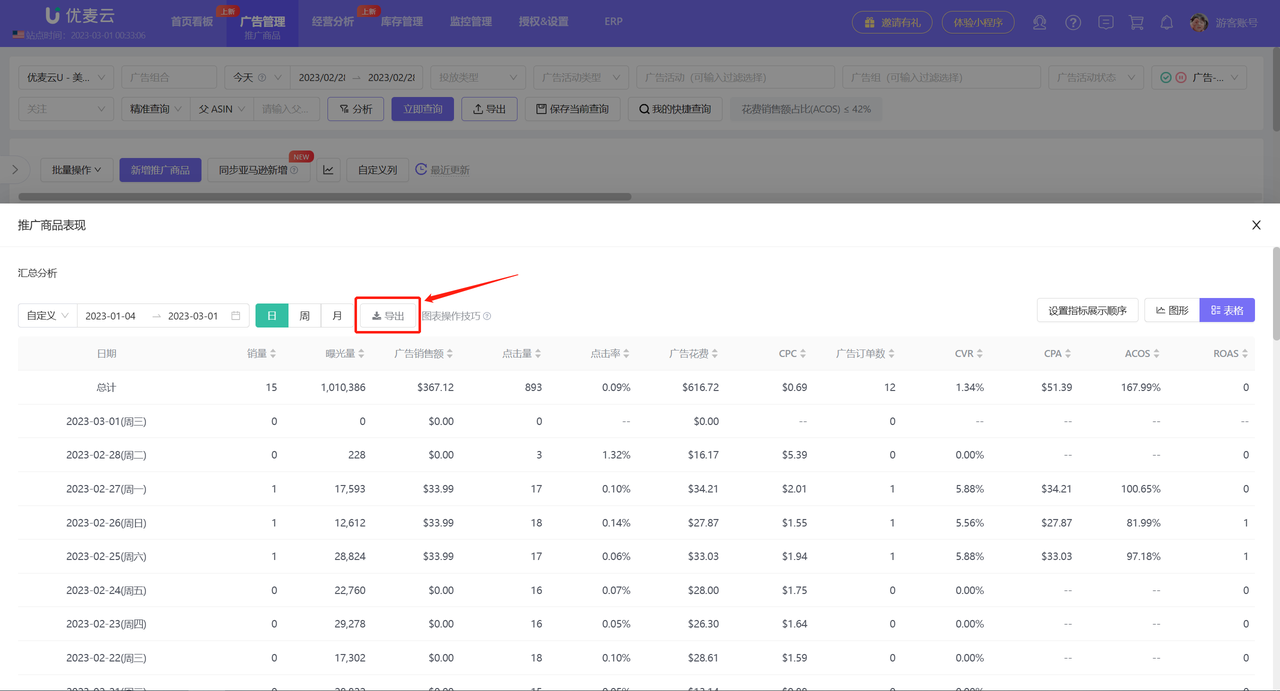
In addition to charts, table mode is also supported to view and analyze the historical campaign performance data of ad groups, which is equivalent to a concise and clear trend report.
Click 【Table】 in the upper right corner to switch to view.
 +
+
The table data supports export, exporting to an Excel spreadsheet, which is convenient for you to re-organize and analyze.
After determining the data to be analyzed, click 【Export】.
 +
+
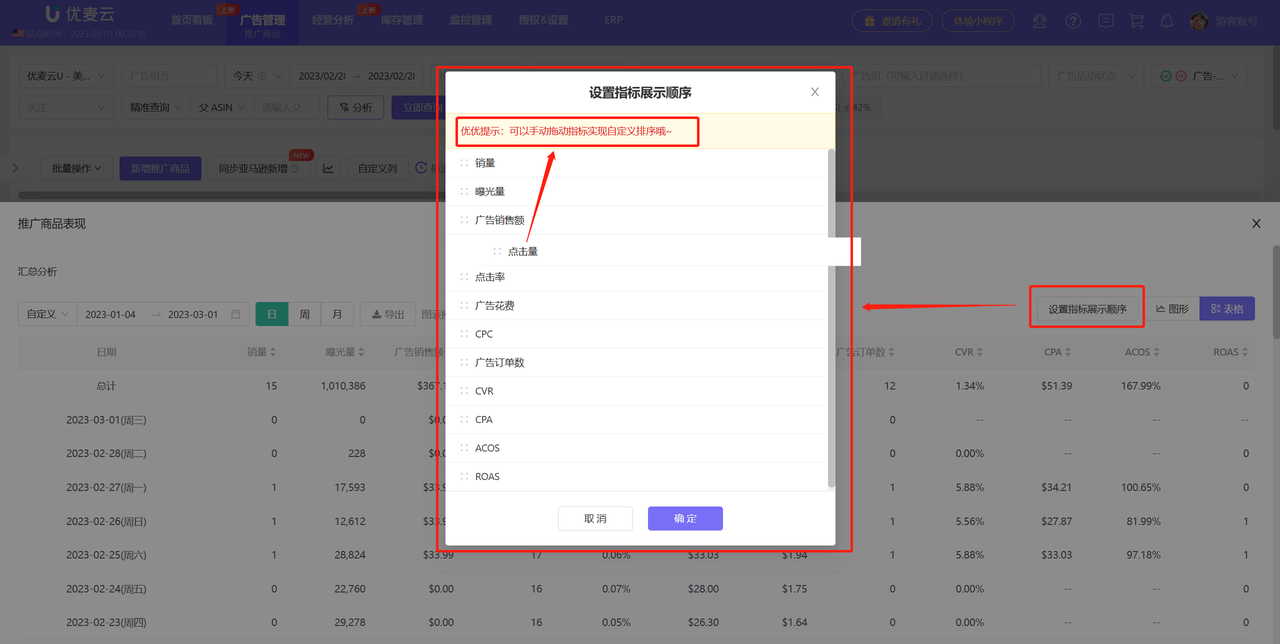
If you have fixed analysis metrics, you can set default display metrics, and you can also set the display order of metrics. After setting, the default metrics and sorting will be preferentially displayed each time you enter.
Click 【Set Default Display Metrics】 to enter and check the default display metrics and save.
 +
+
4.5 Analyze Hourly Campaign Trends
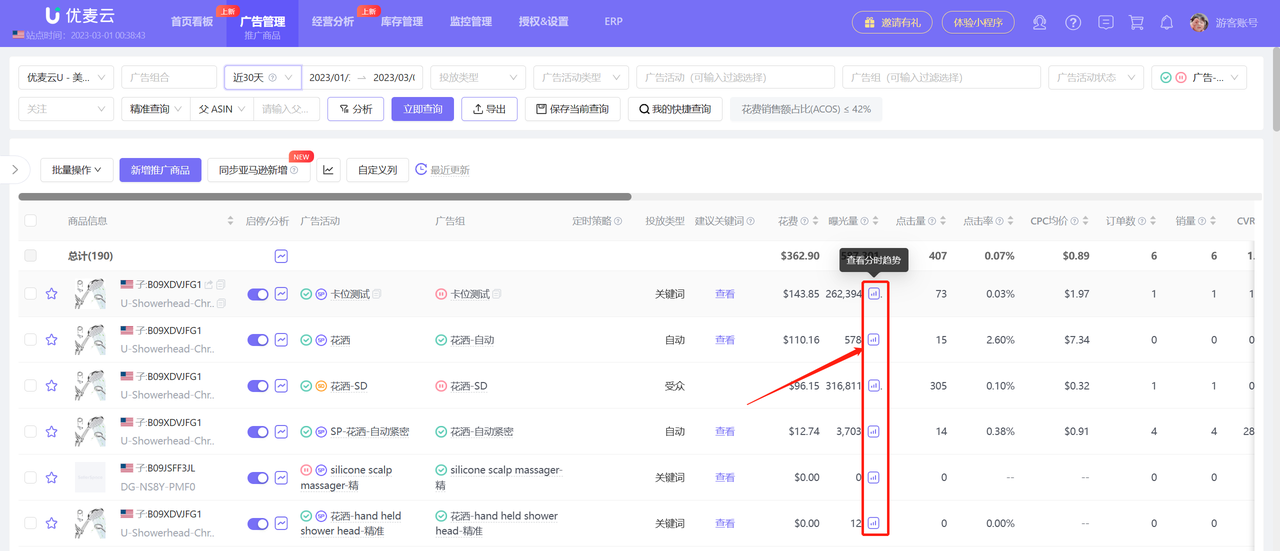
Each promoted product supports viewing its hourly campaign performance data for the last 15 days, helping you understand the hourly impressions, clicks, CPC, advertising sales, advertising order quantity, and advertising spend of the product. By analyzing its trends, you can better adjust advertising campaigns.
Click the trend button next to Impressions to enter and analyze the hourly trends of the promoted product;
 +
+
Hourly trend data includes 6 metrics: Advertising Sales, Advertising Orders, Advertising Spend, Impressions, Clicks, CPC;
Three dimensions: Total Trend, Incremental Trend, Minute Incremental Trend
All dimension data is displayed by default. Click the dimension title in the upper right corner to switch views;
Other analysis operation methods are consistent with historical campaign trends.
 +
+
4.6 Add to Watchlist
If you have promoted products that you particularly need to pay attention to, you can add them to your watchlist. After adding to the watchlist, the promoted products will be displayed at the front by default, making it easier for you to quickly find their data.
Click the watchlist icon in front of the ad group name to add to the watchlist.
 +
+
4.7 Scheduled Strategy
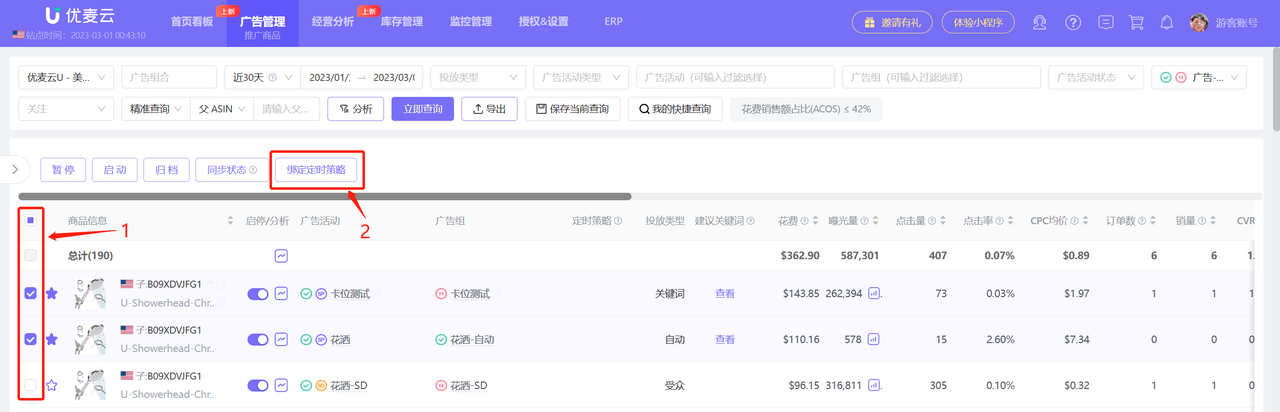
Each promoted product supports adding a Scheduled Strategy for targeted campaigns.
 +
+
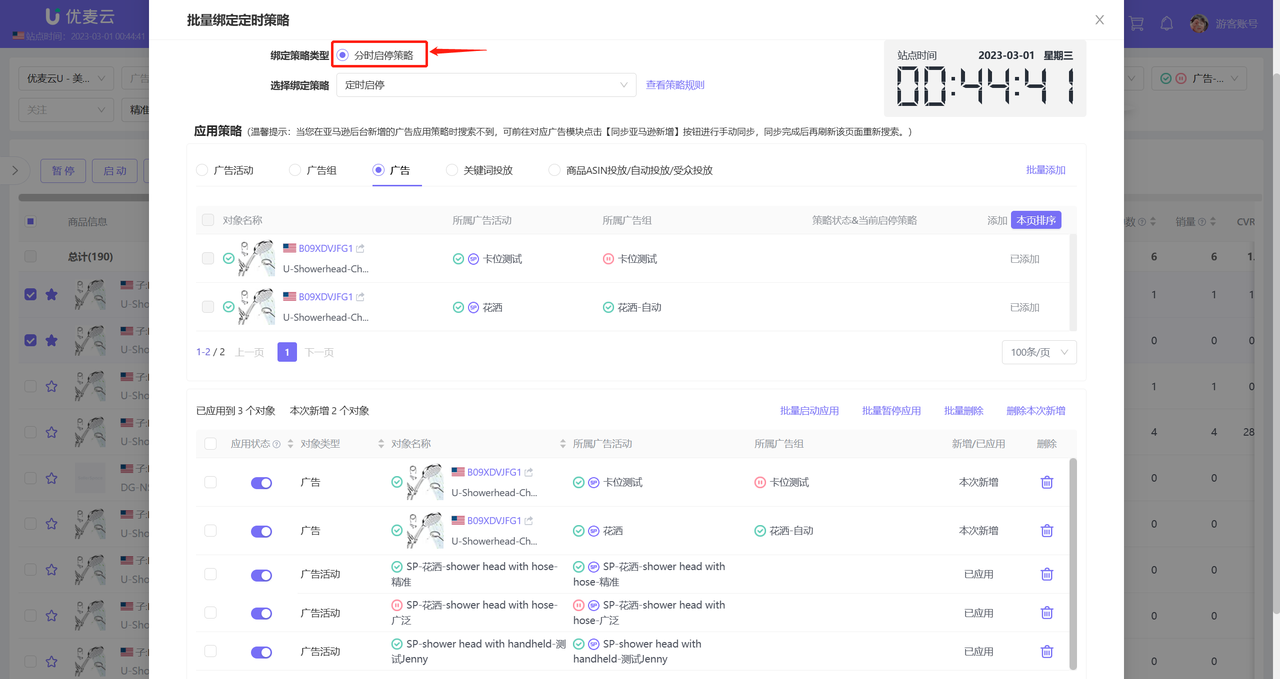
Promoted products can add strategies: Scheduled Enable/Pause. Adjust ad group Enable/Pause by time.
 +
+
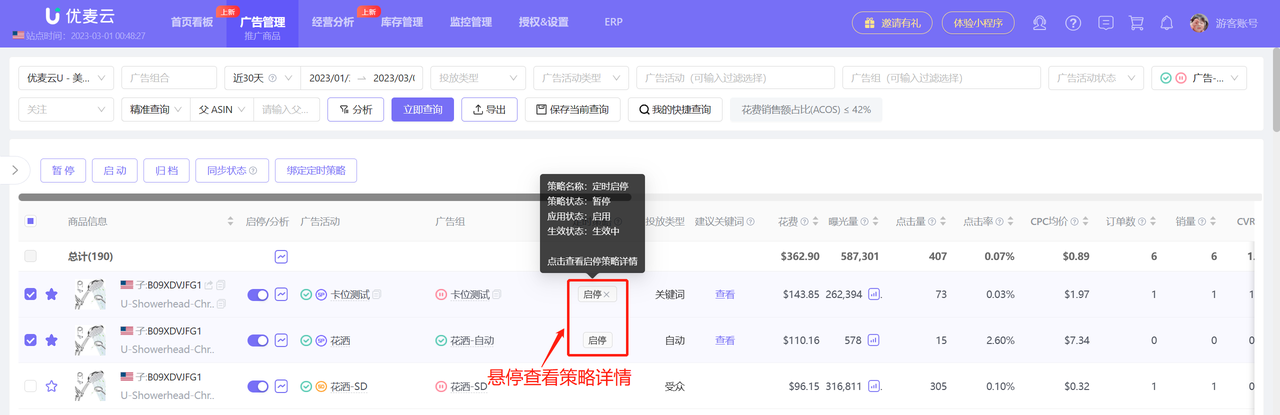
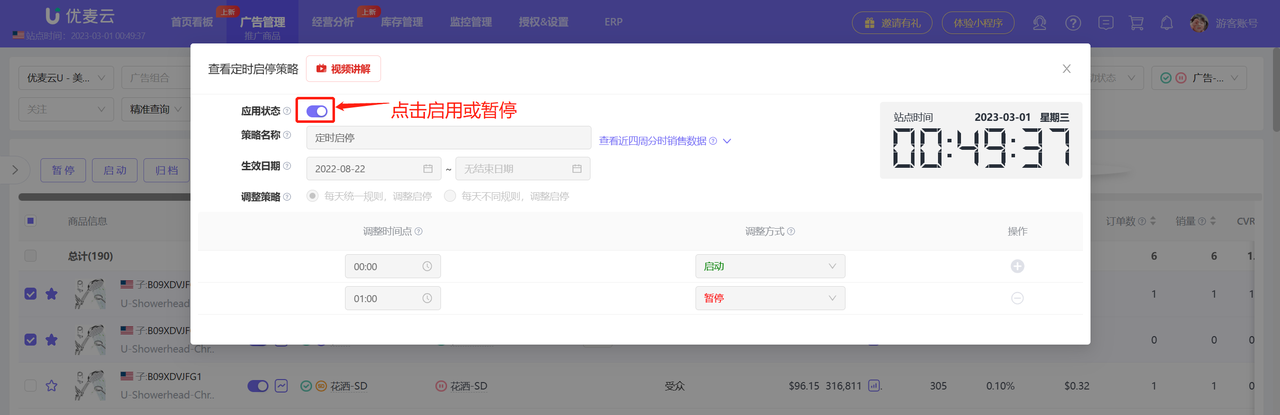
You can also directly view the Scheduled Strategy and details that have been bound to the promoted product, and adjust the Enable/Pause and binding of the strategy.
Hover the mouse over the corresponding Scheduled Strategy name to view the status details of the Scheduled Strategy;
 +
+
Click the Scheduled Strategy name to enter and view the adjustment rules of the strategy, and enable or pause the strategy;
 +
+
4.8 View Associated Level Advertising Data and Support Copying Ad Name
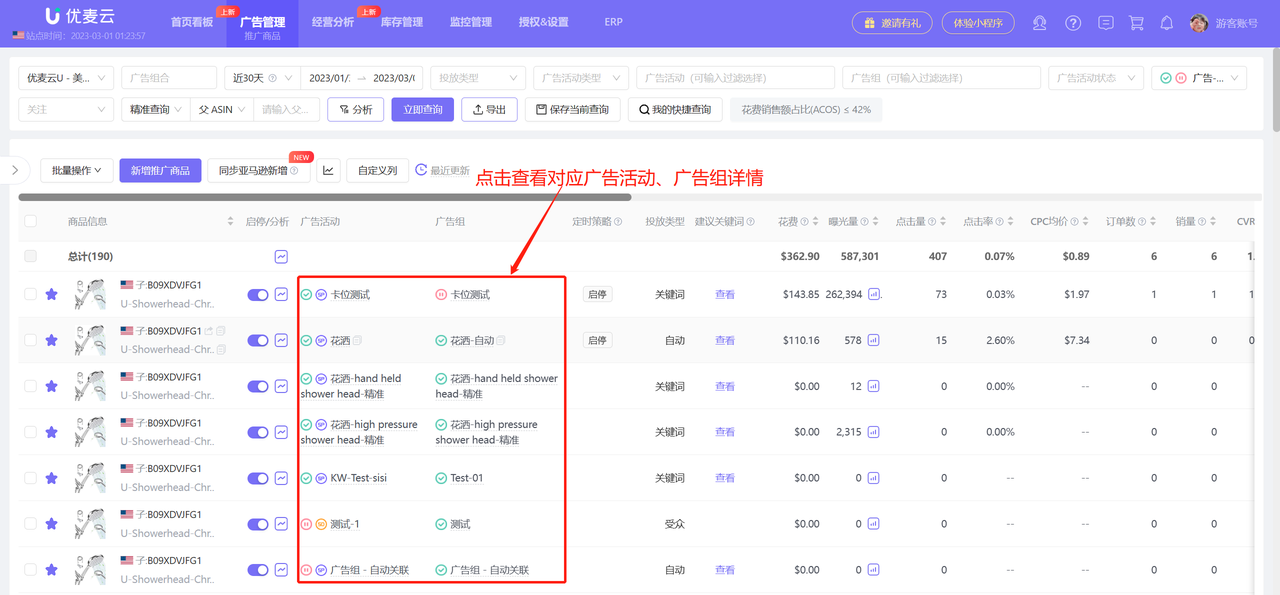
When analyzing promoted product data, you can also directly view the campaign details of the ad campaign or ad group to which the promoted product belongs, helping you adjust ads in a timely manner.
Click the ad group name, ad campaign name, and targeting type name to directly enter and view the corresponding advertising details.
 +
+
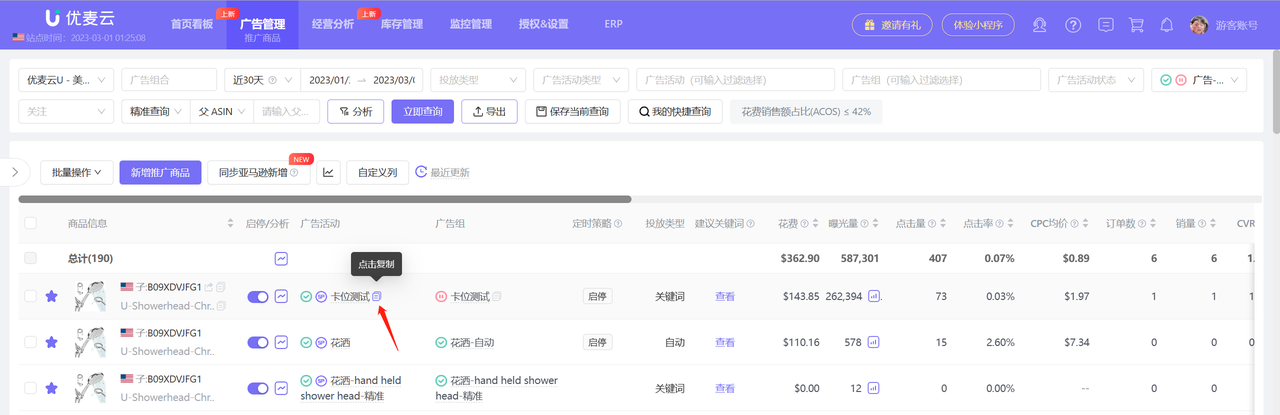
All ad names support copying for easy search and analysis,
Click the copy button on the right side of the ad name to copy and paste with one click;
 +
+
4.9 View Amazon Recommended Top 200 Keywords
You can directly view the top 200 Amazon recommended keywords under the corresponding promoted product here, providing a reference for your ad adjustments.
Click View to enter and view the details of the corresponding top 200 recommended keywords.
 +
+
By analyzing the suggested bids, Amazon's impression share and ranking of these keywords, you can decide whether to target them, and you can also directly determine whether they are already being targeted;
It also supports directly adding these keywords to the ad group for targeting or negating them.
 +
+
V. Promoted Products - Adjust Campaigns
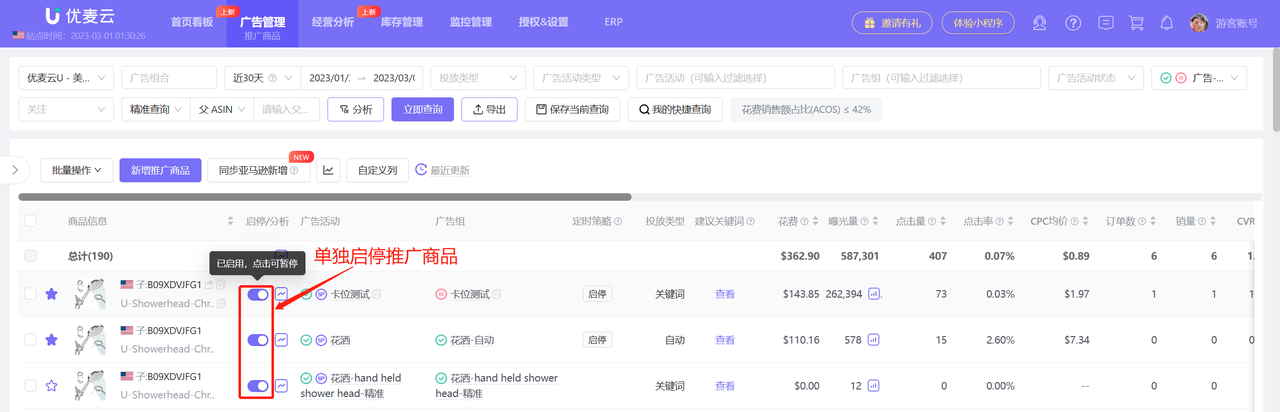
5.1 Adjust Enable/Pause and Archive
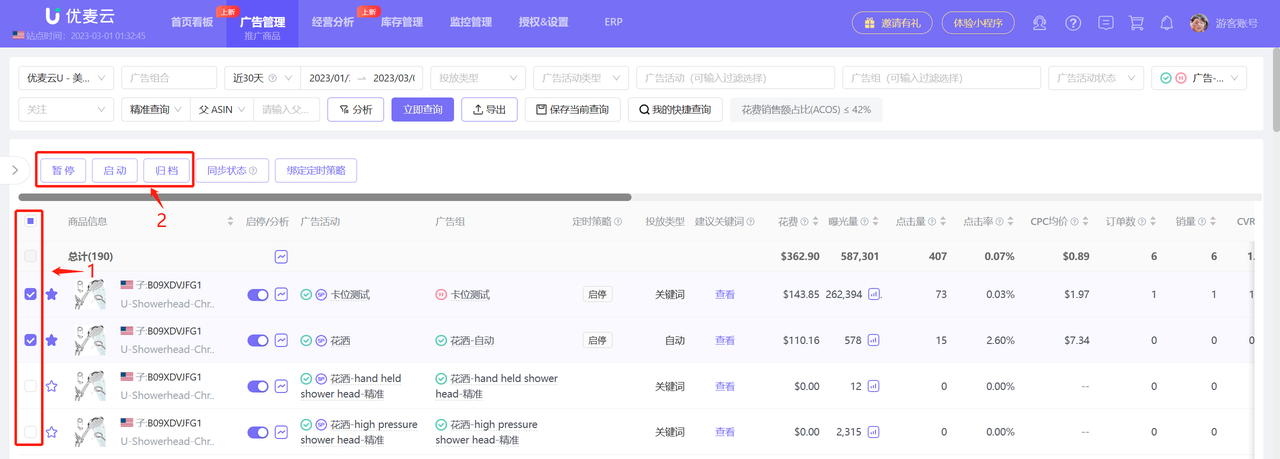
You can set to enable or pause the campaigns of certain promoted products individually or in batches. Archiving operations can only be performed in batches.
 +
+
Batch Enable/Pause or archive promoted products.
 +
+
