
 English


2025/07/14Views(24201)Reviews(0)
SellerSpace's Product Targeting Ads feature displays your product targeting advertising data.
Product targeting ad types include:
1. Four match types for automatic targeting (Close Match, Broad Match, Substitutes, and Compliments)
2. Category Targeting (Category Node Targeting)
3. Product Targeting (ASIN Targeting)
In our system, you can directly switch between stores to manage product targeting ads for multiple stores.
Supported operations include: enabling/pausing ads, adjusting bids, adding new product targeting, adding negative targeting, archiving ad targeting, etc. Operation data is synchronized to Amazon Seller Central in real-time.
It also supports multi-dimensional viewing and analysis of targeting data, helping you more accurately optimize your product targeting ads.
I. Data Source
Through the official Amazon API, automatically synchronize non-keyword targeting data for all ad groups in your store.
II. Synchronization Frequency
1. Approximately 2-3 hours after successful authorization, ad data from the last 60 days will be automatically synchronized, and data will be updated approximately every 60-90 minutes.
2. After the data from the last 60 days is synchronized, ad data from the last 2 days will be updated approximately every 30-60 minutes, and ad data from the last 3-60 days will be updated once a day, referencing the Amazon Ads attribution window.
Special Notes:
1. If you modify non-keyword ad information such as bids and status in Amazon Seller Central.
The system will not synchronize updates in real-time. Changes made in Amazon Seller Central will be synchronized once on the first entry to the SellerSpace ad management page of the day, and then synchronized every 6 hours thereafter, unlike ad campaign data which is updated approximately every 30-60 minutes.
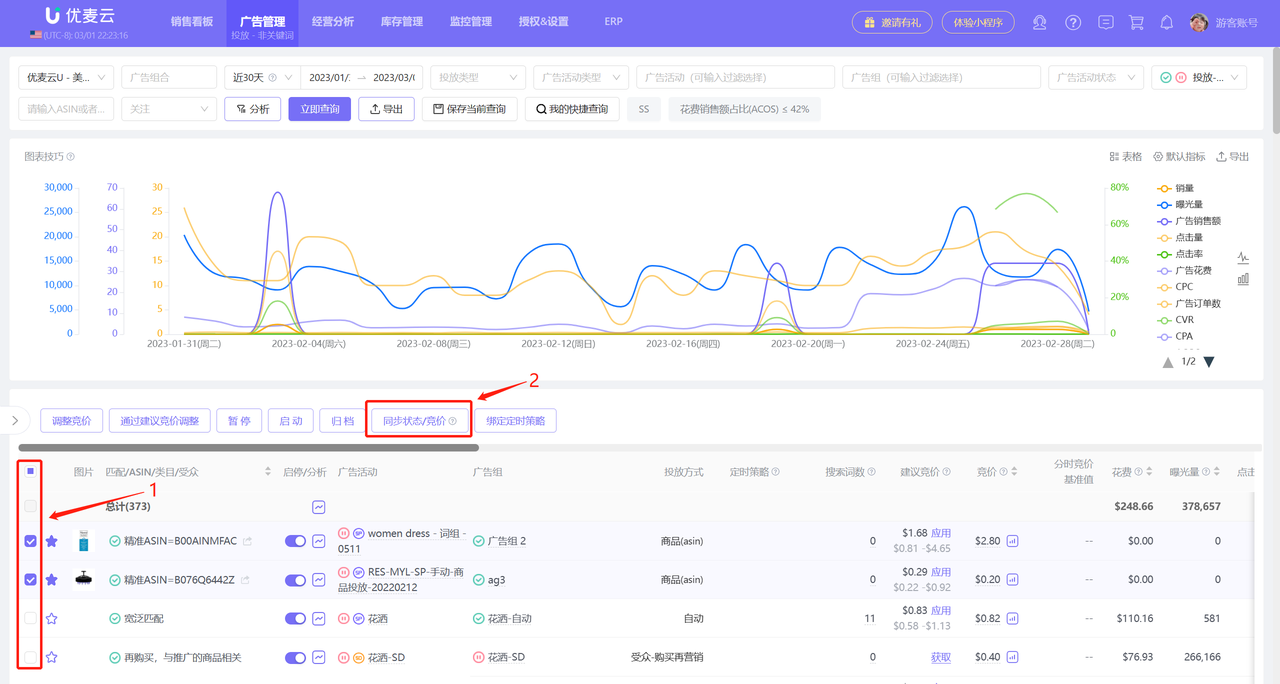
If you have made adjustments to ad campaigns in Amazon Seller Central, you can manually synchronize information in a timely manner. Operation path: Ad Management -> Targeting - Non-Keyword -> Sync Status/Bid.
 +
+
2. If you add keyword targeting in Amazon Seller Central.
The system will not immediately synchronize updates. It will only be synchronized and updated when the ad target has impressions.
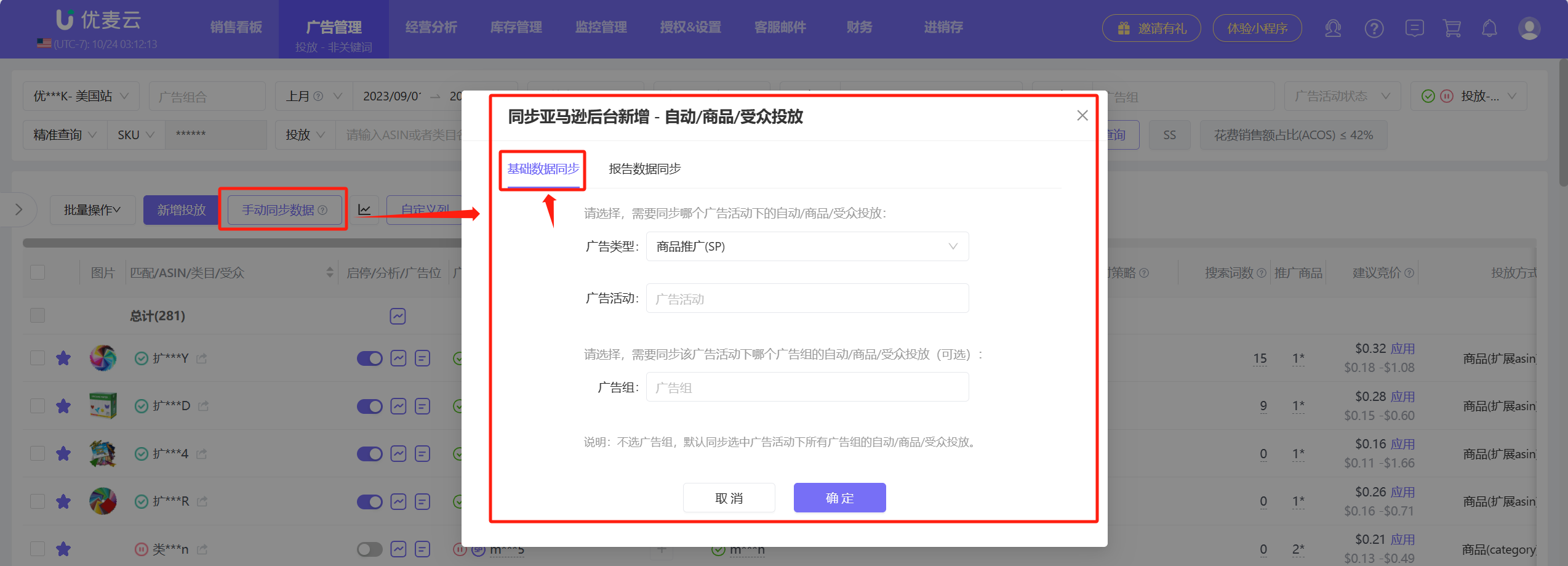
If you have added ad campaigns in Amazon Seller Central, you can manually synchronize information in a timely manner. Operation path: Ad Management -> Targeting - Keyword -> Manually Sync Data -> Basic Data Sync.
 +
+
In addition, due to the attribution window of Amazon Ads, ad data may still change within 60 days after it occurs.
The system does not synchronize historical data in real-time, so there may be discrepancies when viewing non-real-time ad data.
You can manually synchronize historical ad data through "Report Data Synchronization".
 +
+
Special Note: Each marketplace is allowed to manually synchronize up to 3 times per day, and the interval between each synchronization needs to be greater than 30 minutes.
3. If you authorized the store first and then activated advertising, ad data may not be found. In this case, you can click [Refresh] here to refresh the ad data.
At the same time, you can also view the latest update time of the ad data here.
 +
+
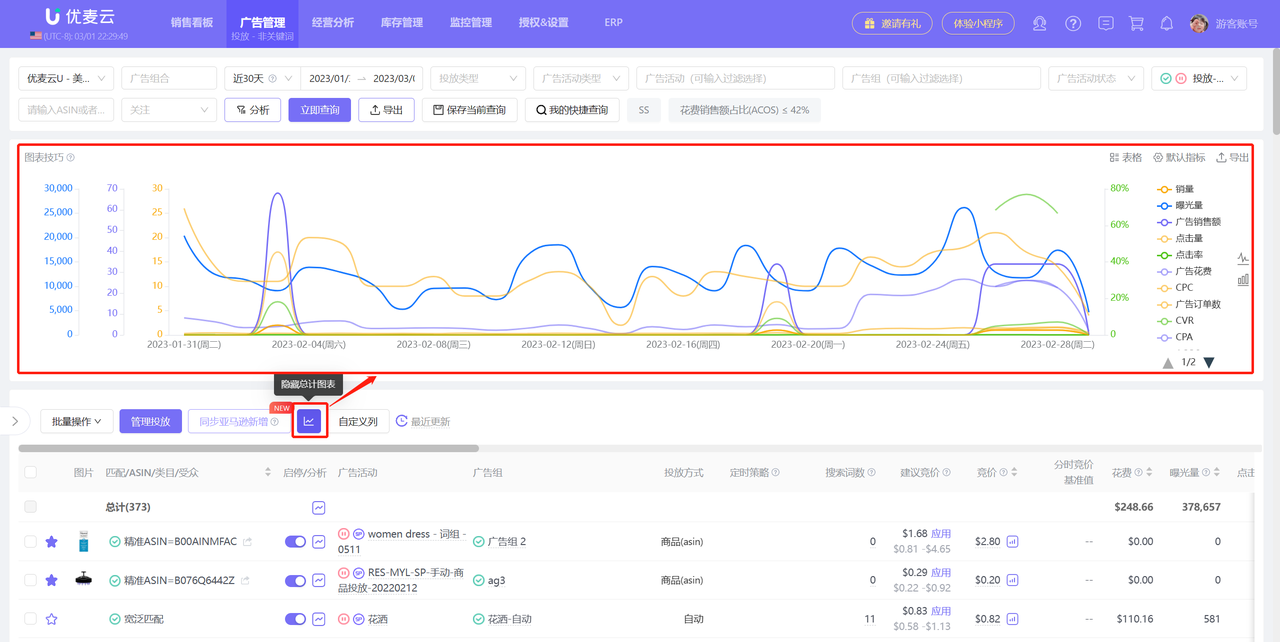
4. Click the line chart icon to hide or show the total chart
 +
+
III. Specific Usage Methods are as follows:
3.1 Viewing and Analyzing Product Targeting Ads
3.1.1 Multi-Dimensional Filtering View
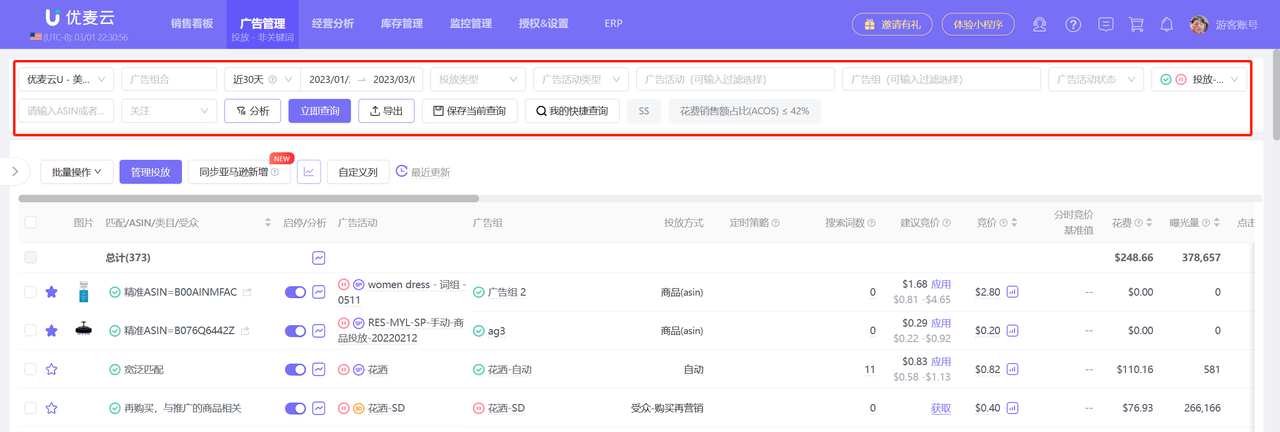
You can filter by: Ad Campaign, Ad Group, Ad Portfolio, Targeting Type, Targeting Status, Ad Campaign Status, etc., or enter ASIN or Category Name to search and view your product targeting data;
(Tips: Filter conditions: Ad Portfolio and Ad Campaign, support multiple selections.)
 +
+
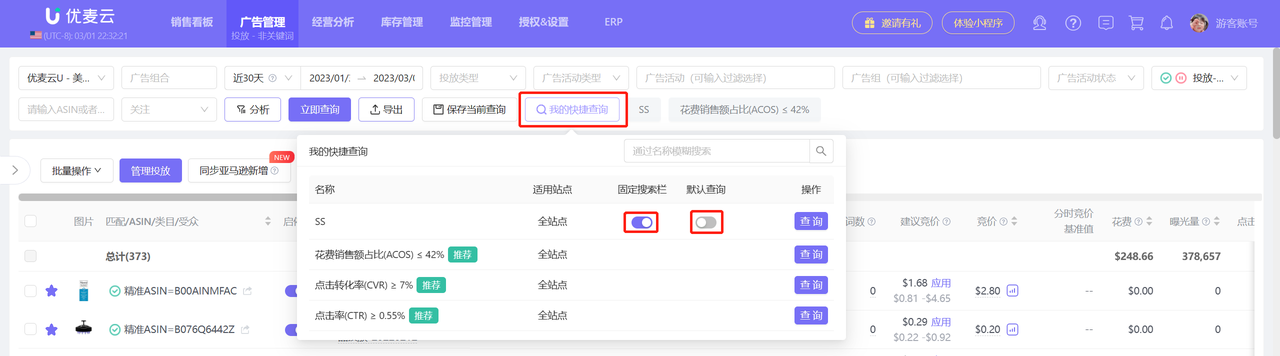
Tips: 1. Click "Save Current Query" to save the currently set query conditions in the search bar to My Quick Queries
 +
+
2. In "My Quick Queries", you can pin your quick query conditions to the search bar, and you can also set the quick query conditions as the default query. After that, every time you enter the ad campaign page, it will automatically display with the set query conditions
 +
+
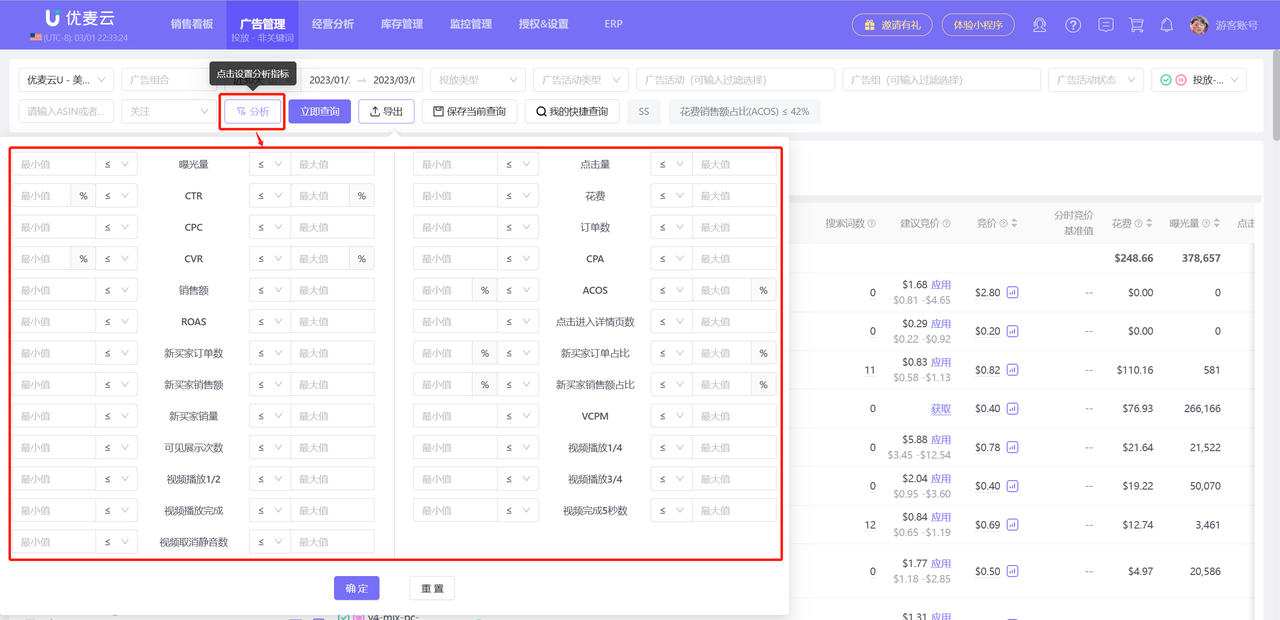
You can also click the small funnel button to filter and view the corresponding targeting ad data by entering ad targeting result conditions.
 +
+
3.1.2 Tree Navigation
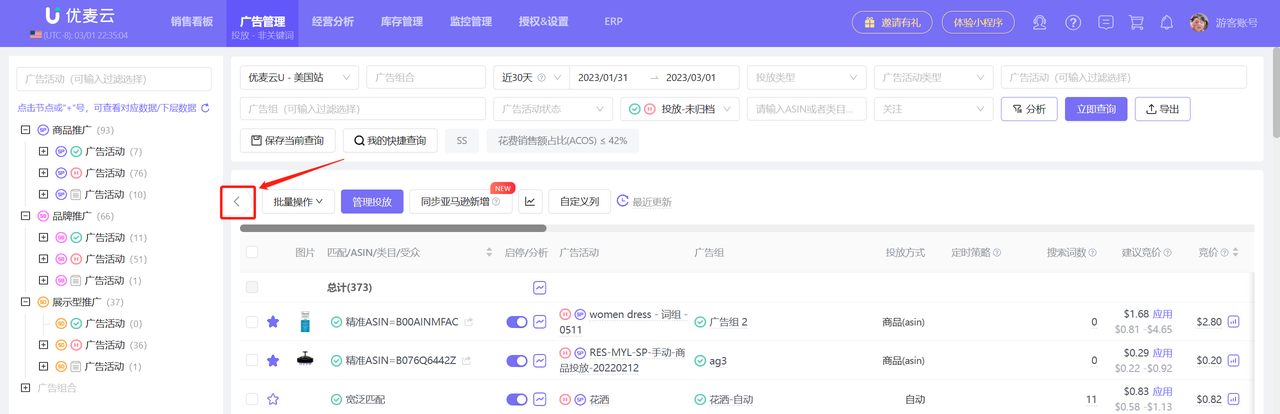
The new tree navigation feature is added, which fits the Amazon Seller Central ad display format, making the ad structure clear at a glance!
Click the button on the left to open or collapse the tree navigation feature;
 +
+
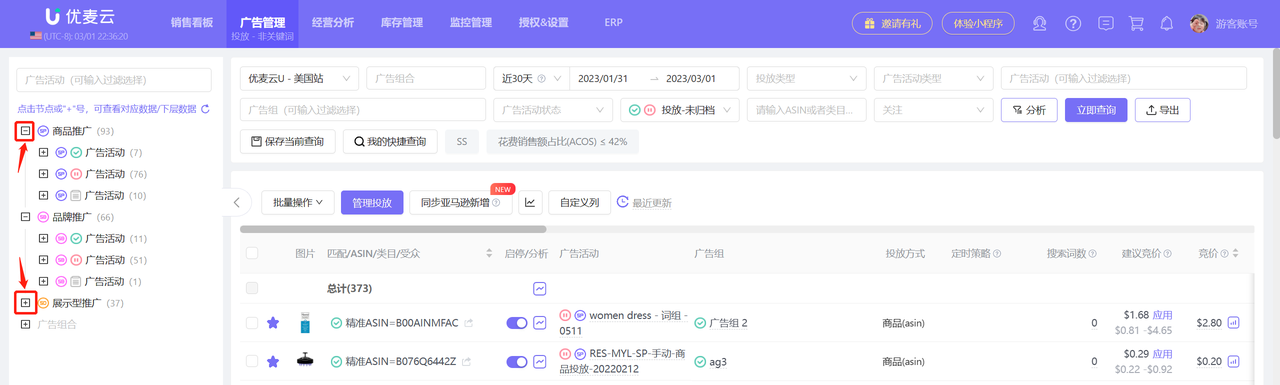
Click the small plus sign "+" to expand the next level of ad category and view the corresponding ad targeting data;
Click the small minus sign "-" to collapse the ad target.
 +
+
3.1.3 Customize Columns
You can select the metric data displayed on the page and set the sorting of data display to more intuitively compare and analyze ad performance.
 +
+
3.2 Managing Product Targeting Ads
We support direct management of your product targeting ads, and data adjustments are synchronized to Amazon Seller Central in real-time.
Supported management operations include: adding to watchlist; enabling/pausing product targeting; viewing historical trend data; clicking to jump to view corresponding ad campaign/ad group details; viewing and adjusting bound Scheduled Strategies; adjusting bids.
3.2.1 Add to Watchlist
You can specifically focus on certain product targeting ads. After adding to the watchlist, these product targeting ads will be displayed at the top by default.
 +
+
3.2.2 Individually Enable/Pause Product Targeting Ads
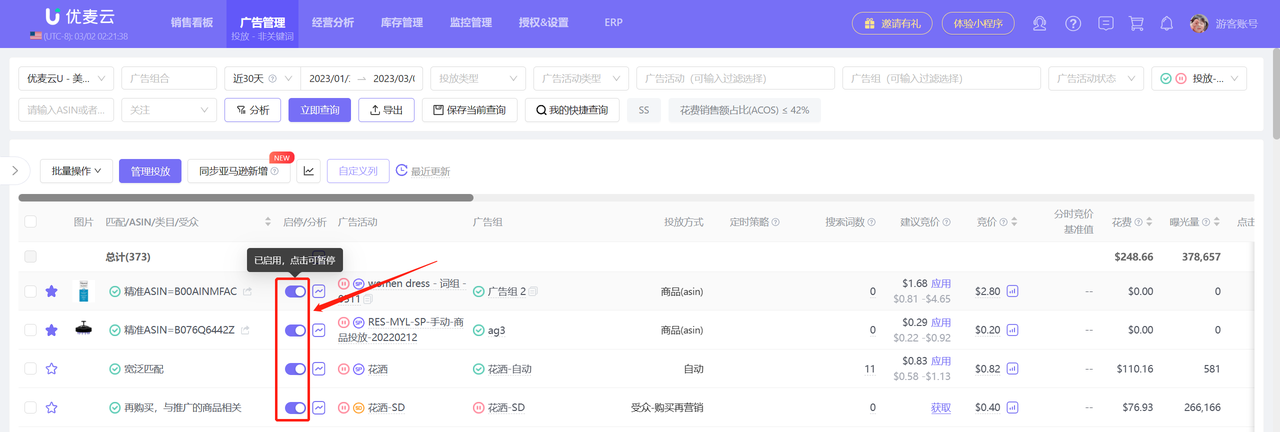 +
+
3.2.3 View Historical Trends
Click the "Historical Trends" button to view the historical trend data of the ad targeting for this product;
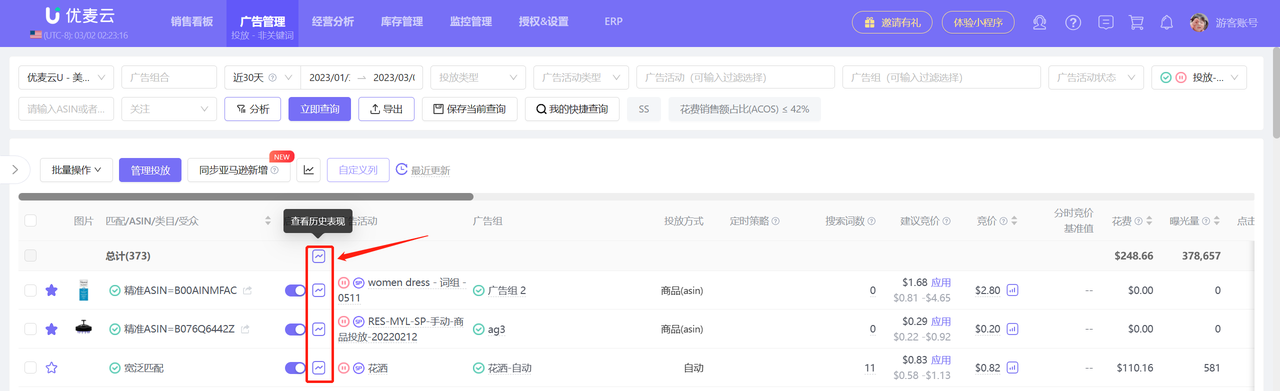 +
+
You can customize the time range to view data for a specific time period
Select the data display method (Table / Graph)
Click the metrics on the right to also select and view certain metric data individually
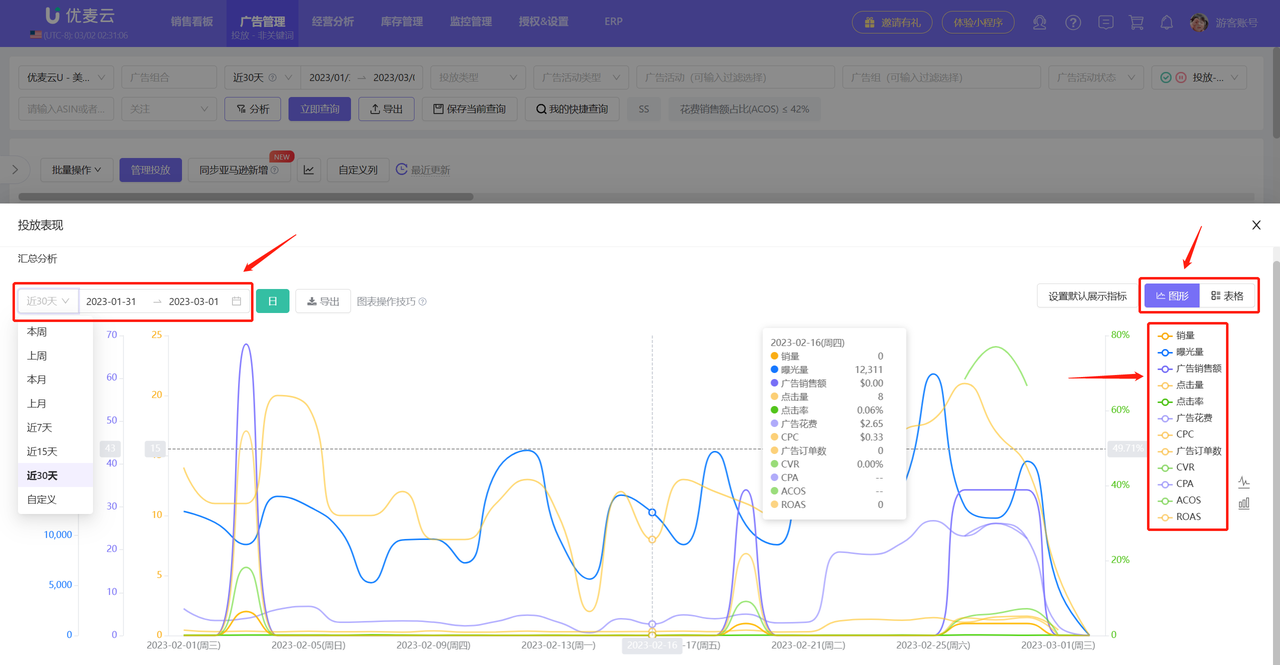 +
+
Click [Set Default Display Metrics] in the upper right corner to set the default display metric data for the historical trends of all ad management features;
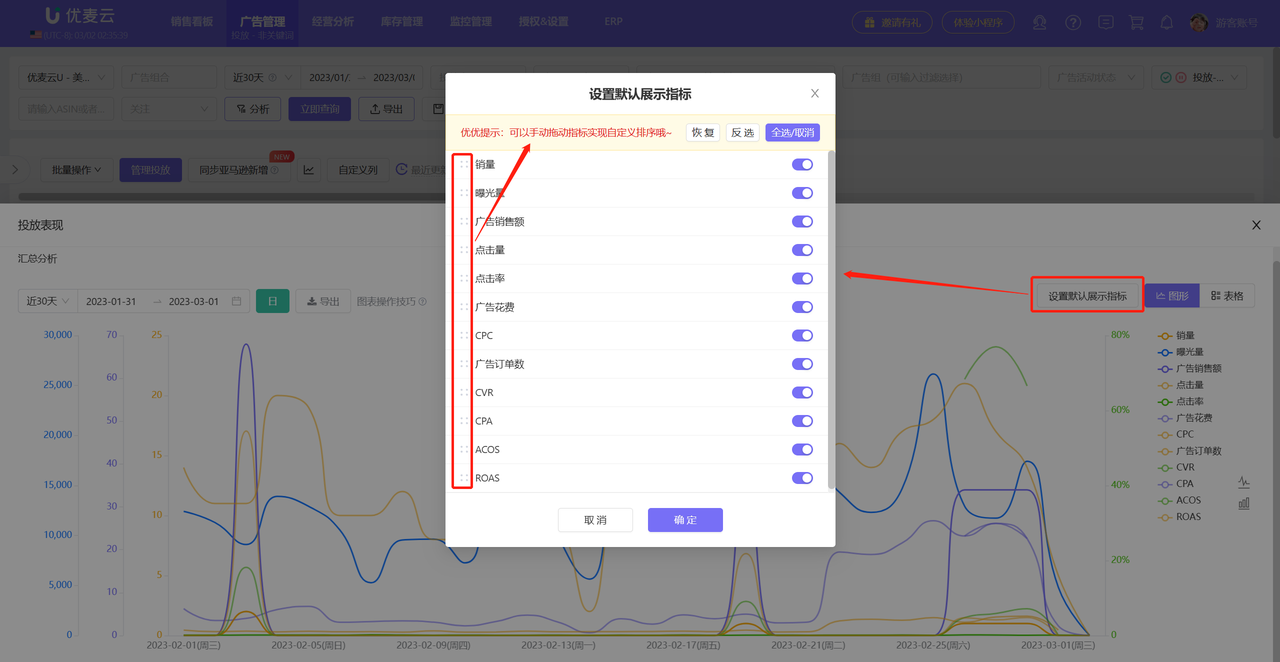 +
+
At the same time, historical trend data supports export. The exported data is in Excel spreadsheet format, which is convenient for further organization and analysis;
 +
+
3.2.4 View Ad Group / Ad Campaign Details
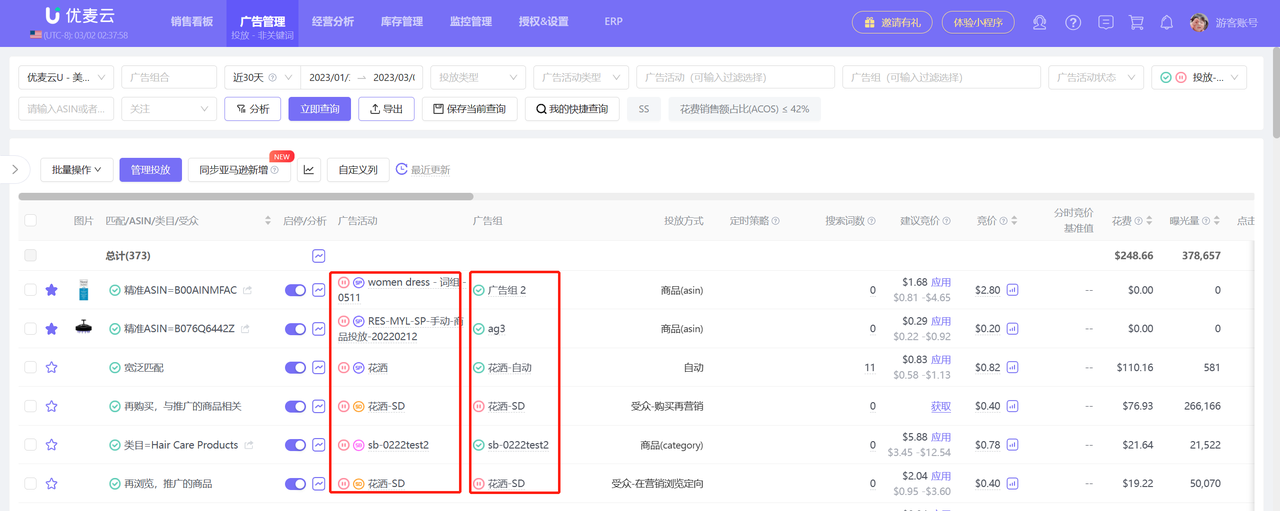
Click the Ad Group / Ad Campaign name to enter and view the corresponding ad targeting details data.
 +
+
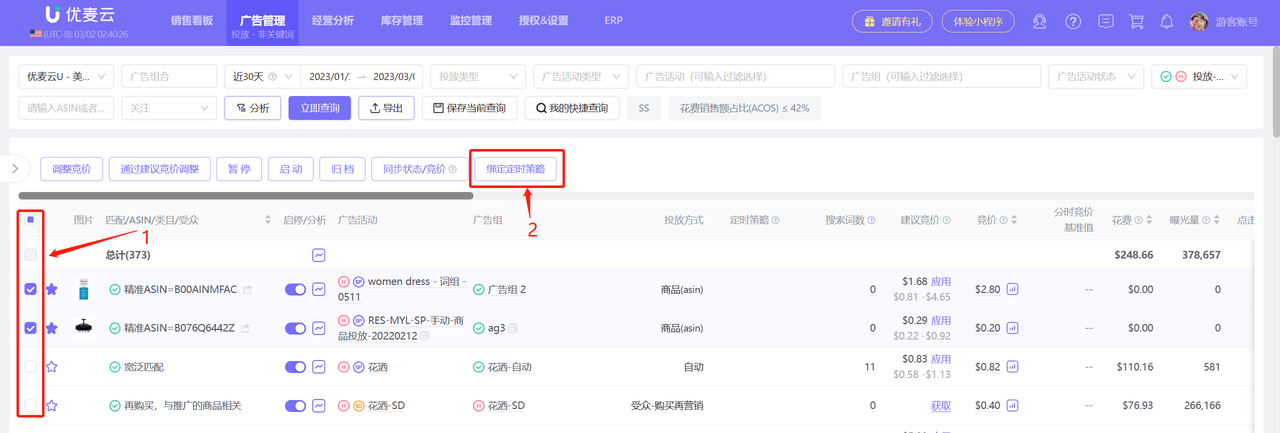
3.2.5 Scheduled Strategies (Click the title to view detailed operation introduction)
Each Targeting - Non-Keyword supports adding Scheduled Strategies for targeted advertising.
 +
+
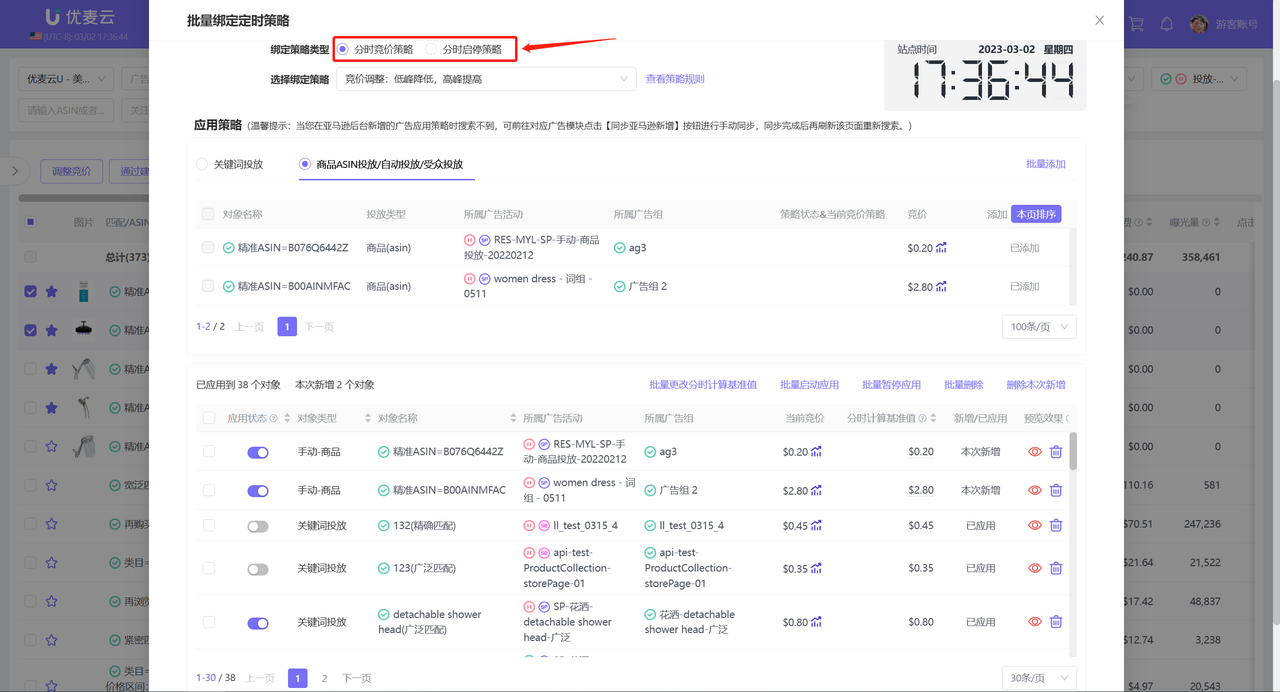
Targeting - Keywords can add strategies: Hourly Bid Strategy, Scheduled Enable/Pause Strategy.
 +
+
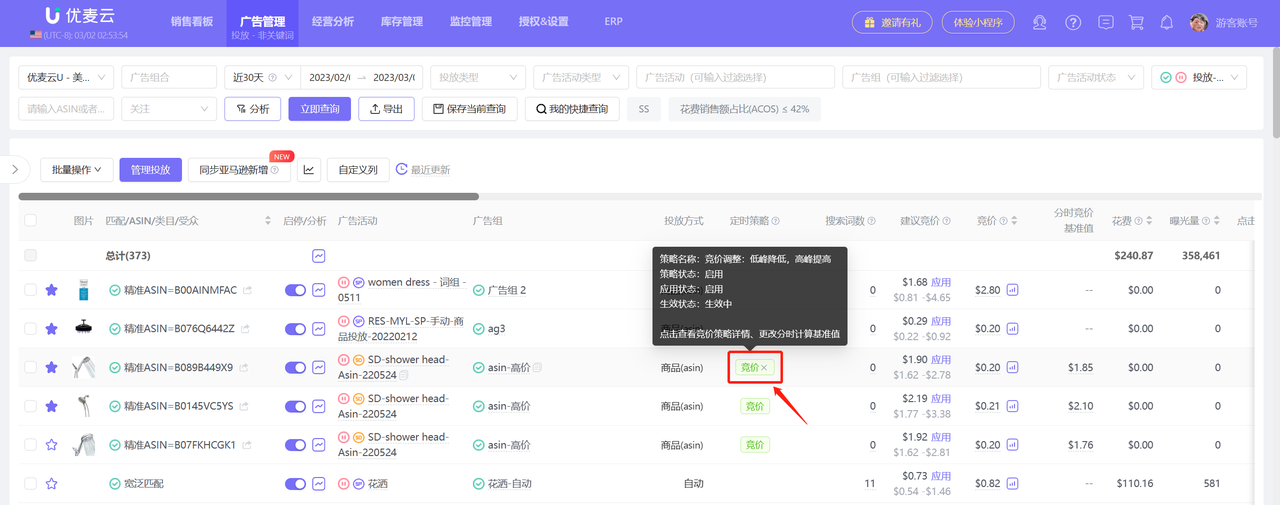
You can also directly view the Scheduled Strategies and details that are already bound to Targeting - Keywords, and adjust the enabling/pausing and binding of strategies.
Hover the mouse over the corresponding Scheduled Strategy name to view the status details of the Scheduled Strategy;
 +
+
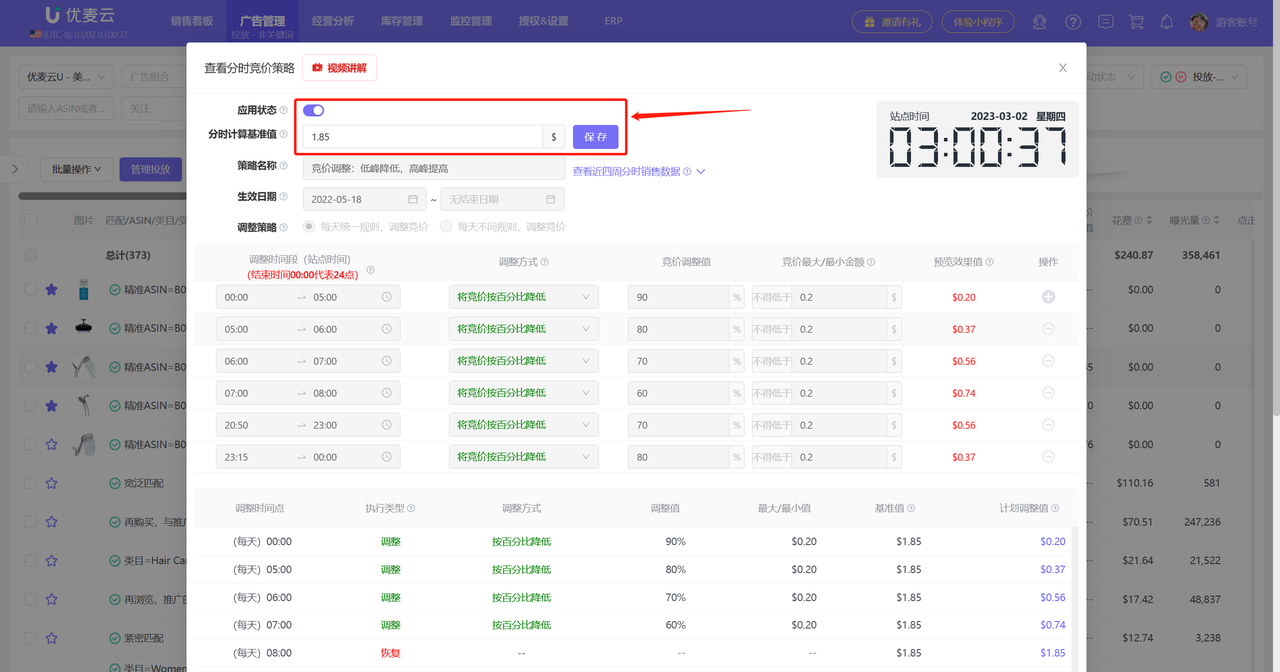
Click the strategy icon to also enter and view the strategy adjustment rules and details, adjust the enabling/pausing of the strategy, and change the hourly calculation baseline value;
 +
+
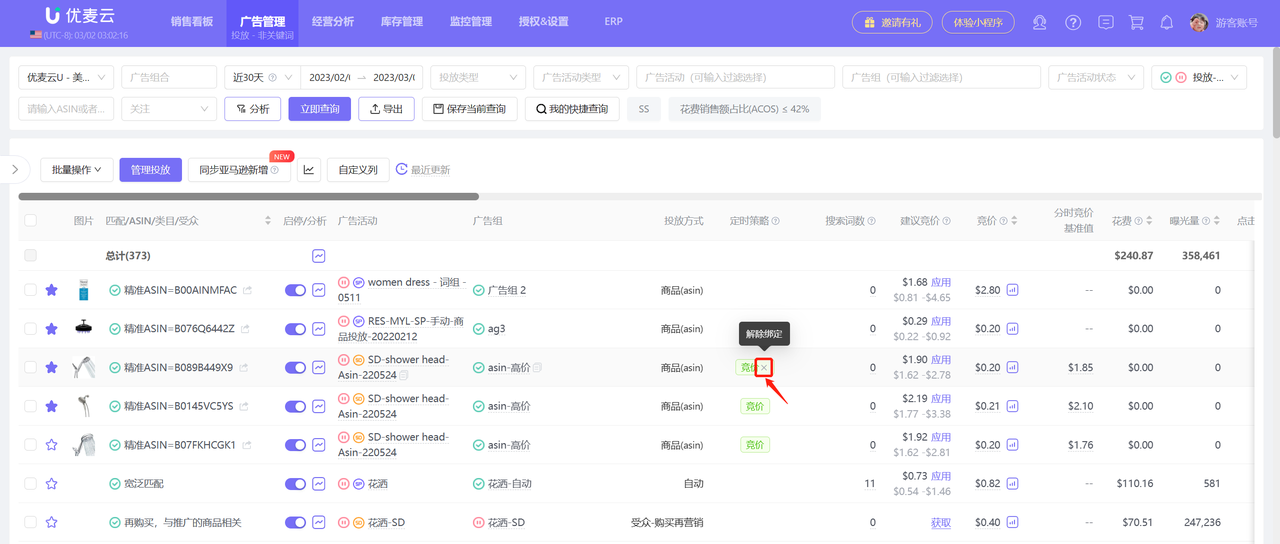
An ad can only be bound to one Scheduled Strategy of the same type at the same time. Click "×" next to the strategy icon to unbind the strategy of this type and re-bind a new strategy.
 +
+
3.2.6 Adjust Bid
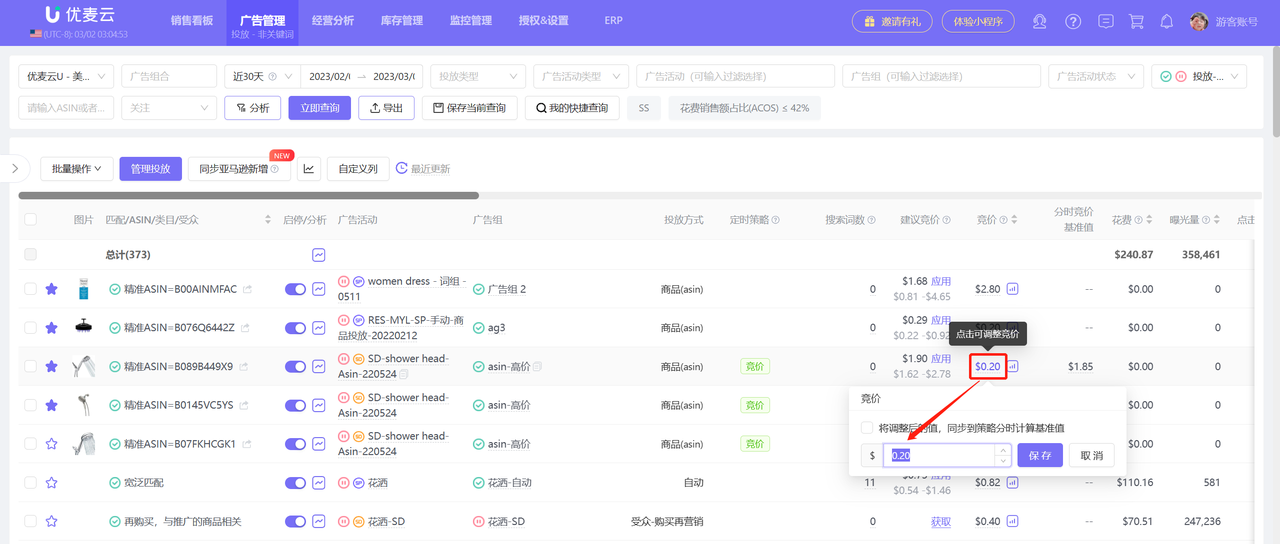
You can directly adjust the bid for product targeting ads in our backend, and the adjusted bid will be synchronized to Amazon Seller Central in real-time;
If the product targeting ad has a Scheduled Strategy applied, you can choose to modify the corresponding hourly calculation baseline value at the same time;
Click the bid to directly adjust the ad bid for the product targeting;
 +
+
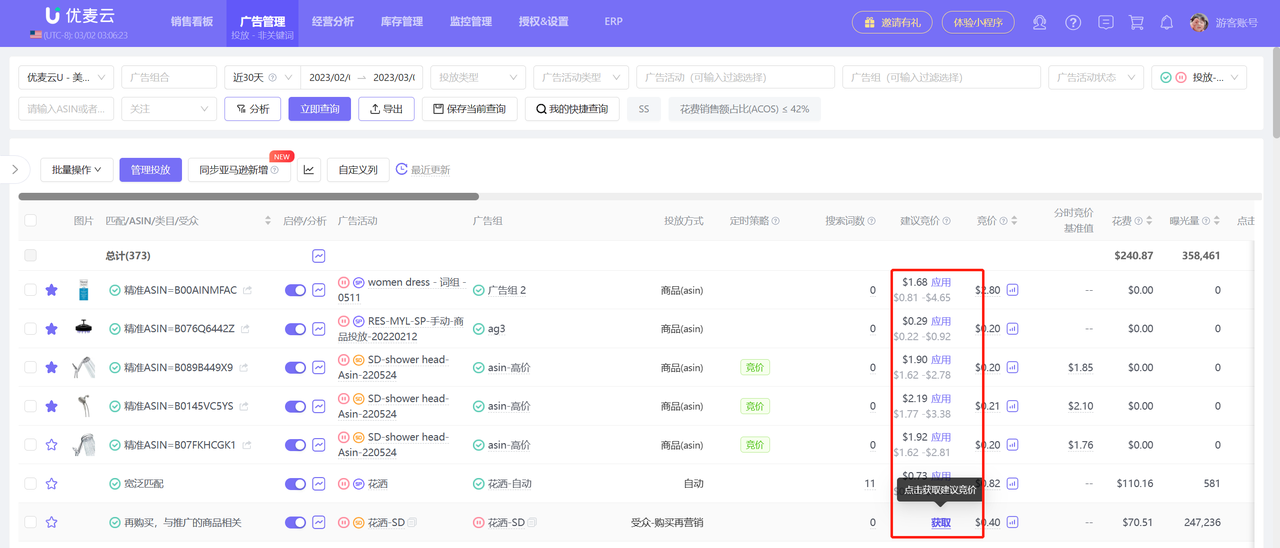
When adjusting the bid, it supports one-click access to Amazon's suggested bid for the keyword to provide a reference for your bid adjustment.
 +
+
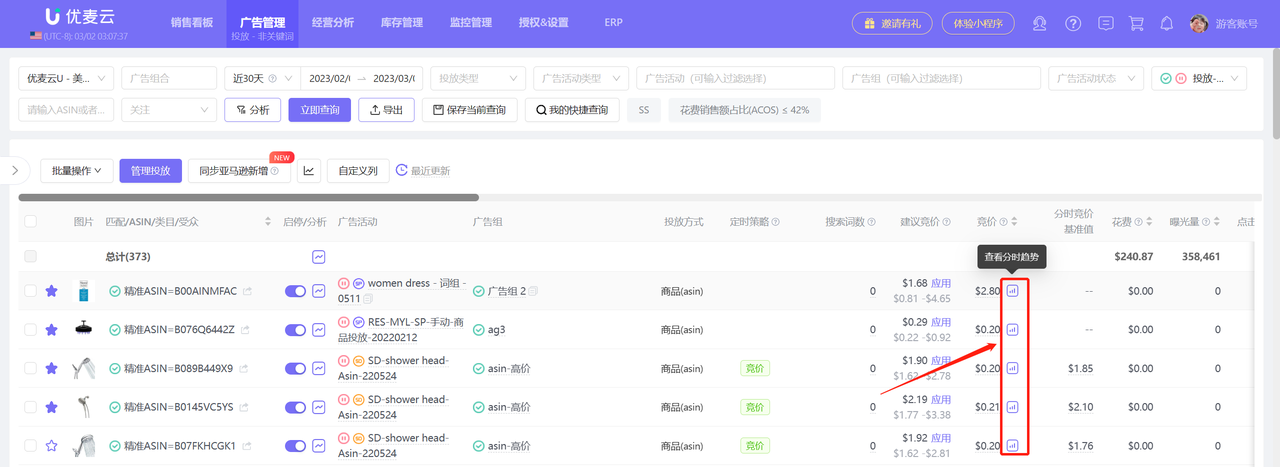
3.2.7 Targeting - Hourly Targeting Trend
We support viewing the hourly targeting trend data of product targeting ads for the last 15 days to help you analyze the ad performance of product targeting and make optimizations in a timely manner;
Click the hourly trend button to enter and view.
 +
+
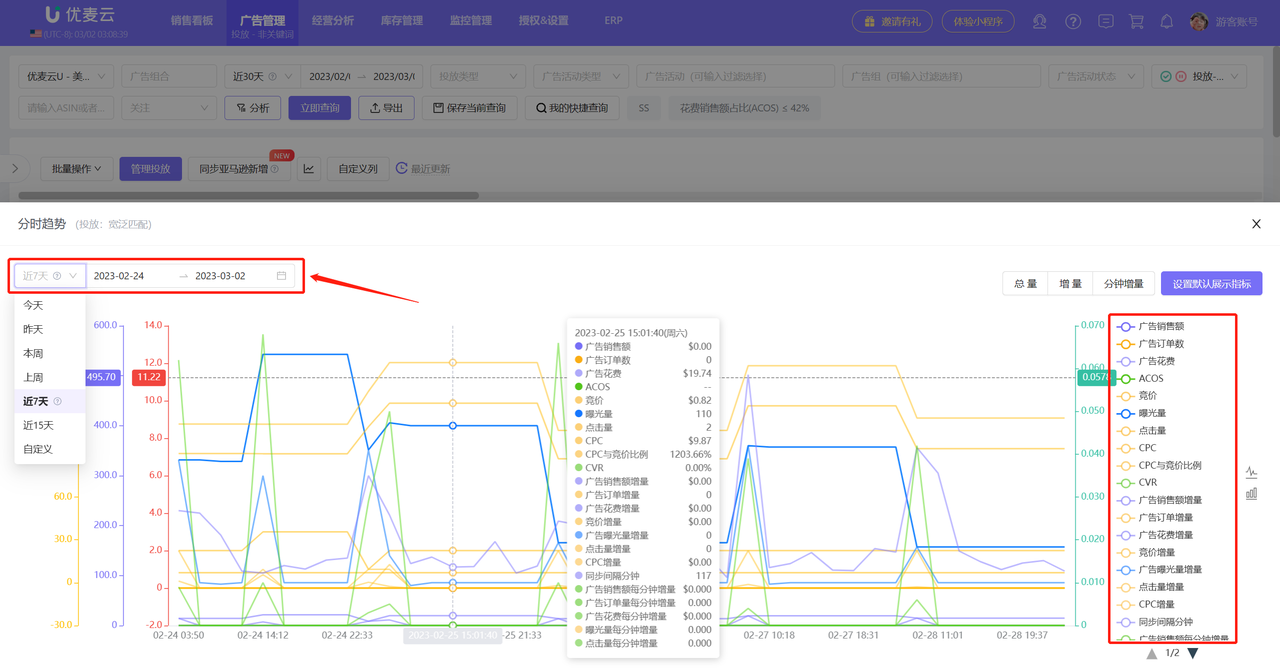
You can select a time to view (last 15 days);
Click the metrics on the right to select and view some metrics;
Slide the slider below to also select a finer time period to view the corresponding hourly data;
 +
+
Tips: Hourly trends can be viewed separately for total trend, incremental trend, and minute incremental trend. You can judge the actual traffic peak period and conversion peak period of non-keywords based on the incremental trend and minute incremental trend.
 +
+
3.3 Batch Operations
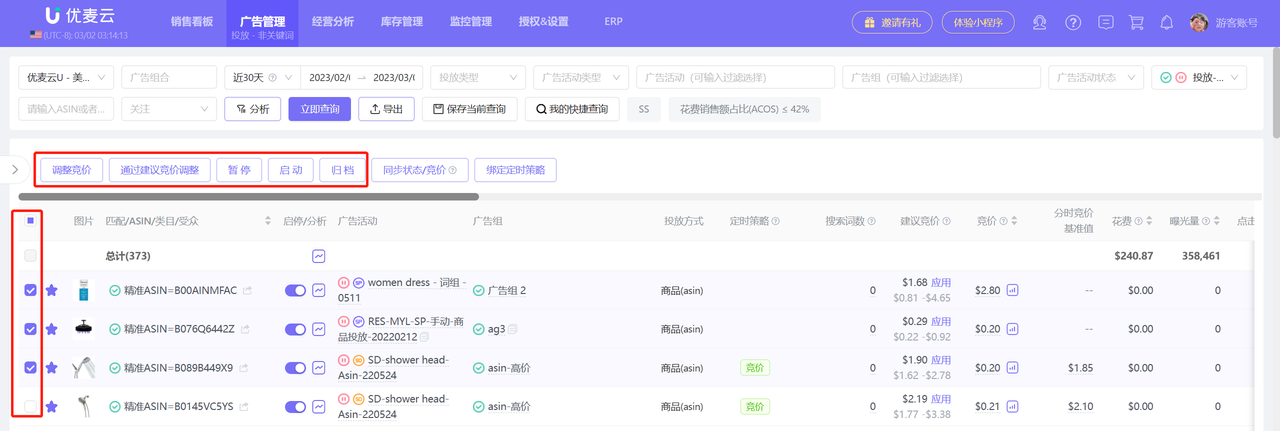
You can batch adjust bids, apply suggested bids, enable, pause, or archive keywords for product targeting ads.
When you adjust keyword bids, enable/pause, or archive in Amazon Seller Central, it may take about 1 day for us to synchronize.
At this time, you can choose to manually [Sync Status/Bid] to timely synchronize the adjustments made in Amazon Seller Central.
On the left side of the search results page, batch select the keywords that need to be operated, click the [Batch Operations] button, select the corresponding operation, and enter the settings.
 +
+
3.4 Add New Product Targeting
We support directly adding new product targeting, and the added data is synchronized to Amazon Seller Central in real-time.
You can use the [Manage Product Targeting] feature to add product targeting for new ad groups. At the same time, you can also directly add negative product targeting for the ad group;
The setting method is slightly different depending on the selected ad campaign targeting strategy (Automatic Targeting / Manual Targeting).
The specific operation steps are as follows:
3.4.1 Automatic Targeting
Under the automatic targeting strategy, you can directly add negative product targeting for the automatic targeting ad group.
1) Select the corresponding Ad Campaign + Ad Group
Match by entering name keywords, or directly select the corresponding automatic targeting ad campaign and ad group from the drop-down box;
 +
+
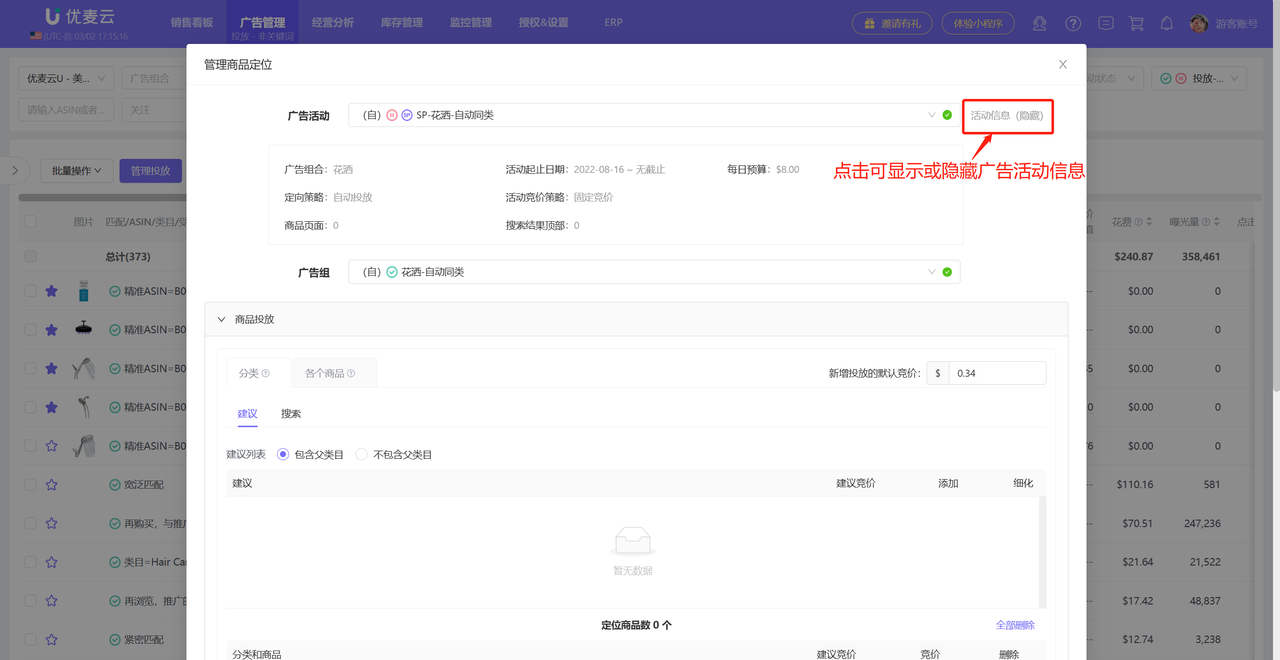
Click the view button on the right to directly view the specific targeting details of the ad campaign and ad group, helping you better optimize your ads.
 +
+
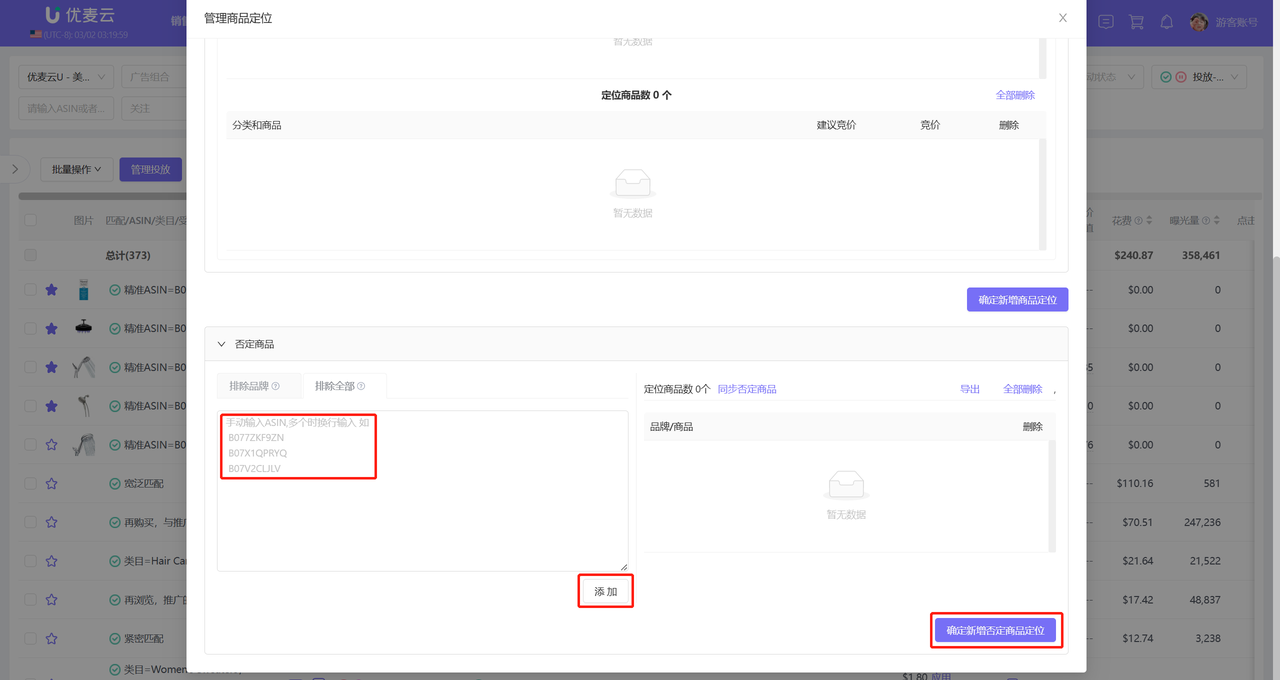
2) Add Negative Product Targeting
Add negative product targeting by batch inputting product ASINs. After adding negatives, Amazon will not target your ads to the detail pages of these ASINs.
 +
+
3.4.2 Manual Targeting - Product Targeting
Under the manual targeting strategy, you can add new product targeting ads by obtaining Amazon's recommended targeting for related products; or directly enter related ASINs to add corresponding product targeting ads.
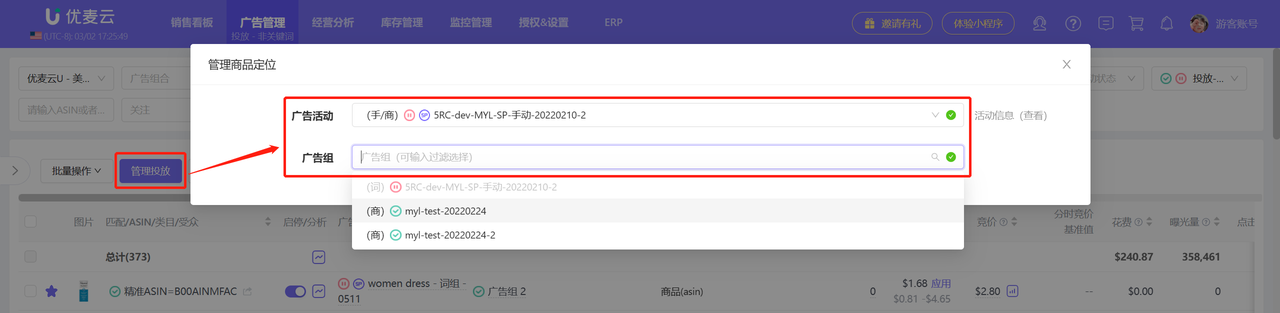
1) Select the corresponding Ad Campaign + Ad Group
Match by entering name keywords, or directly select the corresponding automatic targeting ad campaign and ad group from the drop-down box;
 +
+
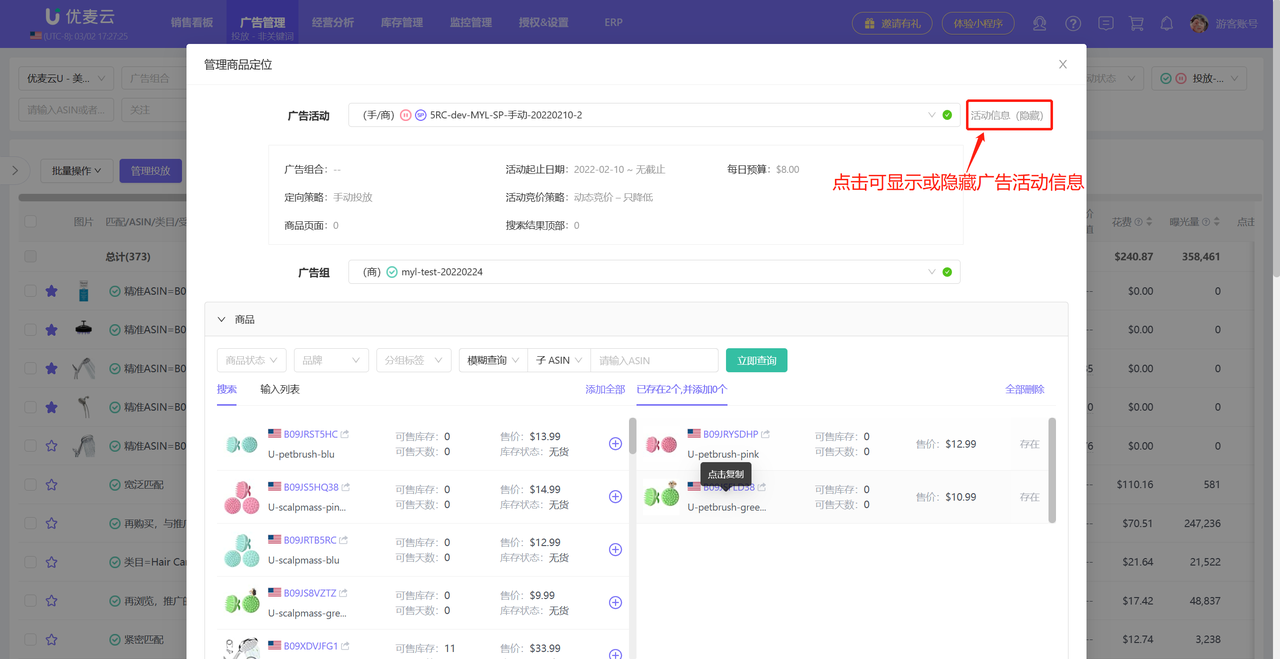
Click the view button on the right to directly view the specific targeting details of the ad campaign and ad group, helping you better optimize your ads.
 +
+
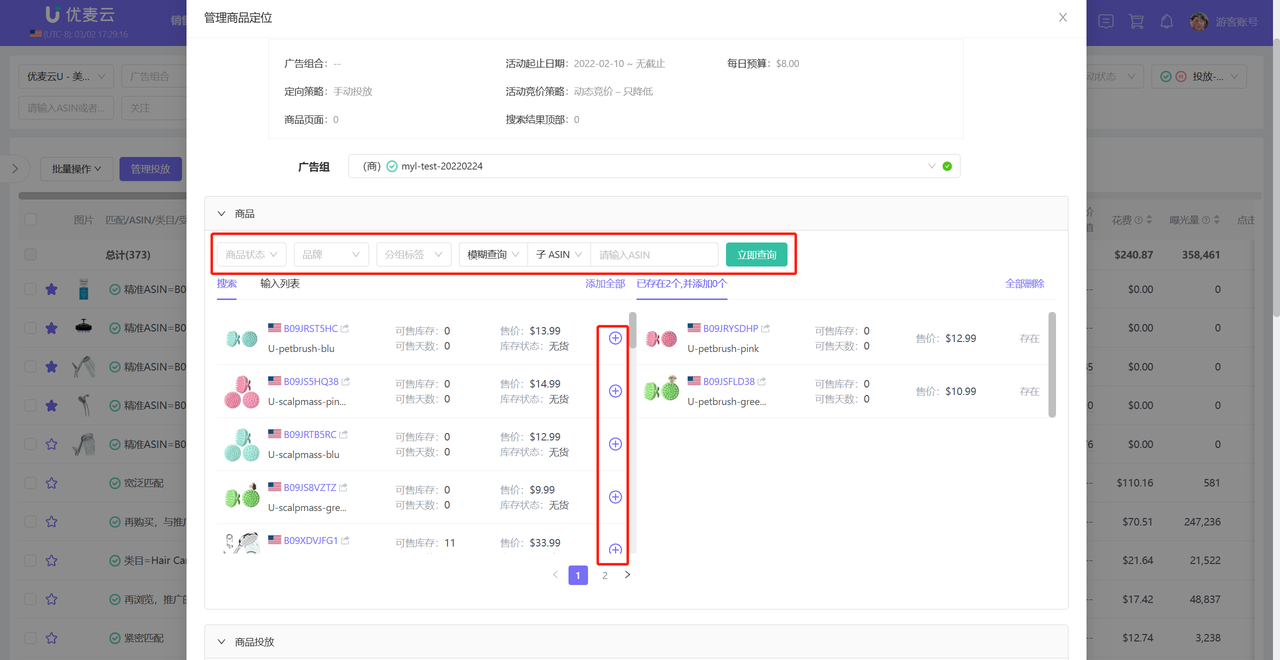
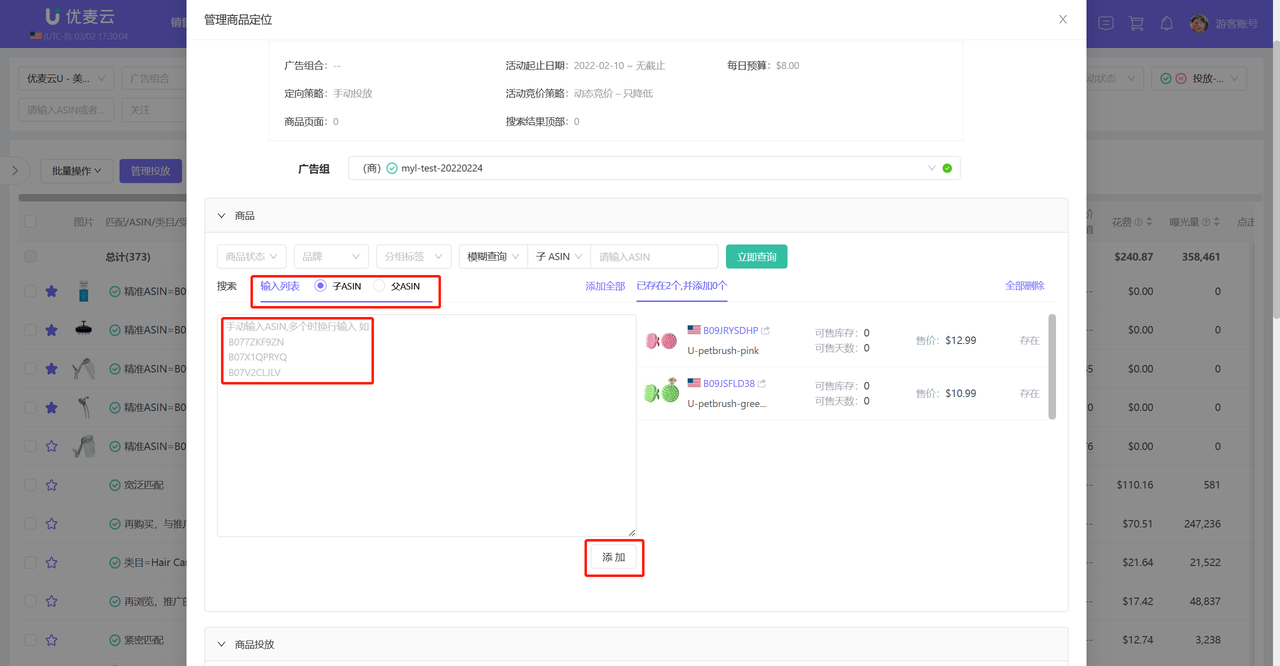
2) Add Store-Related Products to Get Amazon Recommended Categories and Related ASINs
You can search or manually batch input store products to obtain their related Amazon recommended categories and related ASINs, providing references for your product targeting settings.
(Note: The operation here is only to obtain Amazon-related recommended targeting and will not actually add new promoted products.)
Search and add store products to get Amazon-related recommendations:
 +
+
Batch input ASINs to add store products to get Amazon-related recommendations:
 +
+
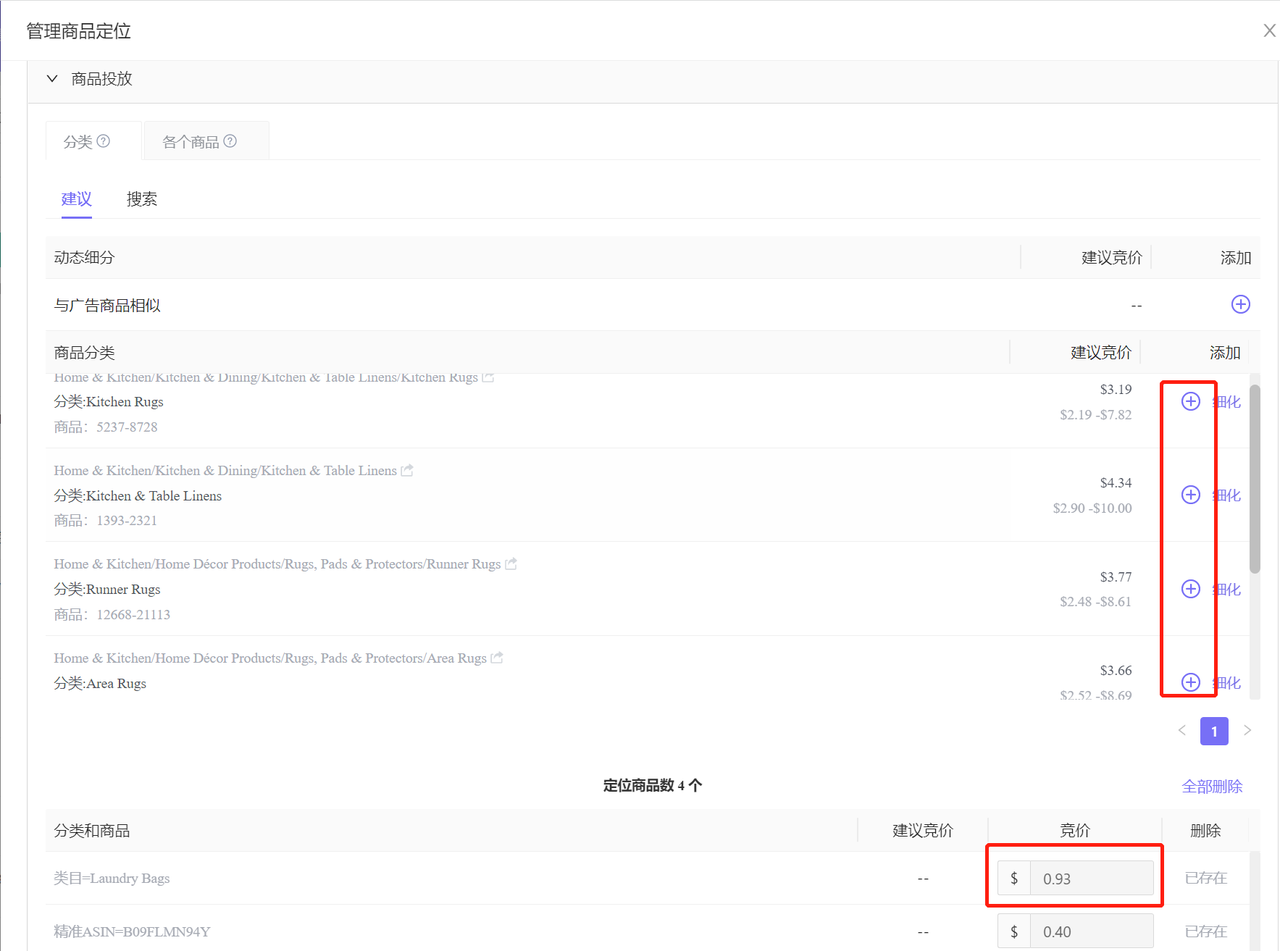
3) Add New Product Targeting: Category Targeting, ASIN Targeting
Category Targeting: You can choose to add Amazon recommended categories and set their ad bids at the same time;
 +
+
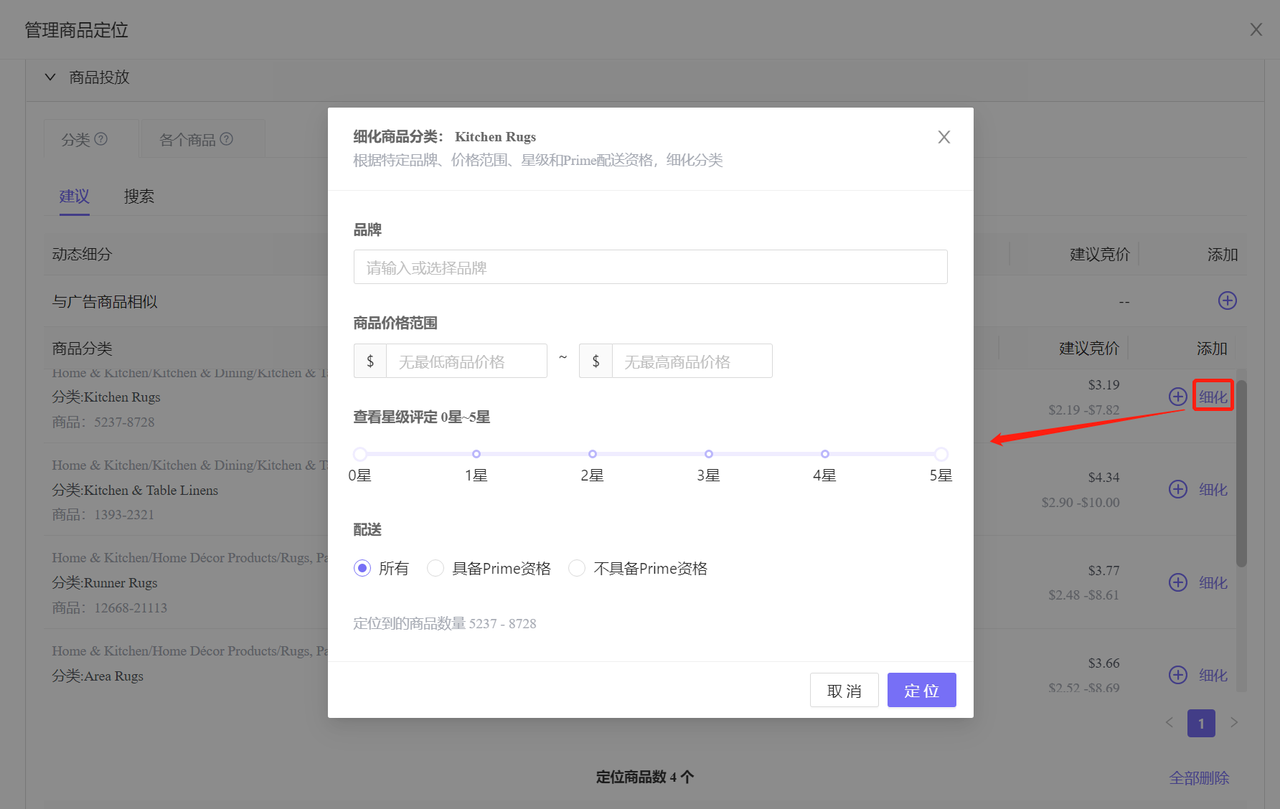
Or click [Refine] to select other finer categories through restriction conditions, and set their ad bids at the same time for category targeting;
 +
+
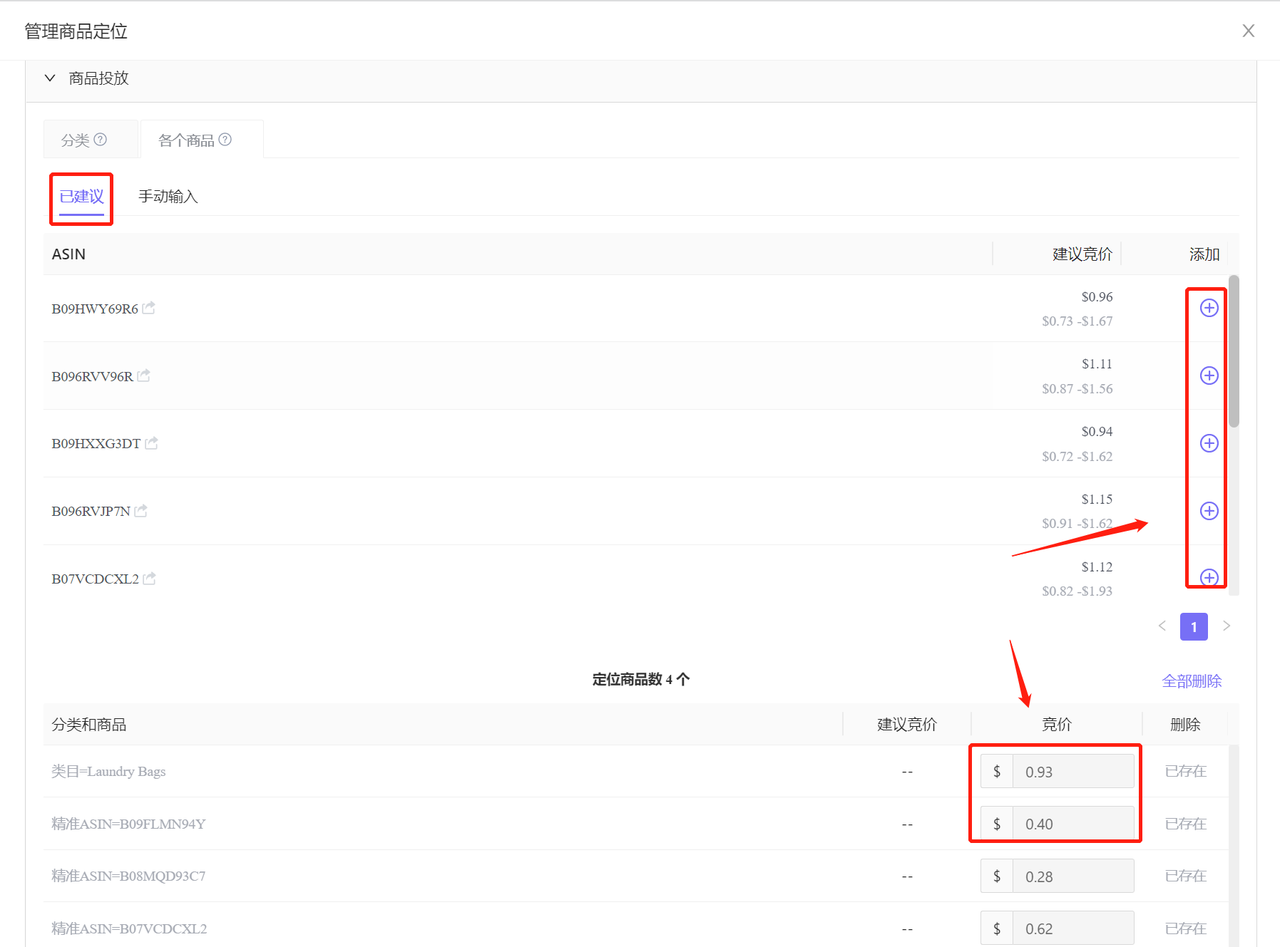
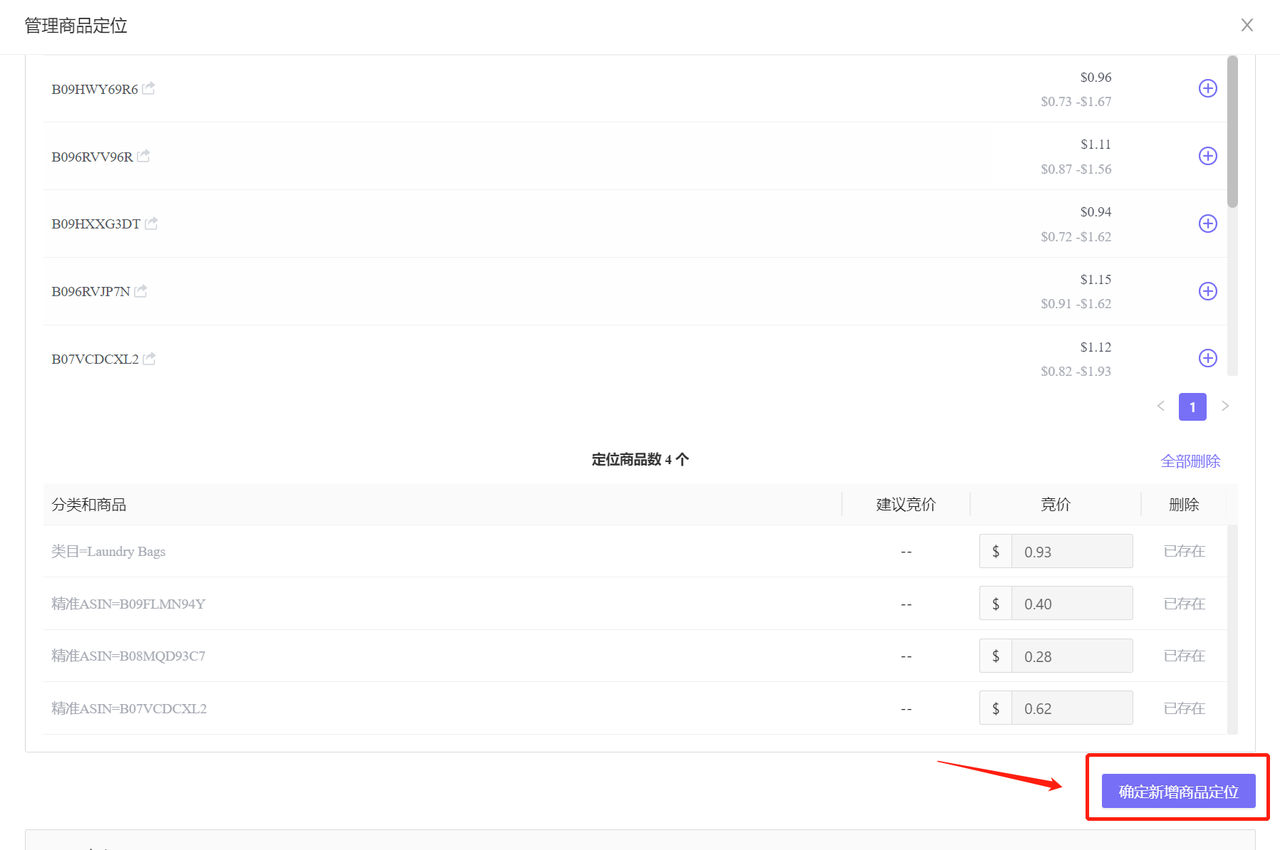
ASIN Targeting: You can also click [Individual Products] to add Amazon recommended related ASINs, or manually batch input competitor ASINs, directly add corresponding related ASINs, and set ad bids separately for ASIN targeting.
 +
+
After making your selections, click [Confirm Add Product Targeting] to complete the addition.
 +
+
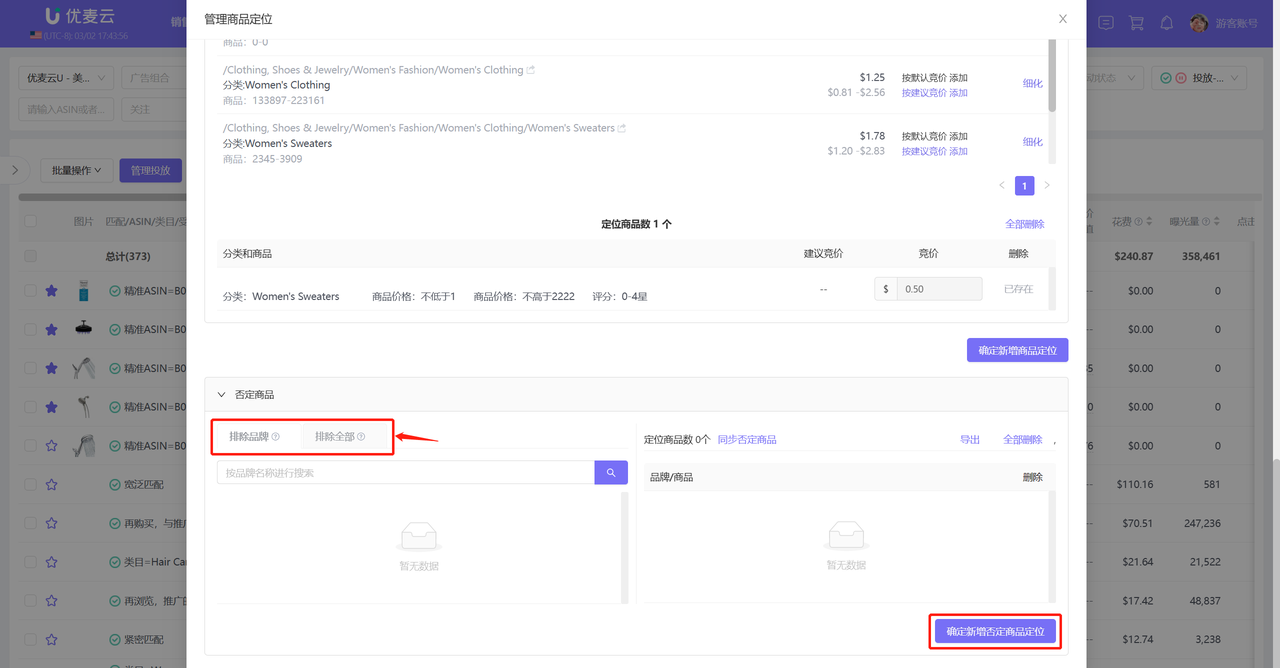
4) Add Negative Targeting
At the same time, you can search for brands or manually enter competitor ASINs to add negative products. After adding negatives, Amazon will not target your ads to your set negative products.
 +
+
